Samsung Galaxy Tab S10 FE 5G
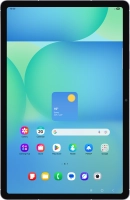




Turning use of PIN on or off
The PIN protects your SIM from unauthorised use if your tablet should get stolen. If use of PIN is turned on, it needs to be keyed in when you turn on your tablet.


Slide two fingers downwards starting from the top of the screen.


Press the settings icon.


Press Security and privacy.


Press More security settings.


Press SIM card security.


If an incorrect PIN is entered three times in a row, your SIM will be blocked. To unblock your SIM, you'll need to key in your PUK. The PUK can be obtained by contacting customer services. Please note: If you key in the wrong PUK ten times in a row, your SIM will be blocked permanently. In this case, you need a new SIM from EE.
Press the indicator next to "Lock SIM card" to turn the function on or off.


If an incorrect PIN is entered three times in a row, your SIM will be blocked. To unblock your SIM, you'll need to key in your PUK. The PUK can be obtained by contacting customer services. Please note: If you key in the wrong PUK ten times in a row, your SIM will be blocked permanently. In this case, you need a new SIM from EE. If an incorrect PIN is entered three times in a row, your SIM will be blocked. To unblock your SIM, you'll need to key in your PUK. The PUK can be obtained by contacting customer services. Please note: If you key in the wrong PUK ten times in a row, your SIM will be blocked permanently. In this case, you need a new SIM from EE.
Key in your PIN and press OK. The default PIN is 1111.
Press the Home key to return to the home screen.