Help
Device guides
Samsung
Galaxy Tab S10 FE 5G

Samsung Galaxy Tab S10 FE 5G
f-80354090-1ced-4092-9af2-ba99849b6082
f-ffeb9704-38fd-4403-ba3d-99f3adee2f4c
f-565b37ac-75ca-4ec1-b76e-bf06eb8c070a
f-570265c7-22a0-48ce-a3c1-3f1a8625b6a7
f-721d1abc-6aa7-48d0-b86f-c7c4c37af815
f-800b86c6-5ed1-40fb-b086-94736617bb2f
  • Device home
  • Getting started
  • Basic functions
  • Calls, contacts, messaging
  • Connectivity
  • Specifications
  • Device home
  • Getting started
  • Basic functions
  • Calls, contacts, messaging
  • Connectivity
  • Specifications

Cancelling all diverts

If you no longer wish to divert your calls, you need to cancel the diverts.

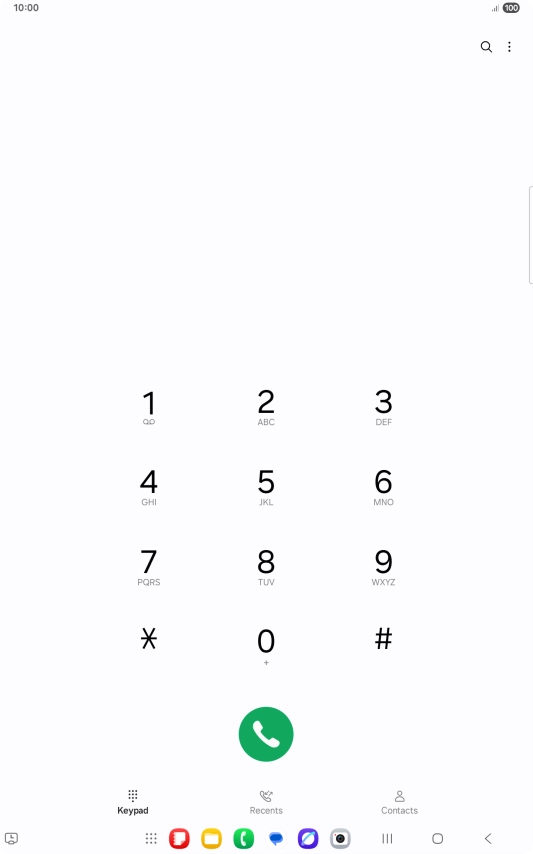
Press the call icon.
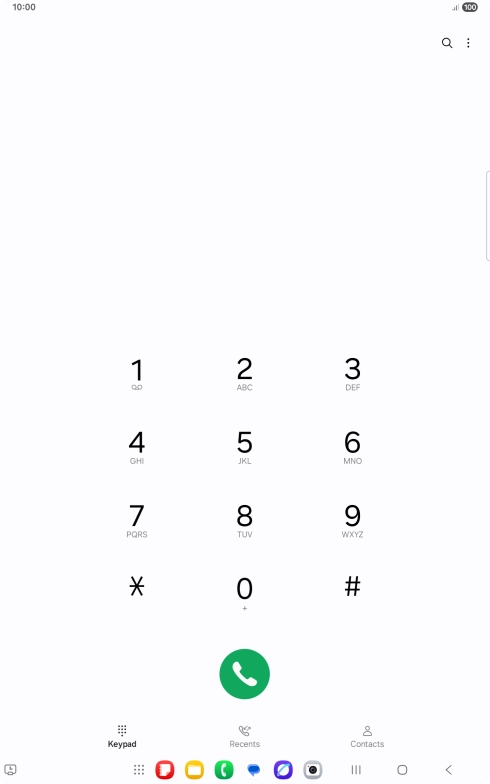
Step 1 of 8

Press the call icon.

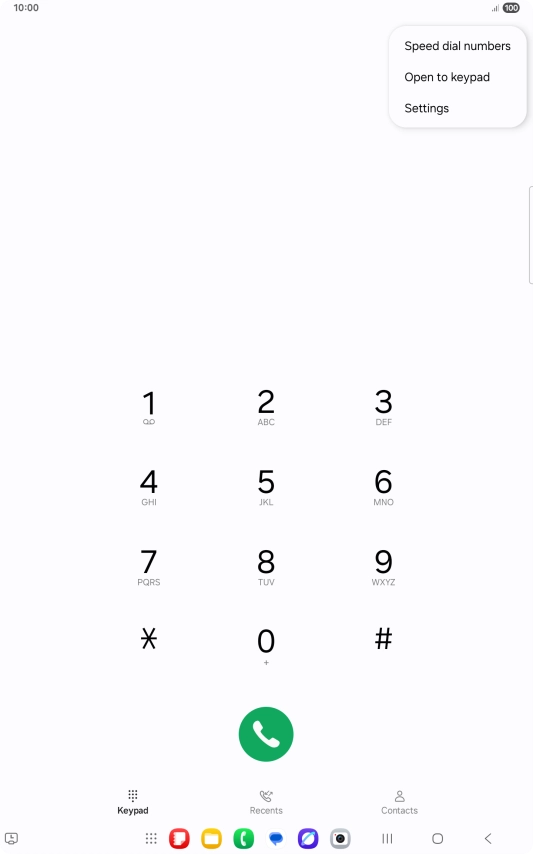
Press the menu icon.
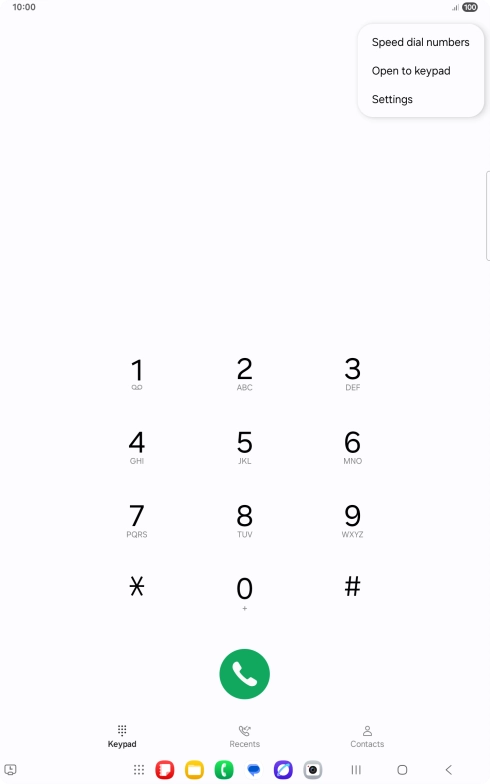
Step 2 of 8

Press the menu icon.

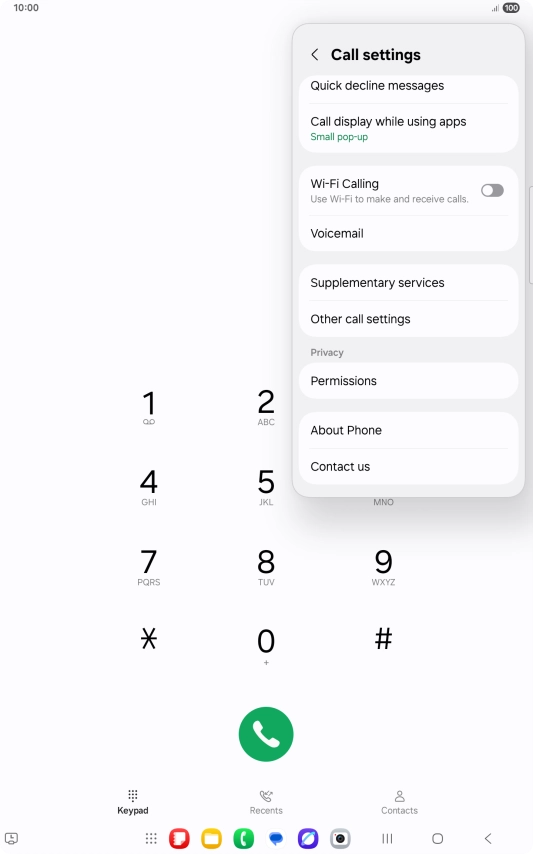
Press Settings.
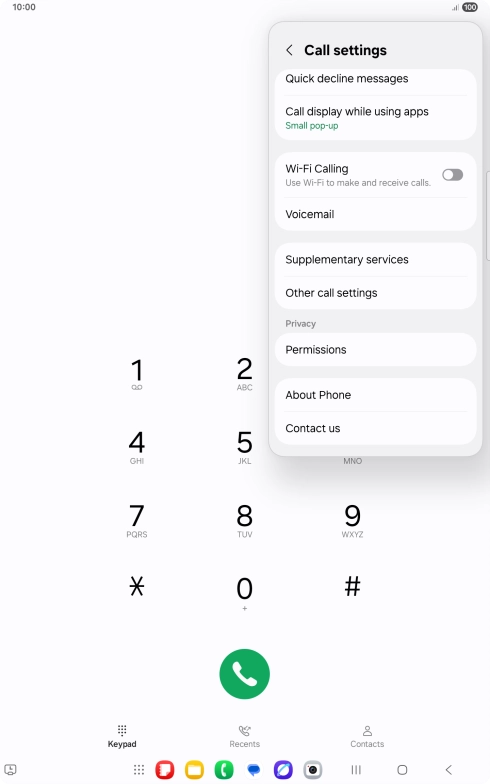
Press Settings.
Step 3 of 8

Press Settings.

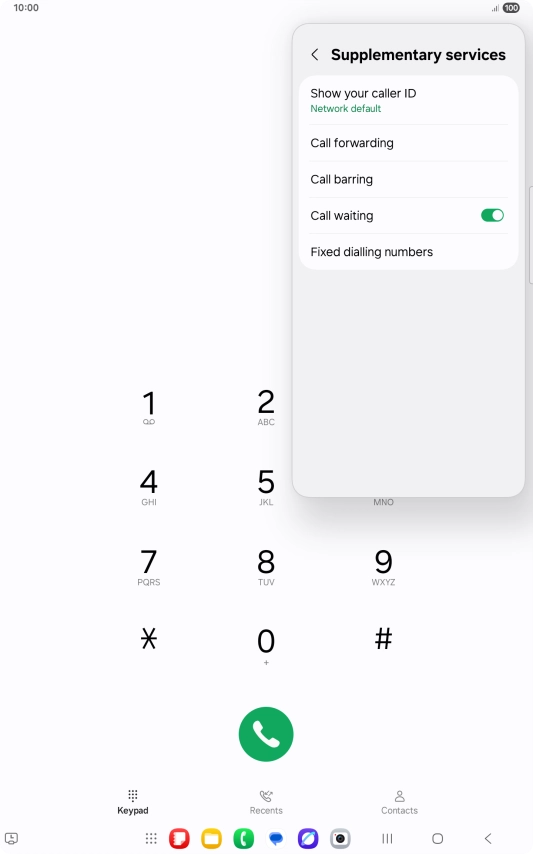
Press Supplementary services.
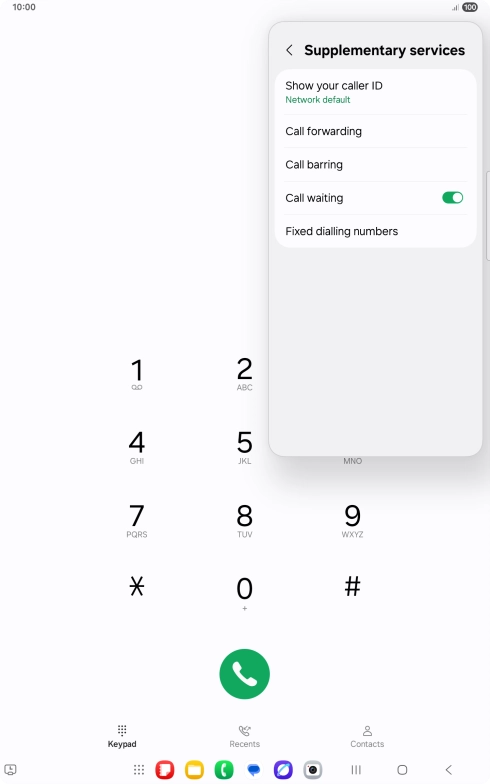
Step 4 of 8

Press Supplementary services.

Press Call forwarding.
Step 5 of 8

Press Call forwarding.

Press the required divert type.
Step 6 of 8

Press the required divert type.

Press Disable.
Press Disable.
Step 7 of 8

Press Disable.

Press the Home key to return to the home screen.
Step 8 of 8

Press the Home key to return to the home screen.

Get information on...

Or choose...

Show more