Help
Device guides
Samsung
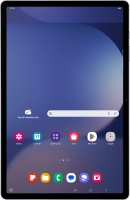
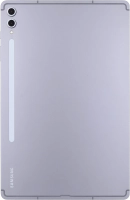
Galaxy Tab S10+

Samsung Galaxy Tab S10+
f-9ad7e571-1ac6-416b-8e1e-9db636be743f
f-ee352acc-c1f9-4de1-910d-42477bce2cb7
f-b933afb4-553a-44ac-b94a-4bd9ad4e676c
f-5d140bdd-c4af-469f-918d-c054a60e0d7c
f-fe97634b-a2bb-4fdb-aca3-cd6a4626a146
f-9d439810-508f-4dd0-aa7e-de2bae0f86cf
f-60ee6158-04f1-48ad-af2b-d77c4769e737
f-0b9c2334-b449-4ef1-9e2a-53dd1c321d63
  • Device home
  • Getting started
  • Basic functions
  • Calls, contacts, messaging
  • Connectivity
  • Specifications
  • Device home
  • Getting started
  • Basic functions
  • Calls, contacts, messaging
  • Connectivity
  • Specifications

Cancelling all diverts

If you no longer wish to divert your calls, you need to cancel the diverts.

Press the call icon.
Step 1 of 8

Press the call icon.

Press the menu icon.
Step 2 of 8

Press the menu icon.

Press Settings.
Press Settings.
Step 3 of 8

Press Settings.

Press Supplementary services.
Step 4 of 8

Press Supplementary services.

Press Call forwarding.
Step 5 of 8

Press Call forwarding.

Press the required divert type.
Step 6 of 8

Press the required divert type.

Press Disable.
Press Disable.
Step 7 of 8

Press Disable.

Press the Home key to return to the home screen.
Step 8 of 8

Press the Home key to return to the home screen.

Get information on...

Or choose...

Show more