Help
Device guides
Samsung
Galaxy Tab S10+

Samsung Galaxy Tab S10+
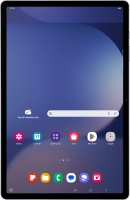
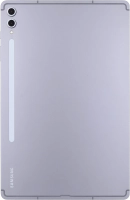
f-9ad7e571-1ac6-416b-8e1e-9db636be743f
f-ee352acc-c1f9-4de1-910d-42477bce2cb7
f-b933afb4-553a-44ac-b94a-4bd9ad4e676c
f-5d140bdd-c4af-469f-918d-c054a60e0d7c
f-fe97634b-a2bb-4fdb-aca3-cd6a4626a146
f-9d439810-508f-4dd0-aa7e-de2bae0f86cf
f-60ee6158-04f1-48ad-af2b-d77c4769e737
f-0b9c2334-b449-4ef1-9e2a-53dd1c321d63
  • Device home
  • Getting started
  • Basic functions
  • Calls, contacts, messaging
  • Connectivity
  • Specifications
  • Device home
  • Getting started
  • Basic functions
  • Calls, contacts, messaging
  • Connectivity
  • Specifications

Inserting SIM

A SIM enables you to use mobile network services such as voice calls, text messaging and mobile data.

Find the opener for the card holder. Insert the opener into the small hole in the card holder.
Step 1 of 4

Find the opener for the card holder. Insert the opener into the small hole in the card holder.

Remove the card holder from your tablet.
Step 2 of 4

Remove the card holder from your tablet.

Turn your SIM as illustrated in the SIM holder and place it in the SIM holder.
Step 3 of 4

Turn your SIM as illustrated in the SIM holder and place it in the SIM holder.

Please note that your tablet only supports nano SIMs.
Slide the card holder into your tablet.
Step 4 of 4

Slide the card holder into your tablet.

Get information on...

Or choose...

Show more