Help
Device guides
Samsung
Galaxy Tab S10+

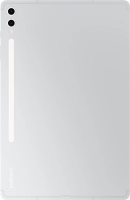
Samsung Galaxy Tab S10+
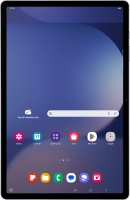
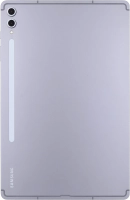
f-9ad7e571-1ac6-416b-8e1e-9db636be743f
f-ee352acc-c1f9-4de1-910d-42477bce2cb7
f-b933afb4-553a-44ac-b94a-4bd9ad4e676c
f-5d140bdd-c4af-469f-918d-c054a60e0d7c
f-fe97634b-a2bb-4fdb-aca3-cd6a4626a146
f-9d439810-508f-4dd0-aa7e-de2bae0f86cf
f-60ee6158-04f1-48ad-af2b-d77c4769e737
f-0b9c2334-b449-4ef1-9e2a-53dd1c321d63
  • Device home
  • Getting started
  • Basic functions
  • Calls, contacts, messaging
  • Connectivity
  • Specifications
  • Device home
  • Getting started
  • Basic functions
  • Calls, contacts, messaging
  • Connectivity
  • Specifications

It's not possible to turn on my tablet

Solution 2 of 3: Your tablet isn't turned on correctly

See how to turn your tablet on and off. To use mobile network services on your tablet, you need to insert your SIM into your tablet.

Press and hold the Side key until your tablet is turned on.
Step 1 of 5

Press and hold the Side key until your tablet is turned on.

If you're asked to key in your PIN, do so and press OK. The default PIN is 1111.
1111
If you're asked to key in your PIN, do so and press OK. The default PIN is 1111.
1111
Step 2 of 5

If you're asked to key in your PIN, do so and press OK. The default PIN is 1111.

Simultaneously, press and hold the Side key and the lower part of the Volume key.
Step 3 of 5

Simultaneously, press and hold the Side key and the lower part of the Volume key.

Press Power off.
Press Power off.
Step 4 of 5

Press Power off.

Press Power off.
Press Power off.
Step 5 of 5

Press Power off.


Did this solve your problem?

Yes No

Get information on...

Or choose...

Show more