Help
Device guides
Samsung
Galaxy Tab S10 Ultra

Samsung Galaxy Tab S10 Ultra
f-3523e271-733c-4ee7-82a5-34607f05ad9d
f-d7286afe-52c3-4479-9d83-c17368791e4c
f-93c1a2fd-b67e-4b3a-99d2-db4a9d65713e
f-b28609f1-c877-4652-b287-5ff7eead2f65
f-61a8ef15-087c-4dcc-9889-45d00c8ae33c
f-94d6c16d-6b13-4662-84d6-9a4c7b412435
f-3d3bf339-1435-44a6-9f92-94b638f7ac8e
f-1d449163-102c-46aa-84a5-3469b54a5604
  • Device home
  • Getting started
  • Basic functions
  • Calls, contacts, messaging
  • Connectivity
  • Specifications
  • Device home
  • Getting started
  • Basic functions
  • Calls, contacts, messaging
  • Connectivity
  • Specifications

Uninstalling apps

You can uninstall apps to free up memory.

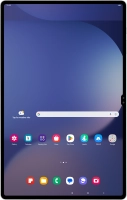
Slide your finger upwards on the screen.
Step 1 of 9

Slide your finger upwards on the screen.

Press Play Store.
Press Play Store.
Step 2 of 9

Press Play Store.

Press the profile icon.
Step 3 of 9

Press the profile icon.

Press Manage apps and device.
Step 4 of 9

Press Manage apps and device.

Press Manage.
Press Manage.
Step 5 of 9

Press Manage.

Press the required app.
Step 6 of 9

Press the required app.

Press Uninstall.
Press Uninstall.
Step 7 of 9

Press Uninstall.

Press Uninstall.
Press Uninstall.
Step 8 of 9

Press Uninstall.

Press the Home key to return to the home screen.
Step 9 of 9

Press the Home key to return to the home screen.

Get information on...

Or choose...

Show more