Help
Device guides
Samsung
Galaxy Tab S8

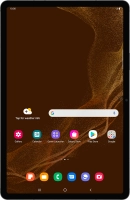
Samsung Galaxy Tab S8
f-4d15d13f-16ba-4447-9dad-43d8c52856d5
f-e8522ef1-d170-4f47-bf18-614090f9fb41
f-b40749b5-0d77-4a67-8022-4f308e9d0990
f-5d192278-30e2-4dd6-8cad-2c480a9b1ddf
f-cd81dd3f-a7c8-4413-ab8d-55911dd2e378
f-70ecbd5f-e987-4408-86bf-6d035786d1c8
  • Device home
  • Getting started
  • Basic functions
  • Calls, contacts, messaging
  • Connectivity
  • Specifications
  • Device home
  • Getting started
  • Basic functions
  • Calls, contacts, messaging
  • Connectivity
  • Specifications

Uninstalling apps

You can uninstall apps to free up memory.

Slide your finger upwards on the screen.
Step 1 of 9

Slide your finger upwards on the screen.

Press Play Store.
Press Play Store.
Step 2 of 9

Press Play Store.

Slide your finger right starting from the left side of the screen.
Step 3 of 9

Slide your finger right starting from the left side of the screen.

Press Manage apps and device.
Step 4 of 9

Press Manage apps and device.

Press Manage.
Press Manage.
Step 5 of 9

Press Manage.

Press the required app.
Step 6 of 9

Press the required app.

Press Uninstall.
Press Uninstall.
Step 7 of 9

Press Uninstall.

Press Uninstall.
Press Uninstall.
Step 8 of 9

Press Uninstall.

Press the Home key to return to the home screen.
Step 9 of 9

Press the Home key to return to the home screen.

Get information on...

Or choose...

Show more