Help
Device guides
Samsung
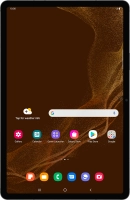
Galaxy Tab S8

Samsung Galaxy Tab S8
f-4d15d13f-16ba-4447-9dad-43d8c52856d5
f-e8522ef1-d170-4f47-bf18-614090f9fb41
f-b40749b5-0d77-4a67-8022-4f308e9d0990
f-5d192278-30e2-4dd6-8cad-2c480a9b1ddf
f-cd81dd3f-a7c8-4413-ab8d-55911dd2e378
f-70ecbd5f-e987-4408-86bf-6d035786d1c8
  • Device home
  • Getting started
  • Basic functions
  • Calls, contacts, messaging
  • Connectivity
  • Specifications
  • Device home
  • Getting started
  • Basic functions
  • Calls, contacts, messaging
  • Connectivity
  • Specifications

It's not possible to turn on my tablet

Solution 2 of 3: The battery is flat

You should charge the tablet battery regularly to ensure that your tablet is always ready for use.

Connect the charger to the socket and to a wall socket.
Step 1 of 3

Connect the charger to the socket and to a wall socket.

When the battery charging icon is displayed, charging is in progress.
Step 2 of 3

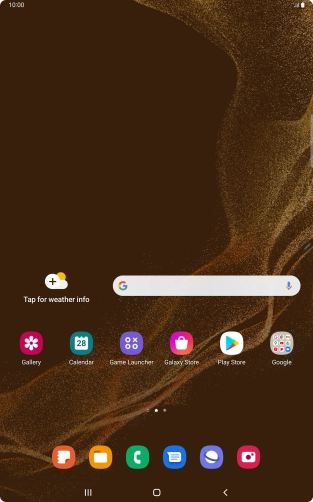
When the battery charging icon is displayed, charging is in progress.

When your tablet is turned on, you can always see the battery power level. The larger the coloured section of the battery icon, the more remaining battery power.
Step 3 of 3

When your tablet is turned on, you can always see the battery power level. The larger the coloured section of the battery icon, the more remaining battery power.


Did this solve your problem?

Yes No

Get information on...

Or choose...

Show more