Help
Device guides
Samsung
Galaxy Tab S9 FE 5G

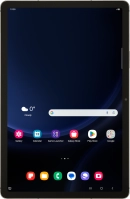
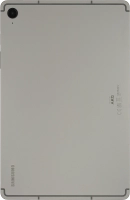
Samsung Galaxy Tab S9 FE 5G
f-99de96aa-6eb6-46c6-bc10-11c7639cee4b
f-5bd7fedc-beb8-442b-ba20-b947f7d3ea52
f-dca2de0b-9c2d-41ac-92a7-acf02e0248c8
f-197be1de-e98d-463b-a1e4-d98ee19813b6
f-eaf3bd65-535e-4815-9656-873d1cec1fe1
f-c8ff9bc6-f897-4963-9d94-66fb853d34fc
f-59cc4fda-5ce2-4ba5-b11f-01278fab81d2
f-ff6e2859-5cd3-4ab1-93ea-af54a524e5ef
  • Device home
  • Getting started
  • Basic functions
  • Calls, contacts, messaging
  • Connectivity
  • Specifications
  • Device home
  • Getting started
  • Basic functions
  • Calls, contacts, messaging
  • Connectivity
  • Specifications

Uninstalling apps

You can uninstall apps to free up memory.

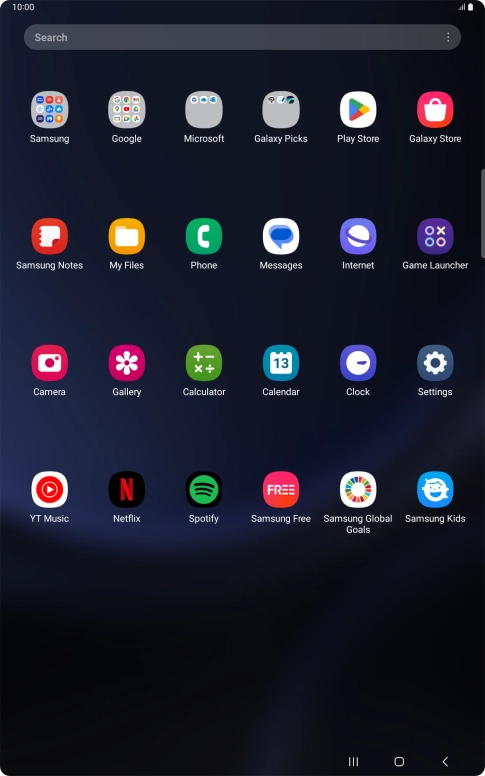
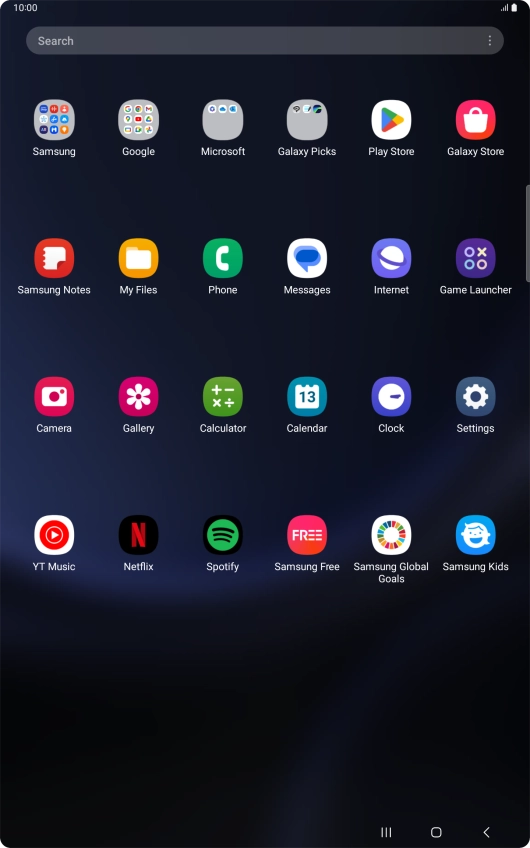
Slide your finger upwards on the screen.
Step 1 of 9

Slide your finger upwards on the screen.

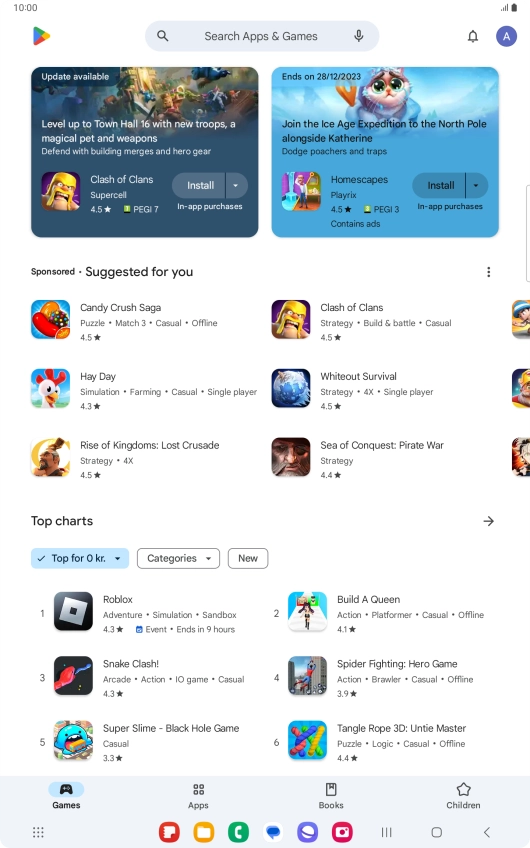
Press Play Store.
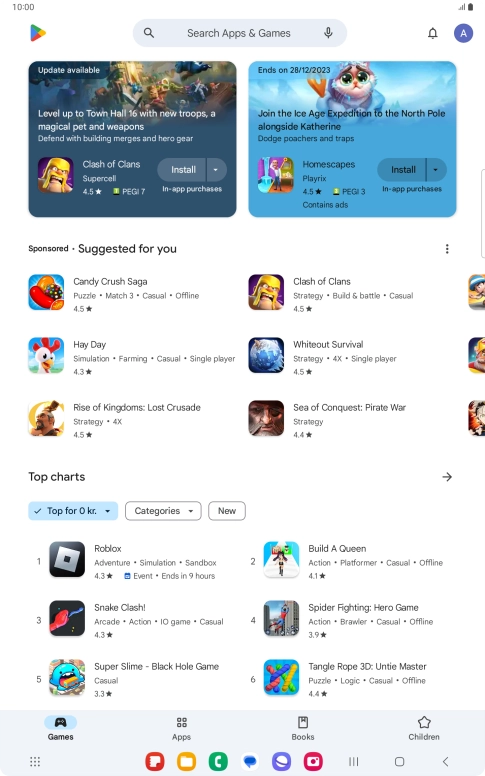
Press Play Store.
Step 2 of 9

Press Play Store.

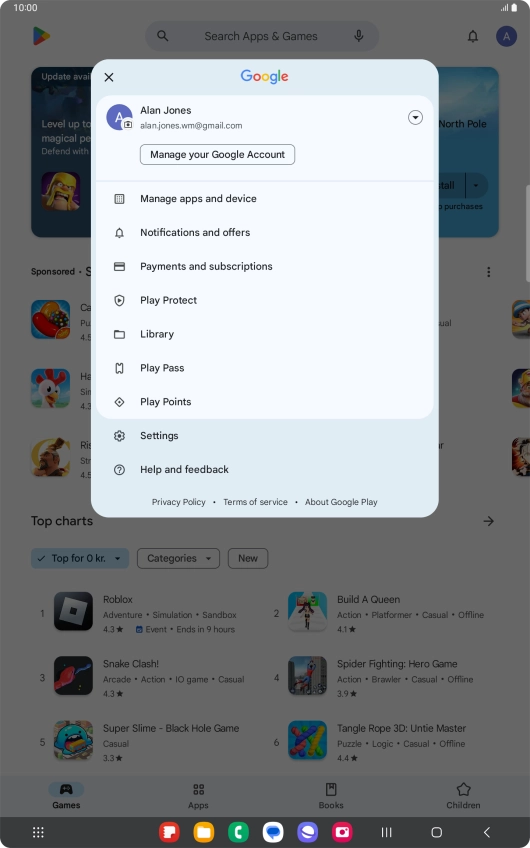
Press the profile icon.
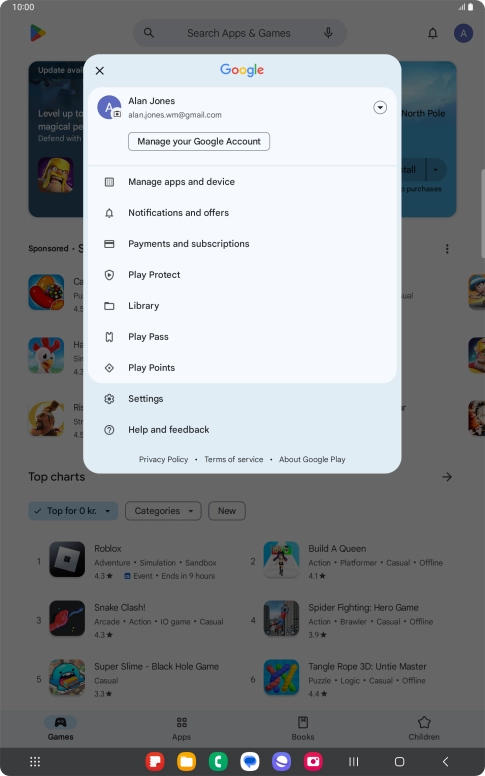
Step 3 of 9

Press the profile icon.

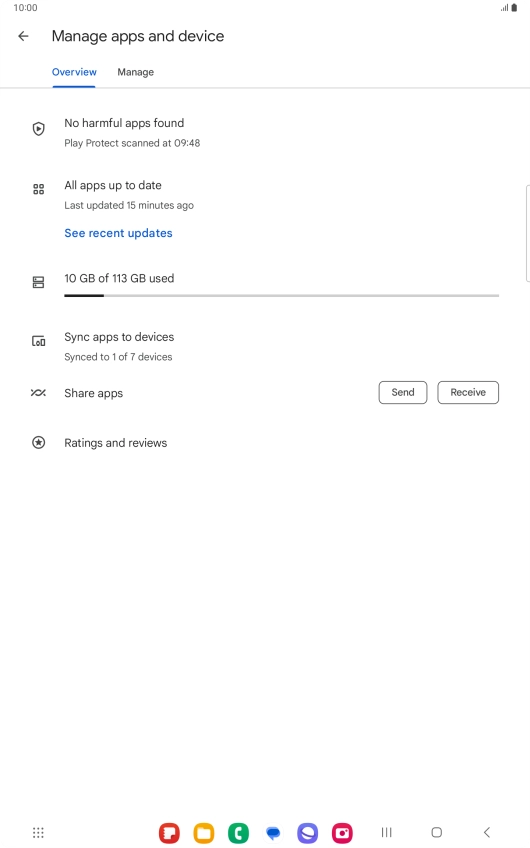
Press Manage apps and device.
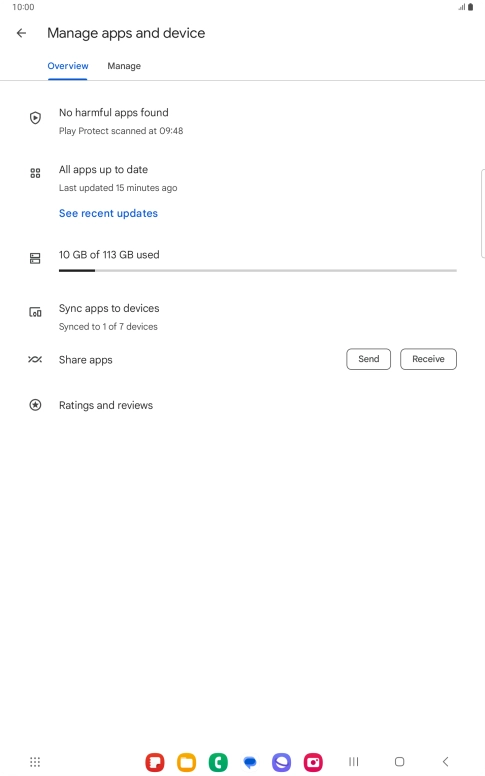
Step 4 of 9

Press Manage apps and device.

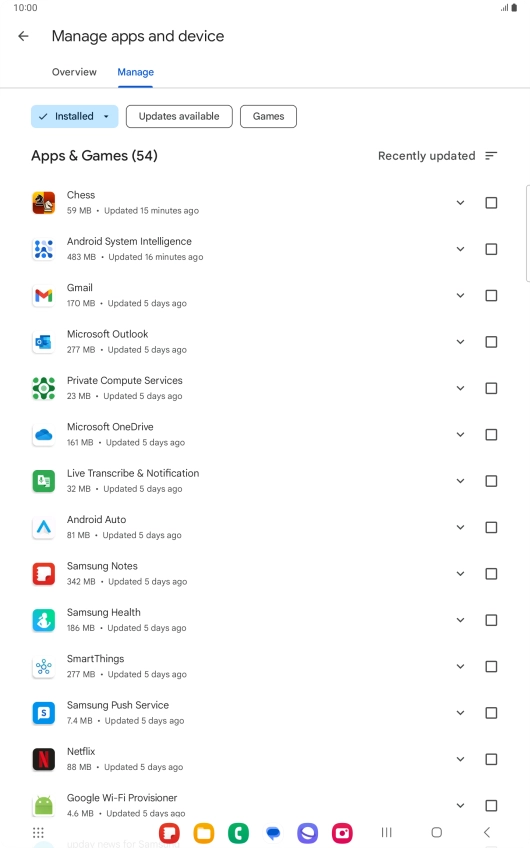
Press Manage.
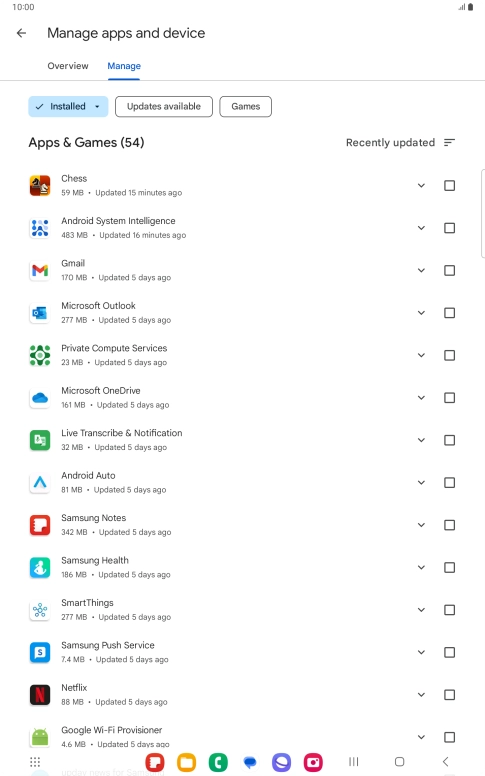
Press Manage.
Step 5 of 9

Press Manage.

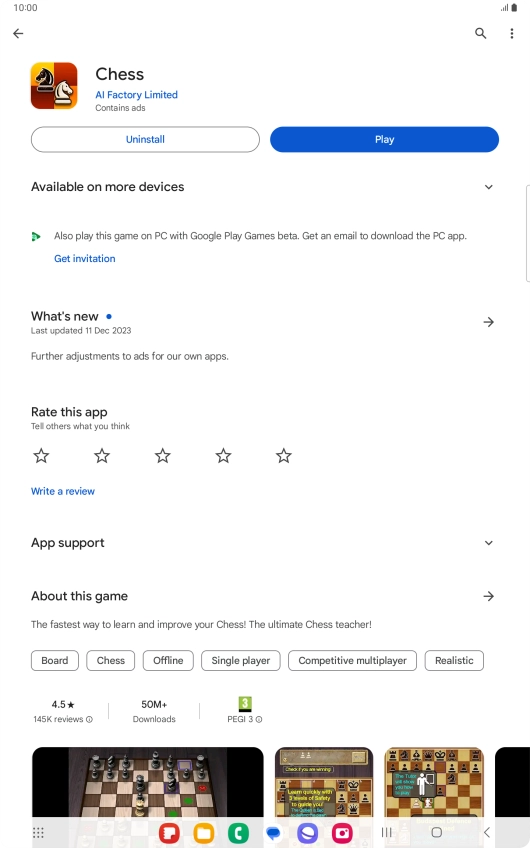
Press the required app.
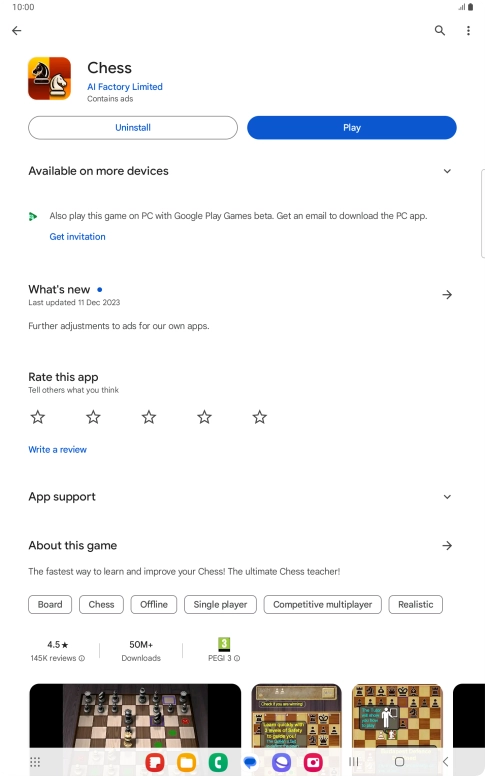
Step 6 of 9

Press the required app.

Press Uninstall.
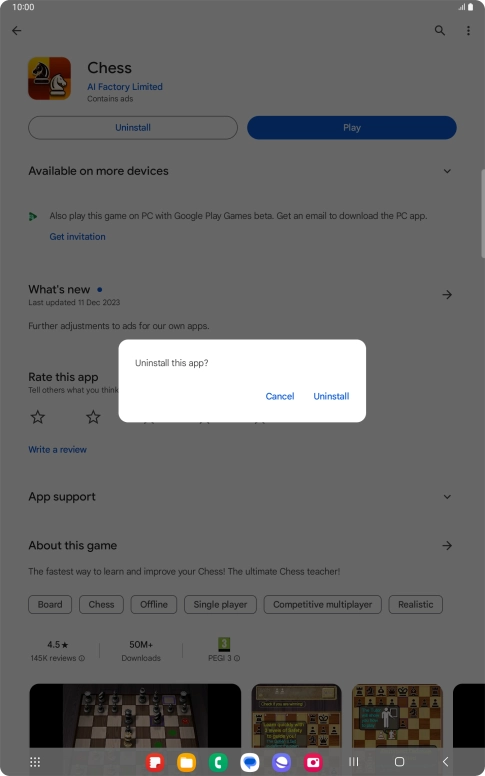
Press Uninstall.
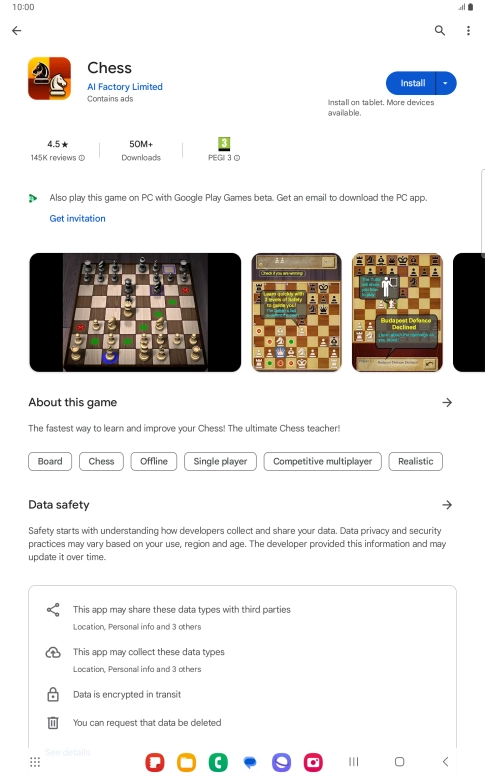
Step 7 of 9

Press Uninstall.

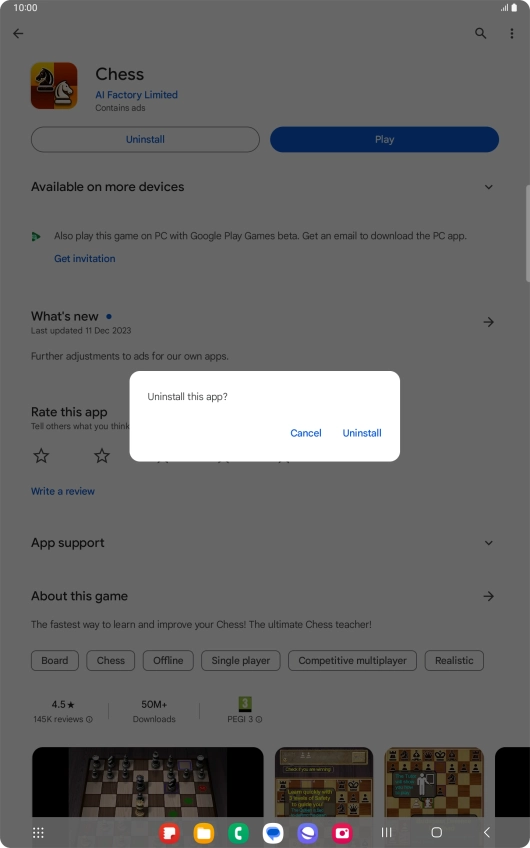
Press Uninstall.
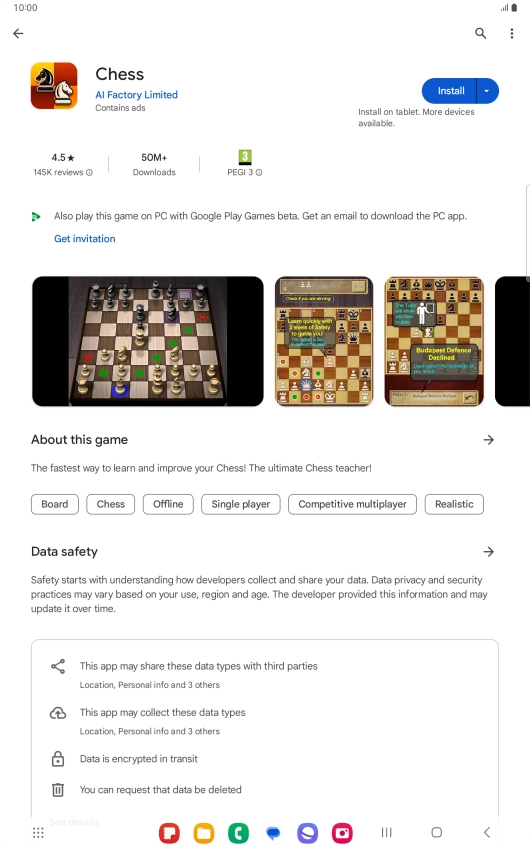
Press Uninstall.
Step 8 of 9

Press Uninstall.

Press the Home key to return to the home screen.
Step 9 of 9

Press the Home key to return to the home screen.

Get information on...

Or choose...

Show more