Help
Device guides
Samsung
Galaxy Tab S9+

Samsung Galaxy Tab S9+
f-79443638-576a-42ff-b77e-fc18ced745e3
f-9b8f1a59-d9e9-47b6-ab29-bc68f4d41a13
f-3cf9aad6-9597-46d4-bb3b-9554a067e227
f-78f24e12-2472-48da-bdab-6bfad00ae112
f-81426857-0886-4883-86fb-ab7ed3118146
f-457f43bc-046e-4506-bf0f-b9f3747780fc
  • Device home
  • Getting started
  • Basic functions
  • Calls, contacts, messaging
  • Connectivity
  • Specifications
  • Device home
  • Getting started
  • Basic functions
  • Calls, contacts, messaging
  • Connectivity
  • Specifications

Uninstalling apps

You can uninstall apps to free up memory.
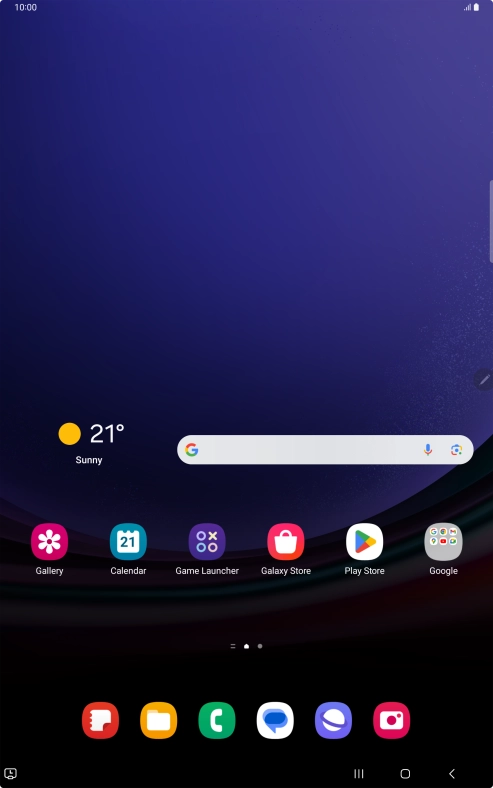
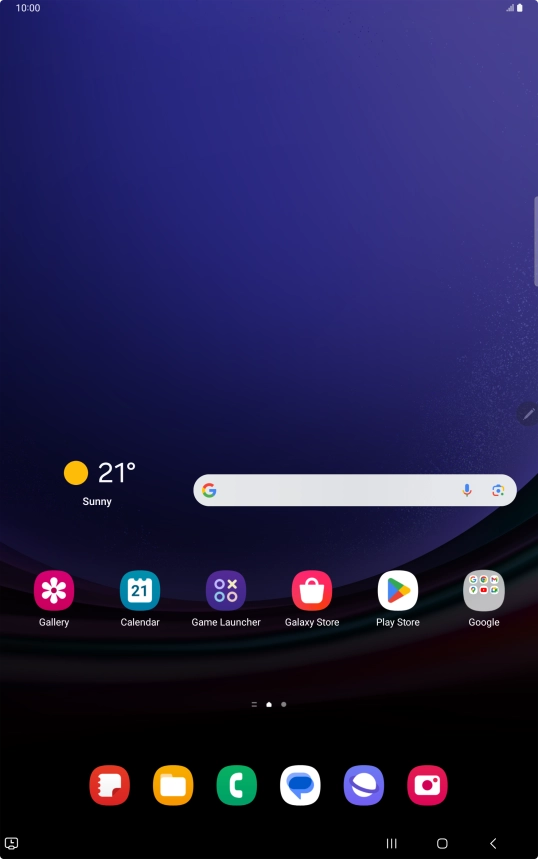
Slide your finger upwards on the screen.
Step 1 of 9

Slide your finger upwards on the screen.

Press Play Store.
Press Play Store.
Step 2 of 9

Press Play Store.

Press the profile icon.
Step 3 of 9

Press the profile icon.

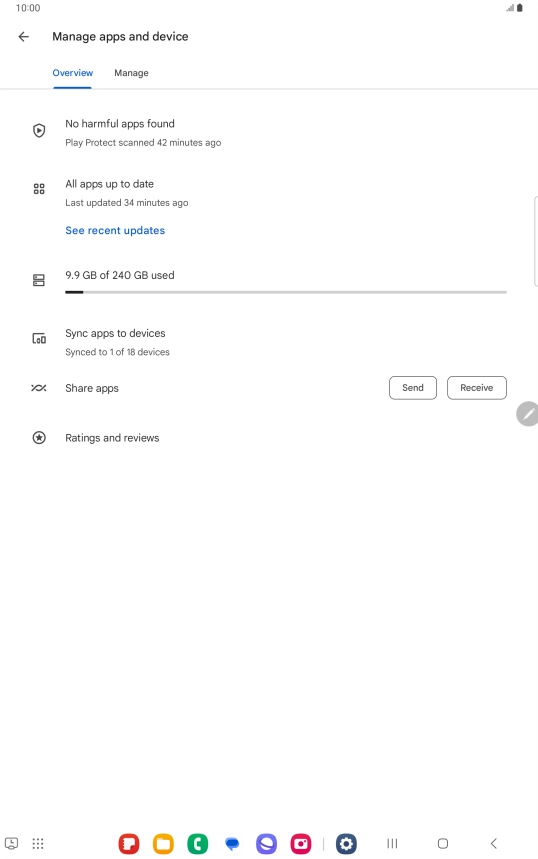
Press Manage apps and device.
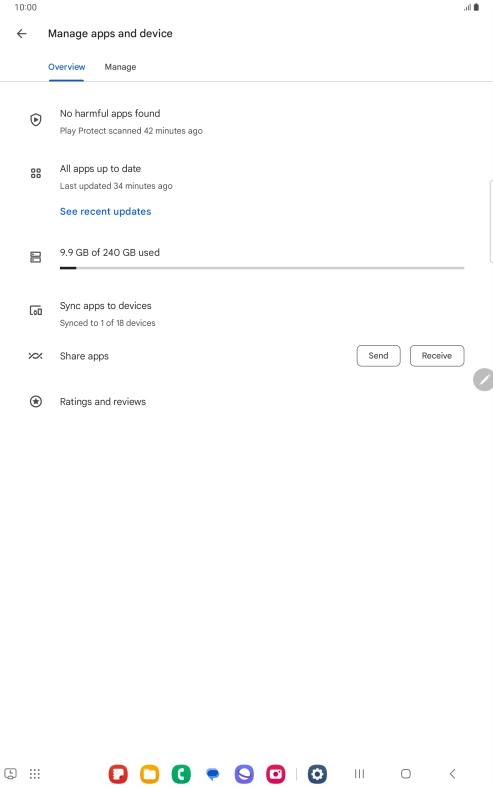
Step 4 of 9

Press Manage apps and device.

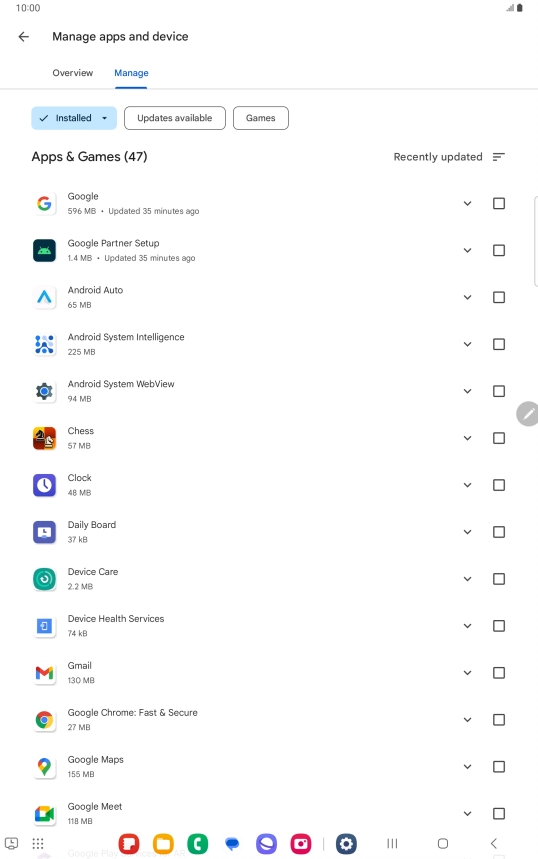
Press Manage.
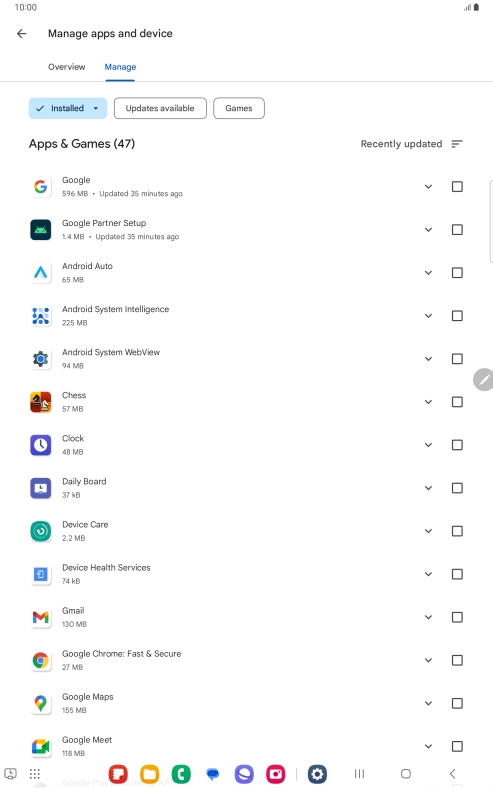
Press Manage.
Step 5 of 9

Press Manage.

Press the required app.
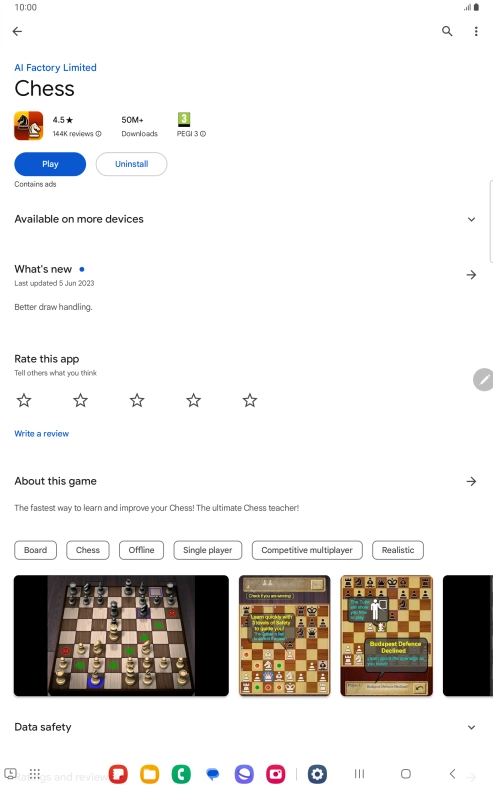
Step 6 of 9

Press the required app.

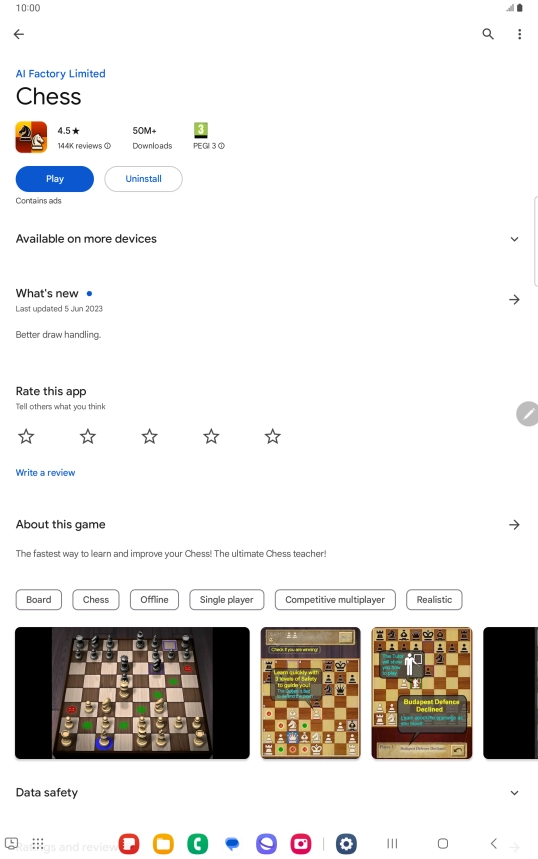
Press Uninstall.
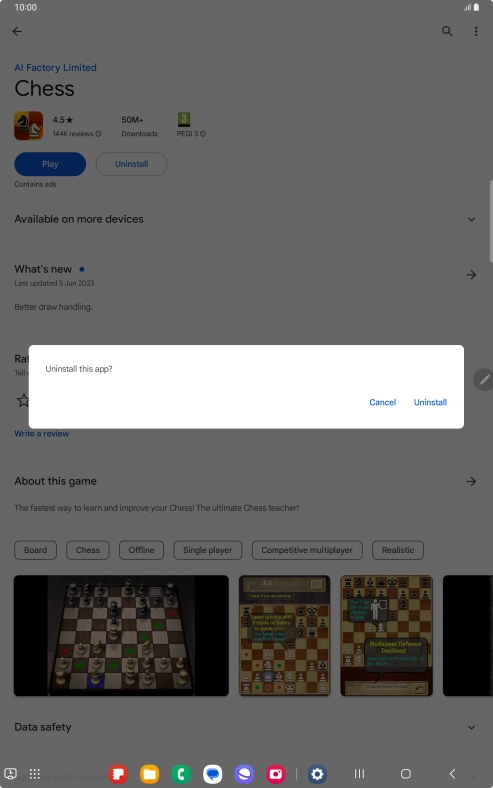
Press Uninstall.
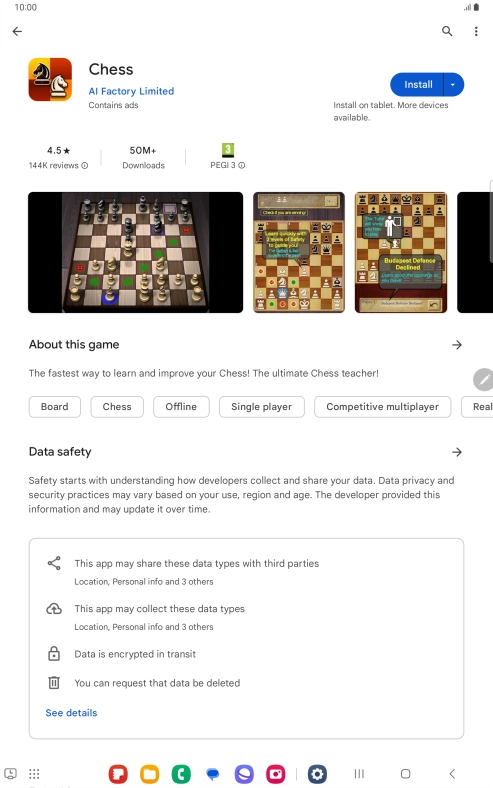
Step 7 of 9

Press Uninstall.

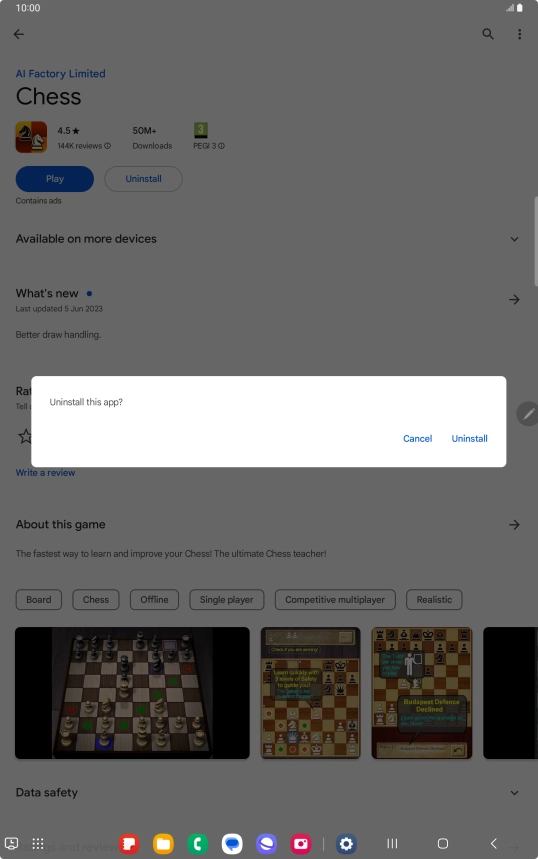
Press Uninstall.
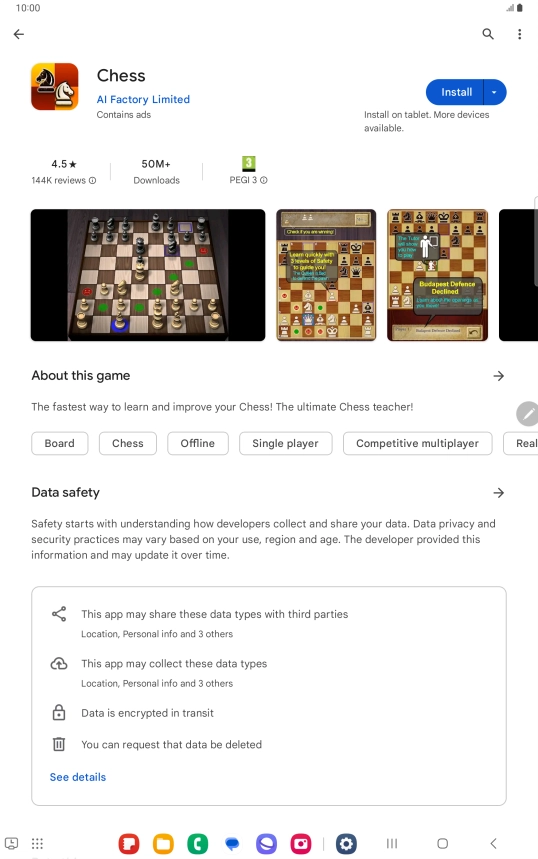
Press Uninstall.
Step 8 of 9

Press Uninstall.

Press the Home key to return to the home screen.
Step 9 of 9

Press the Home key to return to the home screen.

Get information on...

Or choose...

Show more