Help
Device guides
Samsung
Galaxy Tab S9 Ultra

Samsung Galaxy Tab S9 Ultra
f-95da0bc4-0e61-492d-a0f3-d4b64dad9ce7
f-8cf27981-8760-4071-b3db-00d1fbb04e0c
f-045bf405-afeb-46ed-9ffb-b0050a640079
f-aaf2ed0b-8c3a-4262-952c-af8045d06c3b
f-0c8aebda-7728-4054-ad23-e275fcdd9906
f-da990b20-41ef-41ab-8076-5902fd4b48b8
  • Device home
  • Getting started
  • Basic functions
  • Calls, contacts, messaging
  • Connectivity
  • Specifications
  • Device home
  • Getting started
  • Basic functions
  • Calls, contacts, messaging
  • Connectivity
  • Specifications

Uninstalling apps

You can uninstall apps to free up memory.
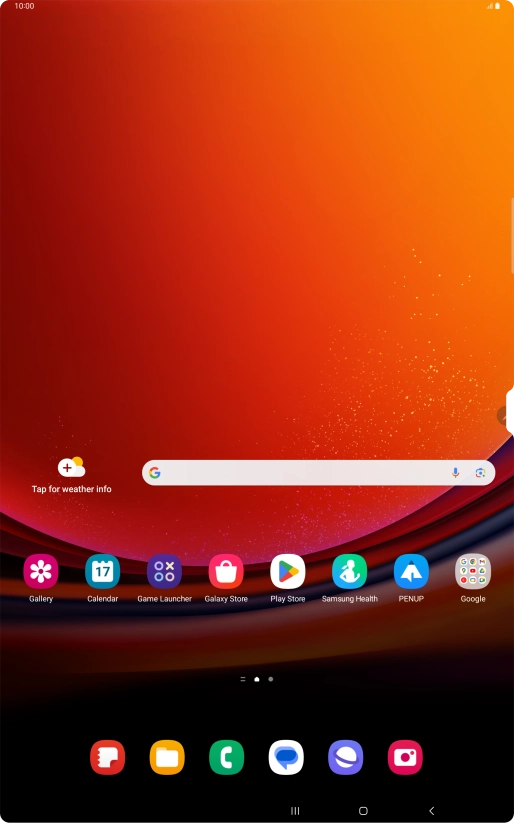
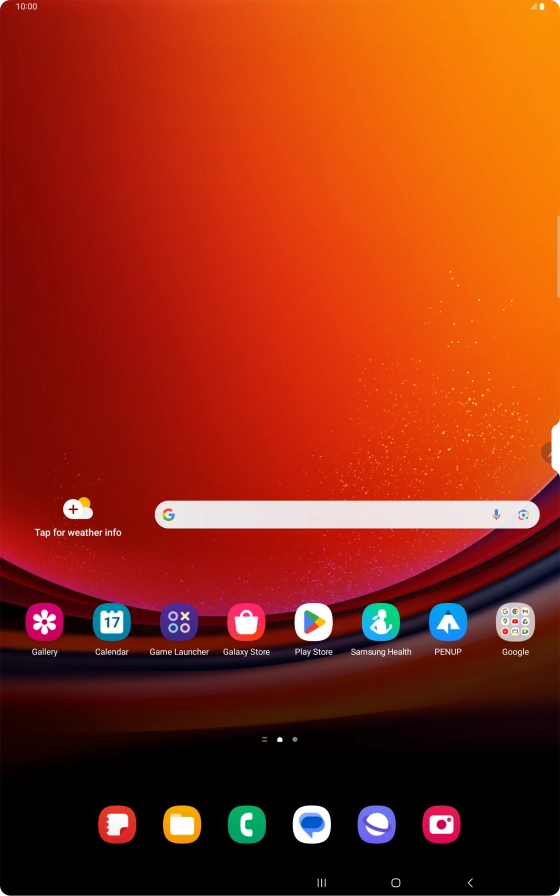
Slide your finger upwards on the screen.
Step 1 of 9

Slide your finger upwards on the screen.

Press Play Store.
Press Play Store.
Step 2 of 9

Press Play Store.

Press the profile icon.
Step 3 of 9

Press the profile icon.

Press Manage apps and device.
Step 4 of 9

Press Manage apps and device.

Press Manage.
Press Manage.
Step 5 of 9

Press Manage.

Press the required app.
Step 6 of 9

Press the required app.

Press Uninstall.
Press Uninstall.
Step 7 of 9

Press Uninstall.

Press Uninstall.
Press Uninstall.
Step 8 of 9

Press Uninstall.

Press the Home key to return to the home screen.
Step 9 of 9

Press the Home key to return to the home screen.

Get information on...

Or choose...

Show more