Help
Device guides
Samsung
Galaxy Tab S9 Ultra

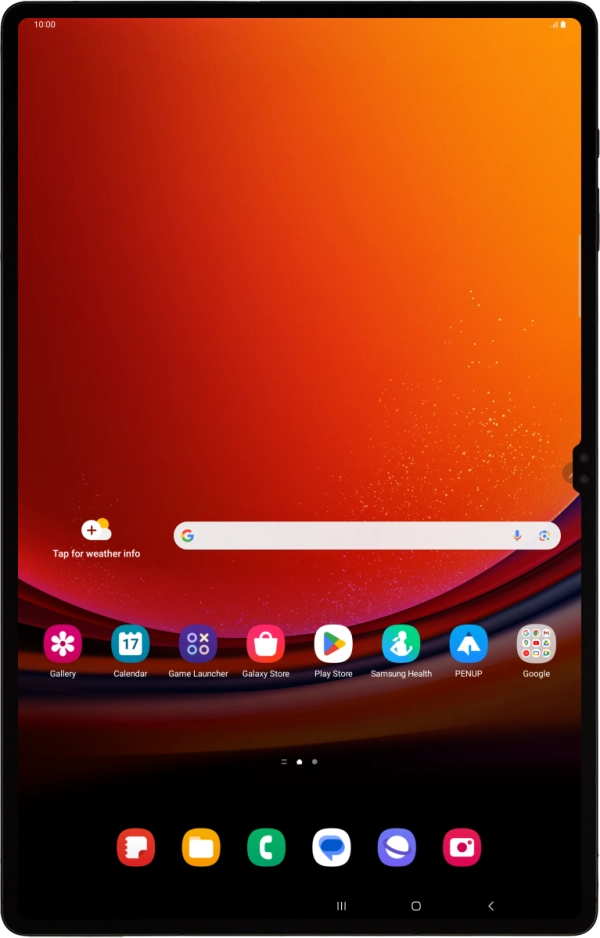
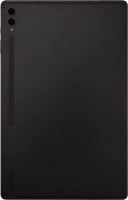
Samsung Galaxy Tab S9 Ultra
f-95da0bc4-0e61-492d-a0f3-d4b64dad9ce7
f-8cf27981-8760-4071-b3db-00d1fbb04e0c
f-045bf405-afeb-46ed-9ffb-b0050a640079
f-aaf2ed0b-8c3a-4262-952c-af8045d06c3b
f-0c8aebda-7728-4054-ad23-e275fcdd9906
f-da990b20-41ef-41ab-8076-5902fd4b48b8
  • Device home
  • Getting started
  • Basic functions
  • Calls, contacts, messaging
  • Connectivity
  • Specifications
  • Device home
  • Getting started
  • Basic functions
  • Calls, contacts, messaging
  • Connectivity
  • Specifications

Activating eSIM

In addition to your normal SIM, you can also use an eSIM in your tablet. An eSIM is a digital SIM that enables you to activate a price plan without the use of a physical SIM. To activate your eSIM you need to set up your tablet for internet or establish a connection to a Wi-Fi network.

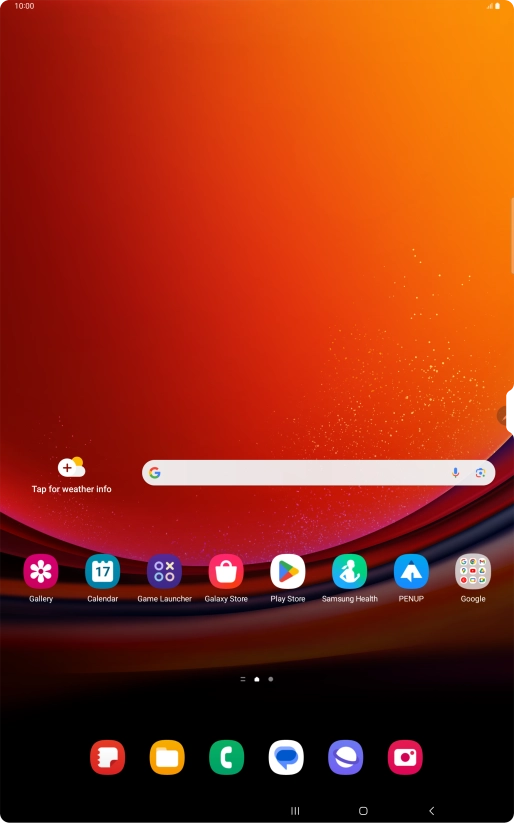
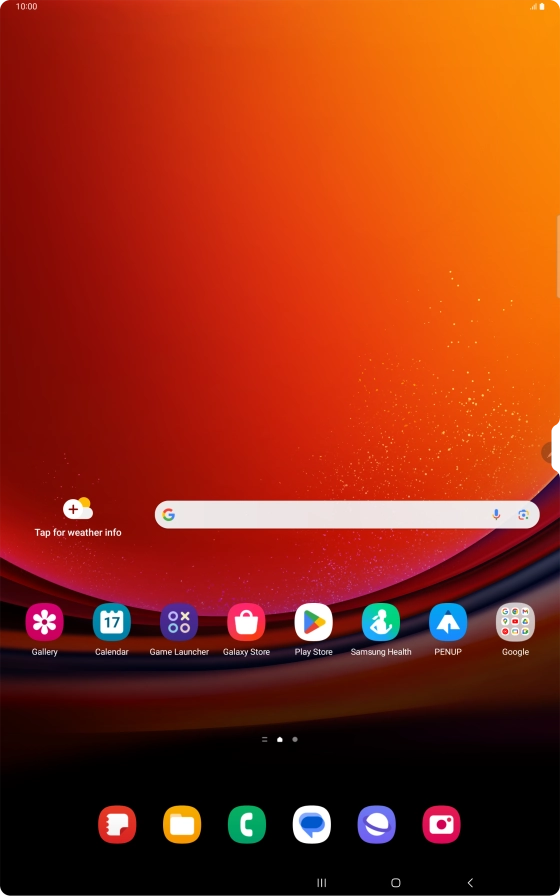
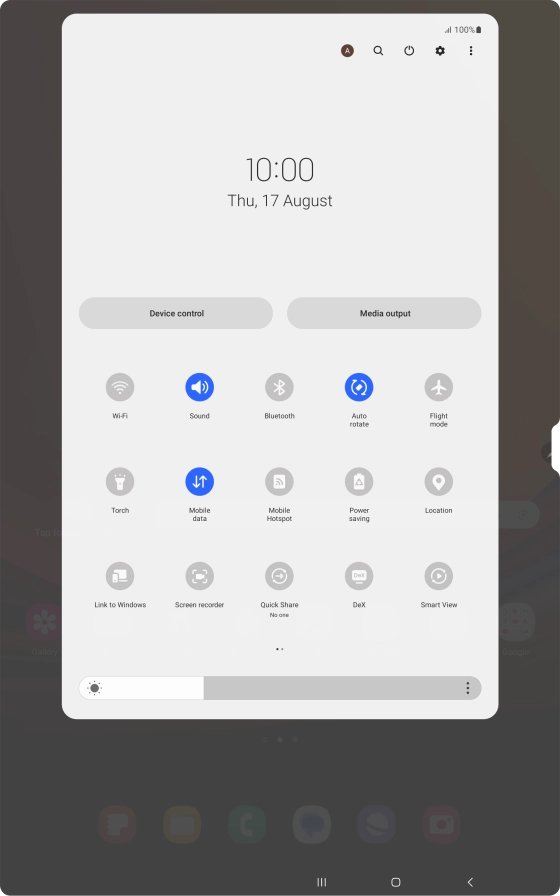
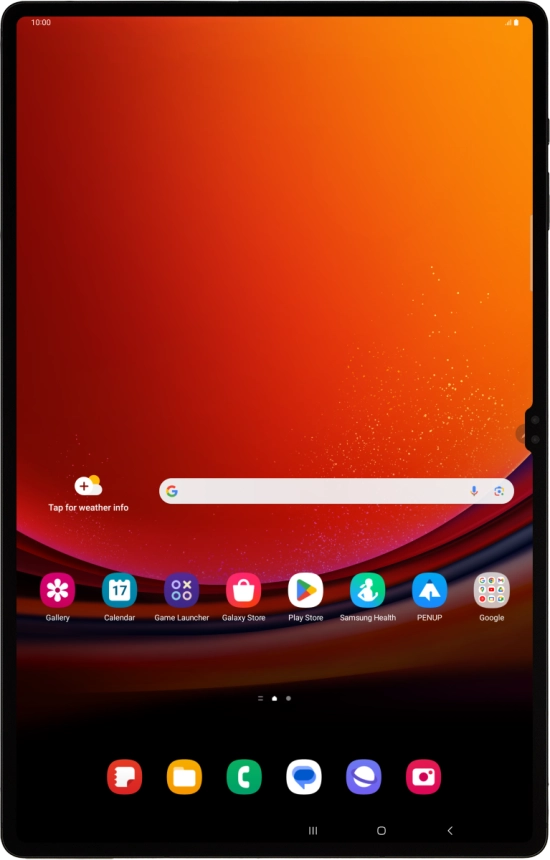
Slide two fingers downwards starting from the top of the screen.
Step 1 of 8

Slide two fingers downwards starting from the top of the screen.

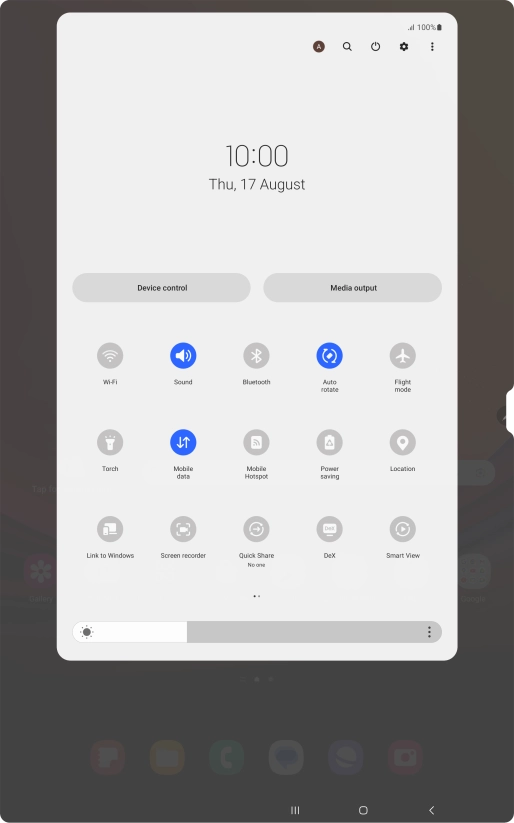
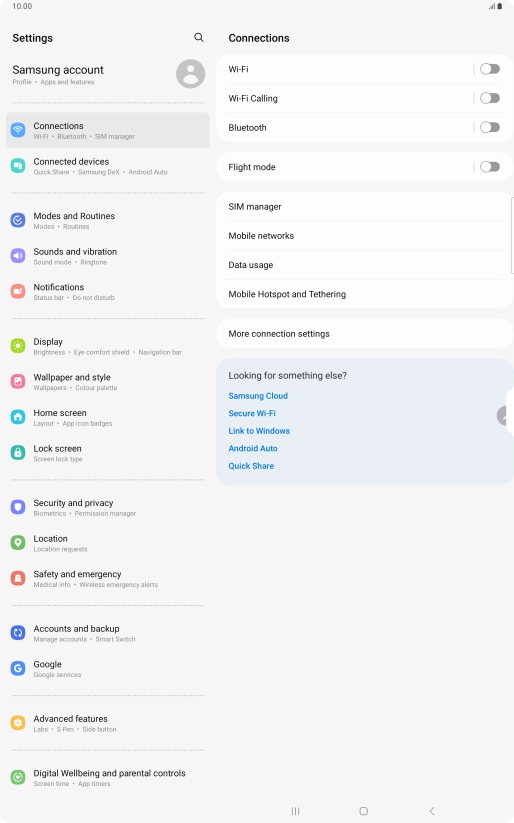
Press the settings icon.
Step 2 of 8

Press the settings icon.

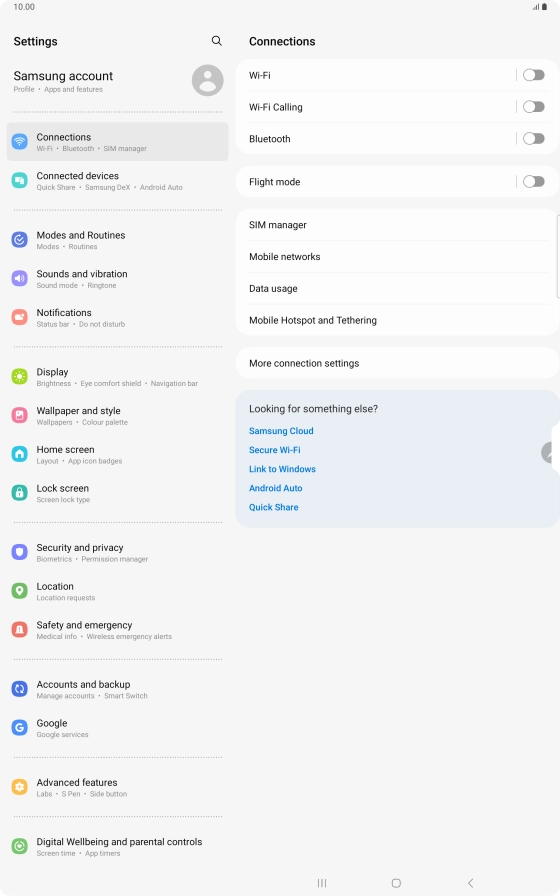
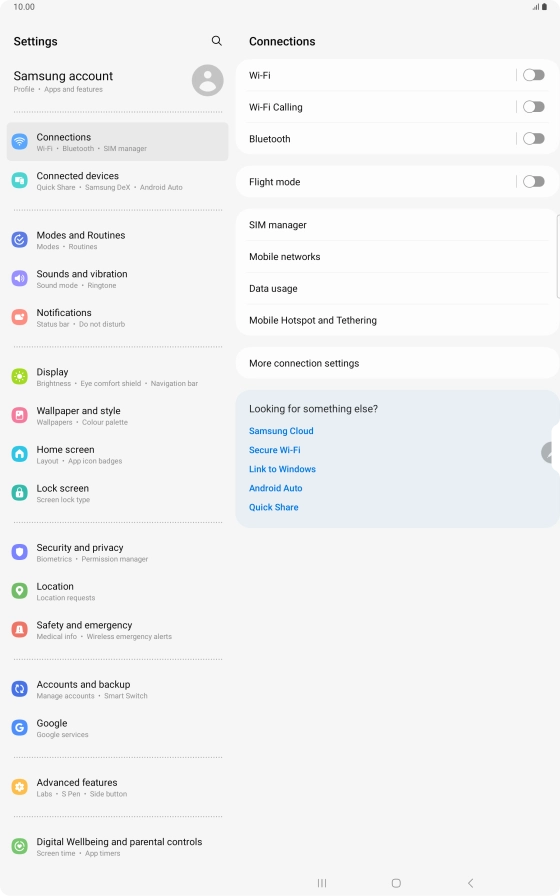
Press Connections.
Press Connections.
Step 3 of 8

Press Connections.

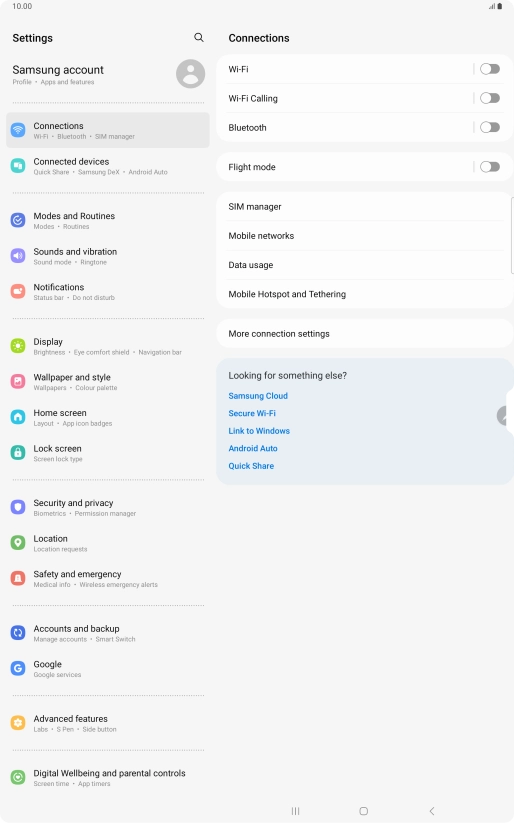
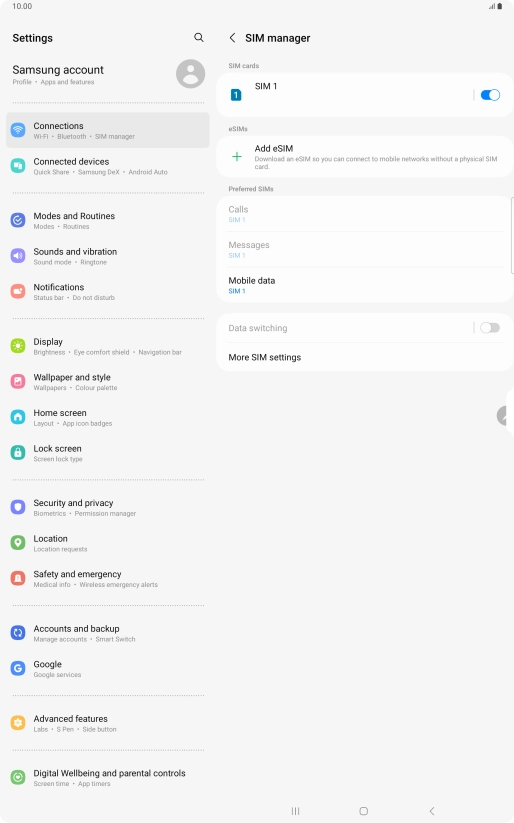
Press SIM manager.
Press SIM manager.
Step 4 of 8

Press SIM manager.

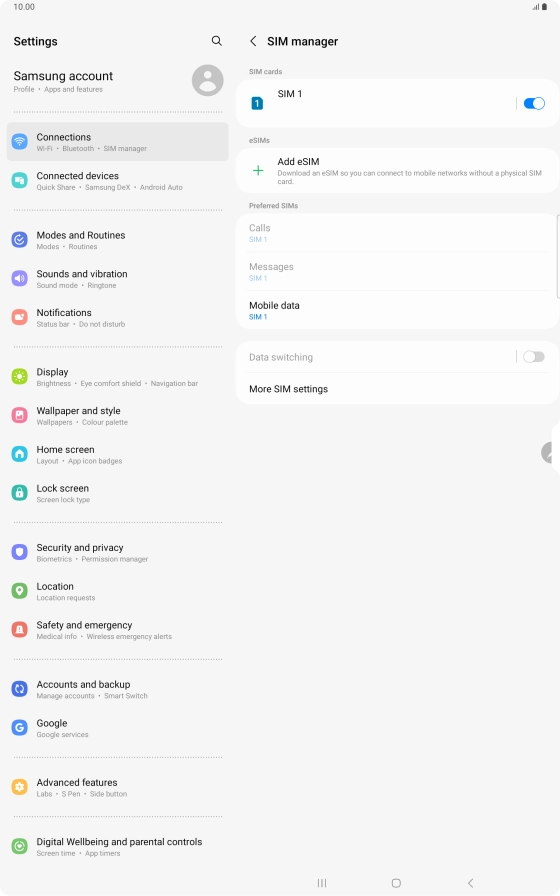
Press Add eSIM.
Press Add eSIM.
Step 5 of 8

Press Add eSIM.

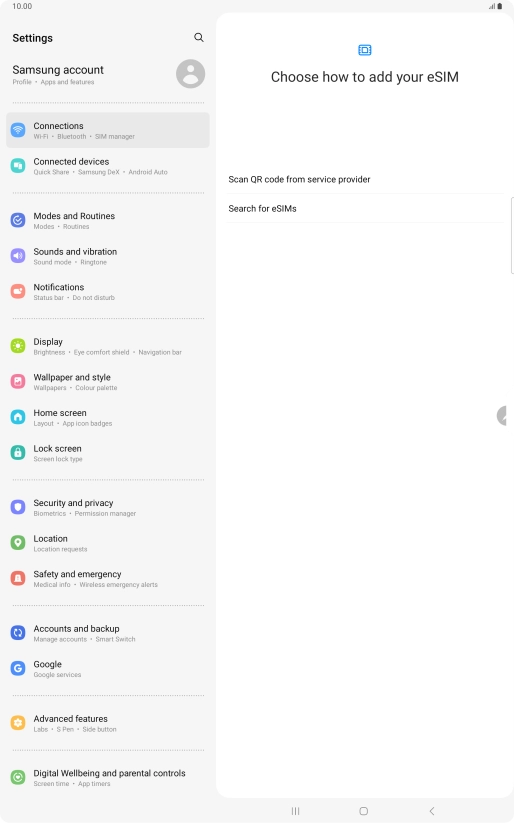
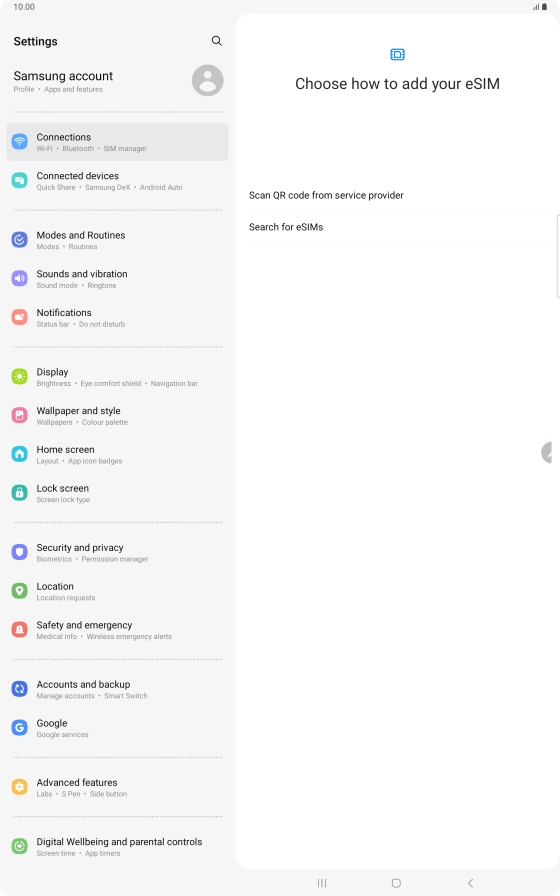
Press Scan QR code from service provider.
Step 6 of 8

Press Scan QR code from service provider.

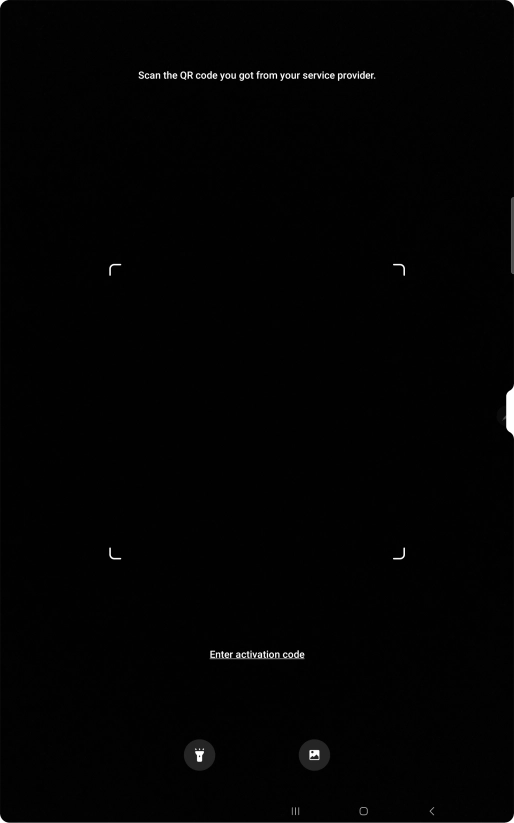
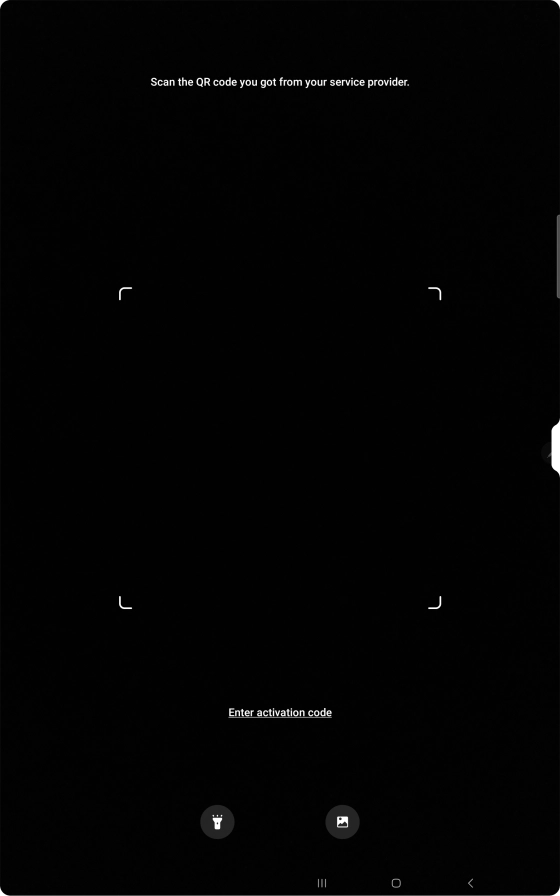
Place the QR code you've received inside the tablet camera frame to scan the code.
Step 7 of 8

Place the QR code you've received inside the tablet camera frame to scan the code.

Samsung Galaxy Tab S9 Ultra


Step 8 of 8

Follow the instructions on the screen to complete the activation of your eSIM.

Get information on...

Or choose...

Show more