Help
Device guides
Samsung
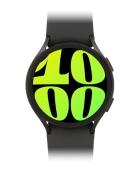
Galaxy Watch 6

Samsung Galaxy Watch 6
f-bcc348b2-a3f3-441c-a54c-103d76dad382
f-110247e6-1df7-4cca-9dc1-89d11a37b80f
f-c9015b48-725b-4e13-bf8e-59782cd35b4c
f-b7efd754-1bd4-474d-b173-2f59b09e2b9b
f-b30eba3f-97d5-4469-95de-415519eaac38
  • Device home
  • Getting started
  • Basic functions
  • Calls, contacts, messaging
  • Connectivity
  • Specifications
  • Device home
  • Getting started
  • Basic functions
  • Calls, contacts, messaging
  • Connectivity
  • Specifications

I can't pair my smartwatch with my phone

Solution 2 of 3: Pairing and activation isn't done correctly

You need to activate your smartwatch before using it for the first time and after a factory reset.

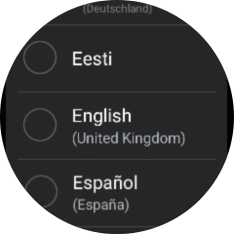
Press and hold the Home key until your smartwatch is turned on.
Step 1 of 35

Press and hold the Home key until your smartwatch is turned on.

Press the required language.
Step 2 of 35

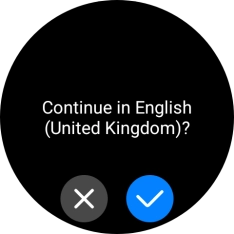
Press the required language.

Press the confirm icon.
Step 3 of 35

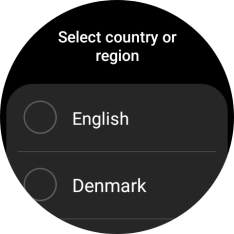
Press the confirm icon.

Press the required region.

Step 4 of 35

Press the required region.

Press Restart.

Press Restart.
Step 5 of 35

Press Restart.

Place your smartwatch next to your phone.
Step 6 of 35

Place your smartwatch next to your phone.

Please note that if you're not using a Samsung phone, there may be some differences in relation to the following steps.
On your phone: Press Galaxy Wearable.
Step 7 of 35

On your phone: Press Galaxy Wearable.

Please note that if you're not using a Samsung phone, there may be some differences in relation to the following steps.
On your phone: Press Continue.
Step 8 of 35

On your phone: Press Continue.

Please note that if you're not using a Samsung phone, there may be some differences in relation to the following steps.
On your phone: Press Allow.
Step 9 of 35

On your phone: Press Allow.

Please note that if you're not using a Samsung phone, there may be some differences in relation to the following steps.
On your phone: Check that the code is identical to the code displayed on your smartwatch.
Step 10 of 35

On your phone: Check that the code is identical to the code displayed on your smartwatch.

Please note that if you're not using a Samsung phone, there may be some differences in relation to the following steps.
On your phone: Press Confirm.
Step 11 of 35

On your phone: Press Confirm.

Please note that if you're not using a Samsung phone, there may be some differences in relation to the following steps.
On your phone: Press Sign in and follow the instructions on the screen to log on with your Samsung account or to create a new Samsung account if don't have one already.
Step 12 of 35

On your phone: Press Sign in and follow the instructions on the screen to log on with your Samsung account or to create a new Samsung account if don't have one already.

On your phone: Follow the instructions on the screen to select the required settings and press Continue.
Step 13 of 35

On your phone: Follow the instructions on the screen to select the required settings and press Continue.

On your phone: Press Allow.
Step 14 of 35

On your phone: Press Allow.

On your phone: Press Allow.
Step 15 of 35

On your phone: Press Allow.

On your phone: Press I agree.
Step 16 of 35

On your phone: Press I agree.

On your phone: Press the required setting.
Step 17 of 35

On your phone: Press the required setting.

On your phone: Press the required Google account.
Step 18 of 35

On your phone: Press the required Google account.

Your Google account is used to install new apps, watch faces and more on your smartwatch.
On your phone: Press Next.
Step 19 of 35

On your phone: Press Next.

Your Google account is used to install new apps, watch faces and more on your smartwatch.
On your phone: Press Enter your password.
Step 20 of 35

On your phone: Press Enter your password.

Your Google account is used to install new apps, watch faces and more on your smartwatch.
On your phone: Key in the password for your Google account and press Next.
Step 21 of 35

On your phone: Key in the password for your Google account and press Next.

Your Google account is used to install new apps, watch faces and more on your smartwatch.
On your phone: Press Next.
Step 22 of 35

On your phone: Press Next.

On your phone: Press Continue.
Step 23 of 35

On your phone: Press Continue.

On your phone: Press Allow.
Step 24 of 35

On your phone: Press Allow.

On your phone: Press Allow.
Step 25 of 35

On your phone: Press Allow.

On your phone: Follow the instructions on the screen to select the required settings and press Next.
Step 26 of 35

On your phone: Follow the instructions on the screen to select the required settings and press Next.

On your phone: Press Next.
Step 27 of 35

On your phone: Press Next.

On your phone: Press Next.
Step 28 of 35

On your phone: Press Next.

On your phone: Press Next.
Step 29 of 35

On your phone: Press Next.

On your phone: Press Next.
Step 30 of 35

On your phone: Press Next.

On your phone: Press Next.
Step 31 of 35

On your phone: Press Next.

On your phone: Press Next.
Step 32 of 35

On your phone: Press Next.

On your phone: To set up mobile data on your smartwatch, follow the instructions on the screen to finish setting up your smartwatch.
Step 33 of 35

On your phone: To set up mobile data on your smartwatch, follow the instructions on the screen to finish setting up your smartwatch.

On your phone: To set up mobile data on your smartwatch later, press Skip.
Step 34 of 35

On your phone: To set up mobile data on your smartwatch later, press Skip.

On your phone: When this screen is displayed, your smartwatch is activated and synchronised with your phone.
Step 35 of 35

On your phone: When this screen is displayed, your smartwatch is activated and synchronised with your phone.


Did this solve your problem?

Yes No

Get information on...

Or choose...

Show more