Help
Device guides
Samsung
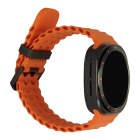
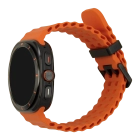
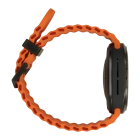
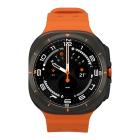
Galaxy Watch Ultra

Samsung Galaxy Watch Ultra
f-15049f51-2f65-4bb8-9c08-cc9eed090a9c
f-d1546d68-8945-44bb-a5ff-e7871d36b785
f-d9fda8ce-739e-4e93-95f6-25f3d18da951
f-b7d68e09-d1a1-4f3e-97ed-468745e02ced
f-65697b41-5e6f-43f5-94af-23357e7e4393
  • Device home
  • Getting started
  • Basic functions
  • Calls, contacts, messaging
  • Connectivity
  • Specifications
  • Device home
  • Getting started
  • Basic functions
  • Calls, contacts, messaging
  • Connectivity
  • Specifications

I can't use Wi-Fi

Solution 1 of 4: Wi-Fi is turned off

You can use Wi-Fi as an alternative to the mobile network when establishing an internet connection. This way your smartwatch doesn't use mobile data.

Slide your finger downwards starting from the top of the screen.
Step 1 of 3

Slide your finger downwards starting from the top of the screen.

Press the Wi-Fi icon to turn the function on or off.
Step 2 of 3

Press the Wi-Fi icon to turn the function on or off.

Slide your finger upwards starting from the bottom of the screen to return to the home screen.
Step 3 of 3

Slide your finger upwards starting from the bottom of the screen to return to the home screen.


Did this solve your problem?

Yes No

Get information on...

Or choose...

Show more