Help
Device guides
Samsung
Galaxy Watch Ultra2

Samsung Galaxy Watch Ultra2
f-1c46df4f-4ba6-4978-8978-ad6c28f3a161
f-3f046cc9-1ab3-4f59-9f34-d02f877648b8
f-40e668aa-88e6-4a97-ab8c-486da68c7244
f-bc4ad4f2-a2ce-4840-b1ed-53ac95f7d187
f-092fcb82-311a-4848-b25f-1288e4302356
f-1c6890b3-719f-40af-bea2-35c66d0d93b0
f-571e6a84-38ae-4770-b7e9-ae2232818a99
  • Device home
  • Getting started
  • Basic functions
  • Calls, contacts, messaging
  • Connectivity
  • Specifications
  • Device home
  • Getting started
  • Basic functions
  • Calls, contacts, messaging
  • Connectivity
  • Specifications

Updating smartwatch software

It's recommended that you update your smartwatch with the newest software, as the manufacturer continuously corrects errors.
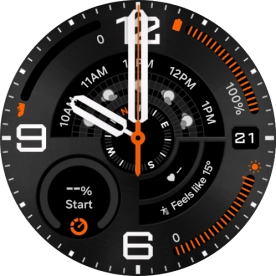
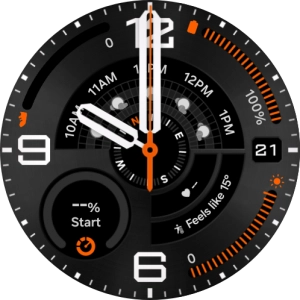
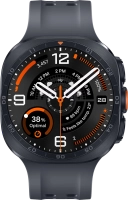
Slide your finger upwards starting from the bottom of the screen.
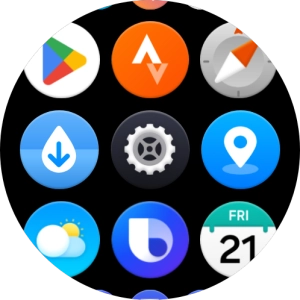
Step 1 of 4

Slide your finger upwards starting from the bottom of the screen.

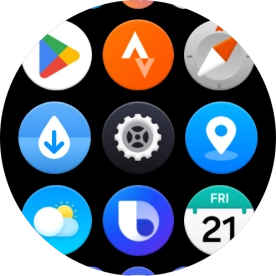
Press the settings icon.
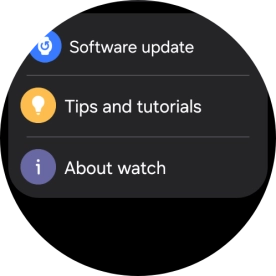
Step 2 of 4

Press the settings icon.

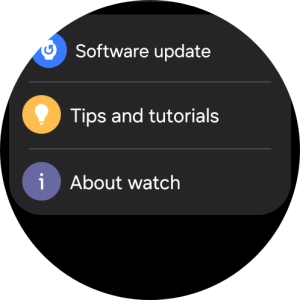
Press Software update.
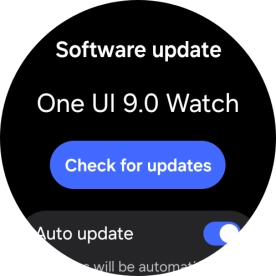
Step 3 of 4

Press Software update.

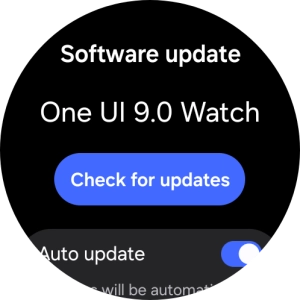
Press Check for updates. If a new software version is available, it's displayed. Follow the instructions on the screen to update the smartwatch software.
Step 4 of 4

Press Check for updates. If a new software version is available, it's displayed. Follow the instructions on the screen to update the smartwatch software.

Get information on...

Or choose...

Show more