Help
Device guides
Samsung
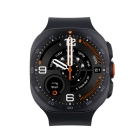
Galaxy Watch Ultra2

Samsung Galaxy Watch Ultra2

f-1c46df4f-4ba6-4978-8978-ad6c28f3a161
f-3f046cc9-1ab3-4f59-9f34-d02f877648b8
f-40e668aa-88e6-4a97-ab8c-486da68c7244
f-bc4ad4f2-a2ce-4840-b1ed-53ac95f7d187
f-092fcb82-311a-4848-b25f-1288e4302356
f-1c6890b3-719f-40af-bea2-35c66d0d93b0
f-571e6a84-38ae-4770-b7e9-ae2232818a99
  • Device home
  • Getting started
  • Basic functions
  • Calls, contacts, messaging
  • Connectivity
  • Specifications
  • Device home
  • Getting started
  • Basic functions
  • Calls, contacts, messaging
  • Connectivity
  • Specifications

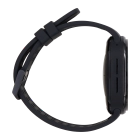
Setting date and time

Date and time are automatically set from your phone but can be set manually if, e.g., your smartwatch isn't connected to your phone.
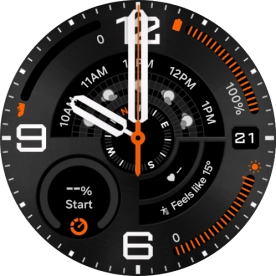
Slide your finger upwards starting from the bottom of the screen.
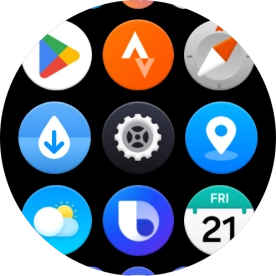
Step 1 of 18

Slide your finger upwards starting from the bottom of the screen.

Press the settings icon.
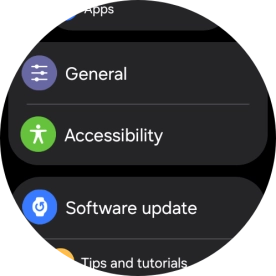
Step 2 of 18

Press the settings icon.

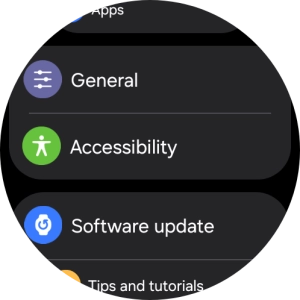
Press General.
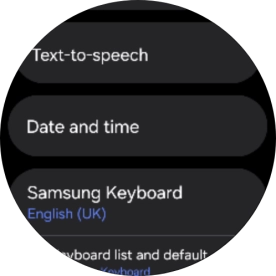
Press General.
Step 3 of 18

Press General.

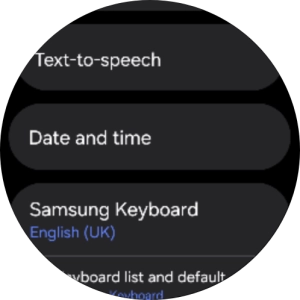
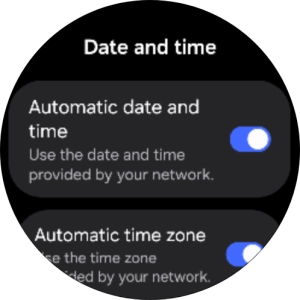
Press Date and time.
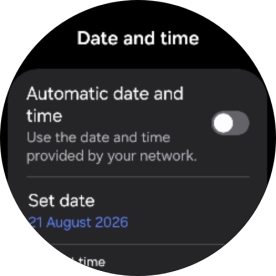
Step 4 of 18

Press Date and time.

Press the indicator next to
Step 5 of 18

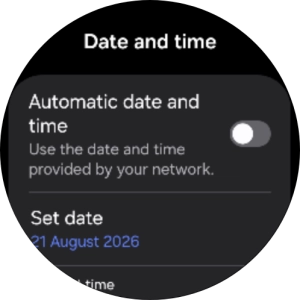
Press the indicator next to "Automatic date and time" to turn on the function.
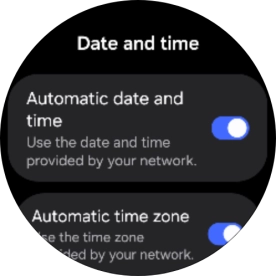
Press the indicator next to
Step 6 of 18

Press the indicator next to "Automatic date and time" to turn off the function.

Press Set date.
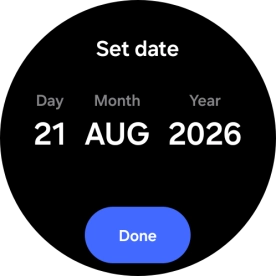
Press Set date.
Step 7 of 18

Press Set date.

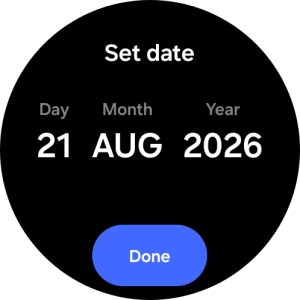
Slide your finger up or down on the screen to set the required date.
Step 8 of 18

Slide your finger up or down on the screen to set the required date.

Press DONE.
Press DONE.
Step 9 of 18

Press DONE.

Press the indicator next to
Step 10 of 18

Press the indicator next to "Automatic date and time" to turn off the function.
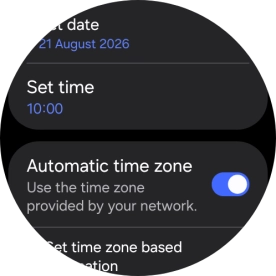
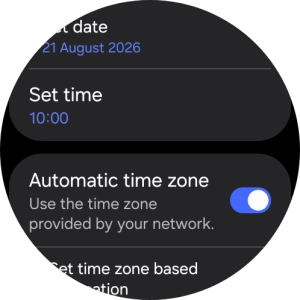
Press Set time.
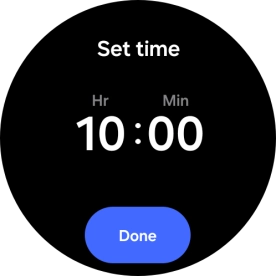
Press Set time.
Step 11 of 18

Press Set time.

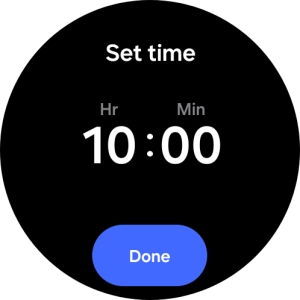
Slide your finger up or down on the screen to set the required time.
Step 12 of 18

Slide your finger up or down on the screen to set the required time.

Press DONE.
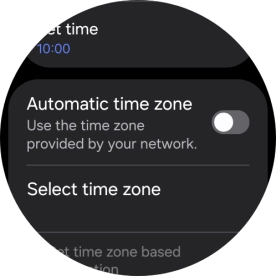
Press DONE.
Step 13 of 18

Press DONE.

Press the indicator next to
Step 14 of 18

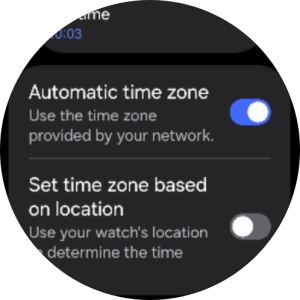
Press the indicator next to "Automatic time zone" to turn on the function.
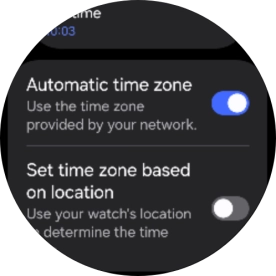
Press the indicator next to
Step 15 of 18

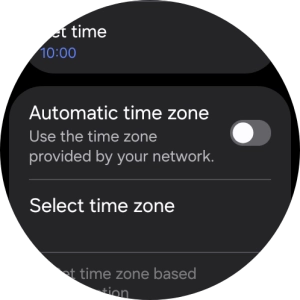
Press the indicator next to "Automatic time zone" to turn off the function.

Press Select time zone.
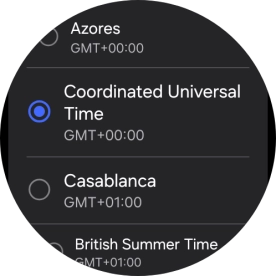
Step 16 of 18

Press Select time zone.

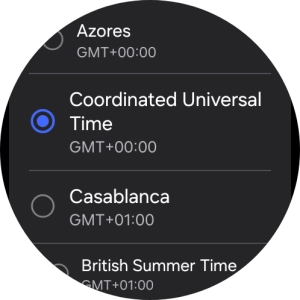
Press the required time zone.
Step 17 of 18

Press the required time zone.

Press the Home key to return to the home screen.
Step 18 of 18

Press the Home key to return to the home screen.

Get information on...

Or choose...

Show more