Help
Device guides
Samsung
Galaxy Watch4

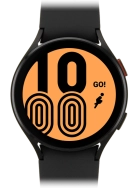
Samsung Galaxy Watch4
f-efb023ed-9a1f-4e4f-b34c-a90cc569253b
f-7a47821c-6128-4fb6-b753-5610a68e918e
f-9146d85c-3c23-4e9e-afcd-1d8852129803
f-99bad98b-3f1f-4423-81fb-13bc6ff79a94
f-0fef43f0-4942-43be-bc50-86bd832f5c65
  • Device home
  • Getting started
  • Basic functions
  • Calls, contacts, messaging
  • Connectivity
  • Specifications
  • Device home
  • Getting started
  • Basic functions
  • Calls, contacts, messaging
  • Connectivity
  • Specifications

I can't send and receive email messages

Solution 1 of 4: The email message isn't written correctly

You can receive email messages from your email accounts on your smartwatch.

Slide your finger upwards starting from the bottom of the screen.

Step 1 of 14

Slide your finger upwards starting from the bottom of the screen.

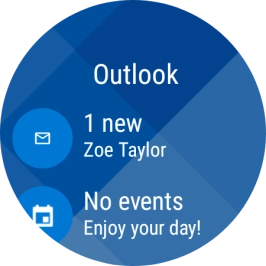
Press the email icon.
Step 2 of 14

Press the email icon.

Press the email icon.
Step 3 of 14

Press the email icon.

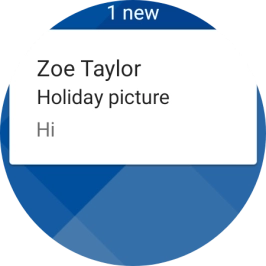
Press the required email message to read it.
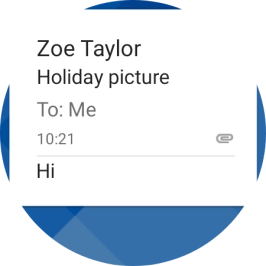
Step 4 of 14

Press the required email message to read it.

Slide your finger left on the screen.
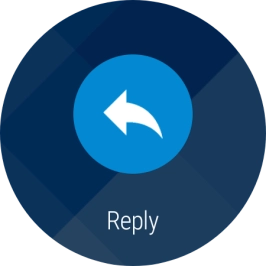
Step 5 of 14

Slide your finger left on the screen.

Press Reply.
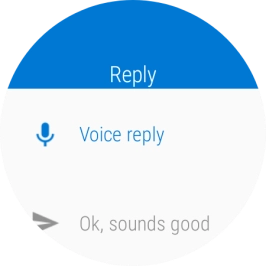
Press Reply.
Step 6 of 14

Press Reply.

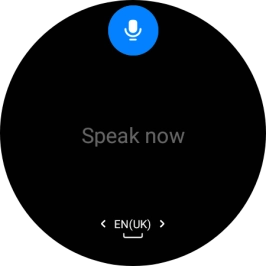
Press Voice reply.
Press Voice reply.
Step 7 of 14

Press Voice reply.

Follow the instructions on the screen to record and send the required reply.
Step 8 of 14

Follow the instructions on the screen to record and send the required reply.

Slide your finger left on the screen.
Step 9 of 14

Slide your finger left on the screen.

Press Reply.
Press Reply.
Step 10 of 14

Press Reply.

Press the required reply.
Step 11 of 14

Press the required reply.

Slide your finger left on the screen.
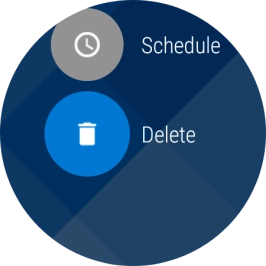
Step 12 of 14

Slide your finger left on the screen.

Press Delete.
Press Delete.
Step 13 of 14

Press Delete.

Press the Home key to return to the home screen.
Step 14 of 14

Press the Home key to return to the home screen.


Did this solve your problem?

Yes No

Get information on...

Or choose...

Show more