Help
Device guides
Samsung
Galaxy Watch4

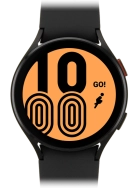
Samsung Galaxy Watch4
f-efb023ed-9a1f-4e4f-b34c-a90cc569253b
f-7a47821c-6128-4fb6-b753-5610a68e918e
f-9146d85c-3c23-4e9e-afcd-1d8852129803
f-99bad98b-3f1f-4423-81fb-13bc6ff79a94
f-0fef43f0-4942-43be-bc50-86bd832f5c65
  • Device home
  • Getting started
  • Basic functions
  • Calls, contacts, messaging
  • Connectivity
  • Specifications
  • Device home
  • Getting started
  • Basic functions
  • Calls, contacts, messaging
  • Connectivity
  • Specifications

I can't pair my smartwatch with my phone

Solution 2 of 3: Pairing and activation isn't done correctly

You need to activate your smartwatch before using it for the first time and after a factory reset.

Press and hold the Home key until your smartwatch is turned on.

Step 1 of 26

Press and hold the Home key until your smartwatch is turned on.

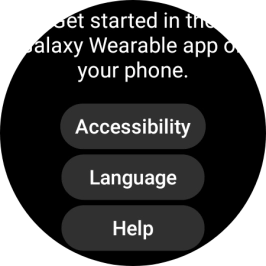
Slide your finger upwards starting from the bottom of the screen.
Step 2 of 26

Slide your finger upwards starting from the bottom of the screen.

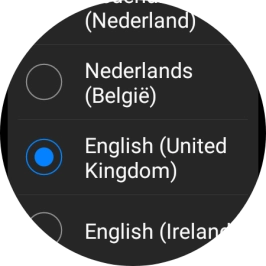
Press Language.
Press Language.
Step 3 of 26

Press Language.

Press the required language.

Step 4 of 26

Press the required language.

Place your smartwatch next to your phone.
Step 5 of 26

Place your smartwatch next to your phone.

Please note that if you're not using a Samsung phone, there may be some differences in relation to the following steps.
On your phone: Press Galaxy Wearable.
Step 6 of 26

On your phone: Press Galaxy Wearable.

Please note that if you're not using a Samsung phone, there may be some differences in relation to the following steps.
On your phone: Press Start.
Step 7 of 26

On your phone: Press Start.

Please note that if you're not using a Samsung phone, there may be some differences in relation to the following steps.
On your phone: Check that the code is identical to the code displayed on your smartwatch.
Step 8 of 26

On your phone: Check that the code is identical to the code displayed on your smartwatch.

Please note that if you're not using a Samsung phone, there may be some differences in relation to the following steps.
On your phone: Press Confirm.
Step 9 of 26

On your phone: Press Confirm.

Please note that if you're not using a Samsung phone, there may be some differences in relation to the following steps.
On your phone: Press Continue.
Step 10 of 26

On your phone: Press Continue.

Please note that if you're not using a Samsung phone, there may be some differences in relation to the following steps.
On your phone: Press Allow.
Step 11 of 26

On your phone: Press Allow.

Please note that if you're not using a Samsung phone, there may be some differences in relation to the following steps.
On your phone: Press Allow.
Step 12 of 26

On your phone: Press Allow.

Please note that if you're not using a Samsung phone, there may be some differences in relation to the following steps.
On your phone: Press Allow.
Step 13 of 26

On your phone: Press Allow.

Please note that if you're not using a Samsung phone, there may be some differences in relation to the following steps.
On your phone: Press Allow.
Step 14 of 26

On your phone: Press Allow.

Please note that if you're not using a Samsung phone, there may be some differences in relation to the following steps.
On your phone: Press Allow.
Step 15 of 26

On your phone: Press Allow.

Please note that if you're not using a Samsung phone, there may be some differences in relation to the following steps.
On your phone: Press Allow.
Step 16 of 26

On your phone: Press Allow.

Please note that if you're not using a Samsung phone, there may be some differences in relation to the following steps.
On your phone: Press Continue.
Step 17 of 26

On your phone: Press Continue.

Please note that if you're not using a Samsung phone, there may be some differences in relation to the following steps.
On your phone: Press the required Google account.
Step 18 of 26

On your phone: Press the required Google account.

Your Google account is used to install new apps, watch faces and more on your smartwatch.
On your phone: Press Next.
Step 19 of 26

On your phone: Press Next.

Your Google account is used to install new apps, watch faces and more on your smartwatch.
On your phone: Press Copy.
Step 20 of 26

On your phone: Press Copy.

Your Google account is used to install new apps, watch faces and more on your smartwatch.
On your phone: Press Enter your password.
Step 21 of 26

On your phone: Press Enter your password.

Your Google account is used to install new apps, watch faces and more on your smartwatch.
On your phone: Key in the password for your Google account and press SIGN IN.
Step 22 of 26

On your phone: Key in the password for your Google account and press SIGN IN.

Your Google account is used to install new apps, watch faces and more on your smartwatch.
On your phone: Press Skip.
Step 23 of 26

On your phone: Press Skip.

Your Google account is used to install new apps, watch faces and more on your smartwatch.
On your phone: To set up mobile data on your smartwatch, follow the instructions on the screen to finish setting up your smartwatch.
Step 24 of 26

On your phone: To set up mobile data on your smartwatch, follow the instructions on the screen to finish setting up your smartwatch.

On your phone: To set up mobile data on your smartwatch later, press Skip.
Step 25 of 26

On your phone: To set up mobile data on your smartwatch later, press Skip.

On your phone: When this screen is displayed, your smartwatch is activated and synchronised with your phone.
Step 26 of 26

On your phone: When this screen is displayed, your smartwatch is activated and synchronised with your phone.


Did this solve your problem?

Yes No

Get information on...

Or choose...

Show more