Help
Device guides
Samsung
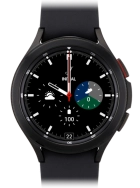
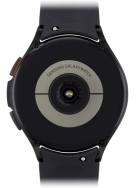
Galaxy Watch4 Classic

Samsung Galaxy Watch4 Classic
f-64402d11-2e9c-4f97-a328-4bca9ca62212
f-2c976941-f0ea-45f6-a44c-dacfe7b1e16a
f-a274d317-9521-4e76-a1eb-7af9b10356b9
f-af8a0036-aa48-4851-93ee-362e30d714f5
f-c266fbf7-6048-476b-8c5e-828285644930
  • Device home
  • Getting started
  • Basic functions
  • Calls, contacts, messaging
  • Connectivity
  • Specifications
  • Device home
  • Getting started
  • Basic functions
  • Calls, contacts, messaging
  • Connectivity
  • Specifications

Installing apps from Google Play

You can add new functions to your smartwatch by installing apps from Google Play.

On your phone: Press Galaxy Wearable.
Step 1 of 6

On your phone: Press Galaxy Wearable.

On your phone: Press Store.
Step 2 of 6

On your phone: Press Store.

On your phone: Press the search icon.
Step 3 of 6

On your phone: Press the search icon.

On your phone: Key in the name or subject of the required app and press the search icon.
Step 4 of 6

On your phone: Key in the name or subject of the required app and press the search icon.

On your phone: Press the required app.
Step 5 of 6

On your phone: Press the required app.

On your phone: Press Install and follow the instructions on the screen to install the app.
Step 6 of 6

On your phone: Press Install and follow the instructions on the screen to install the app.

If you've selected a paid app, press the price to install the app.

Get information on...

Or choose...

Show more