Help
Device guides
Samsung
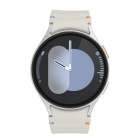
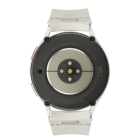
Galaxy Watch7

Samsung Galaxy Watch7
f-c1901bed-d079-43a9-849b-a1e47b759a5c
f-b202fd47-06ce-4211-abc6-aa47dd50b693
f-24c1c8f7-de8b-4d34-ab86-36647da4eeed
f-accc5b55-2a84-476a-b71b-c93bc92f5251
f-6a7f21a8-9a7c-4e91-b072-f23ef48519a8
f-a386ce93-f106-442e-9b97-0cbe8838cb6e
f-e55cfd38-3d9e-4c18-b413-f97d24f48ae6
  • Device home
  • Getting started
  • Basic functions
  • Calls, contacts, messaging
  • Connectivity
  • Specifications
  • Device home
  • Getting started
  • Basic functions
  • Calls, contacts, messaging
  • Connectivity
  • Specifications

I can't play music

Solution 2 of 5: The headset isn't working

Bluetooth is a wireless connection which is used to connect to your phone. You can also use Bluetooth to establish a connection to e.g. a wireless headset.

Slide your finger upwards starting from the bottom of the screen.
Step 1 of 8

Slide your finger upwards starting from the bottom of the screen.

Press the settings icon.
Step 2 of 8

Press the settings icon.

Press Connections.
Press Connections.
Step 3 of 8

Press Connections.

Press Bluetooth.
Press Bluetooth.
Step 4 of 8

Press Bluetooth.

Press the indicator below
Step 5 of 8

Press the indicator below "Bluetooth" to turn on the function.

Press the required device.
Step 6 of 8

Press the required device.

Press the confirm icon.
Step 7 of 8

Press the confirm icon.

Press the Home key to return to the home screen.
Step 8 of 8

Press the Home key to return to the home screen.


Did this solve your problem?

Yes No

Get information on...

Or choose...

Show more