Help
Device guides
Samsung
Galaxy Watch9

Samsung Galaxy Watch9
f-70d6b283-0e9f-4277-b28d-595865fc374e
f-21e458ba-538a-492e-bb41-9cbf269fd36a
f-2bffae95-c140-43d6-9349-c43998bedc76
f-55b13b40-3124-4ca0-9cb6-2c287f03a7fc
f-5bb6a698-0615-4011-acbe-55cf2df1a858
f-a84e2034-fce4-4e1e-82a9-29b136b4a536
f-d3e7252b-1e37-4cc0-9203-b23c16875a32
  • Device home
  • Getting started
  • Basic functions
  • Calls, contacts, messaging
  • Connectivity
  • Specifications
  • Device home
  • Getting started
  • Basic functions
  • Calls, contacts, messaging
  • Connectivity
  • Specifications

I can't activate my smartwatch

Solution 3 of 3: The activation isn't done correctly

You need to activate your smartwatch before using it for the first time and after a factory reset.

Press and hold the Home key until your smartwatch is turned on.
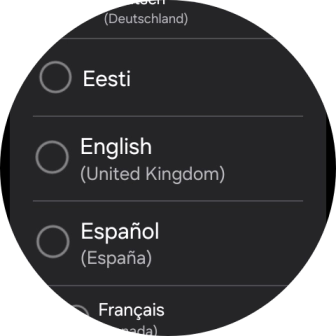
Step 1 of 30

Press and hold the Home key until your smartwatch is turned on.

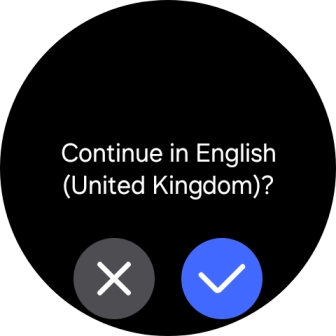
Press the required language.
Step 2 of 30

Press the required language.

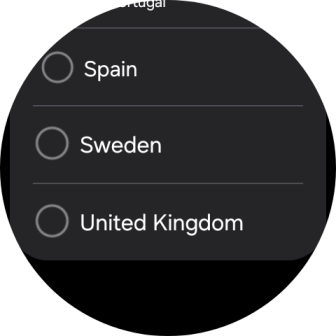
Press the confirm icon.
Step 3 of 30

Press the confirm icon.

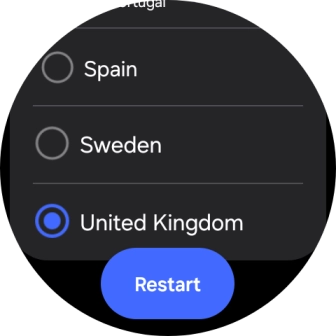
Press the required region.
Step 4 of 30

Press the required region.

Press Restart.
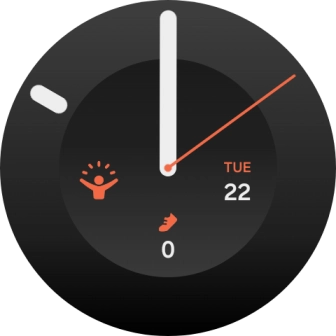
Press Restart.
Step 5 of 30

Press Restart.

Place your smartwatch next to your phone.
Step 6 of 30

Place your smartwatch next to your phone.

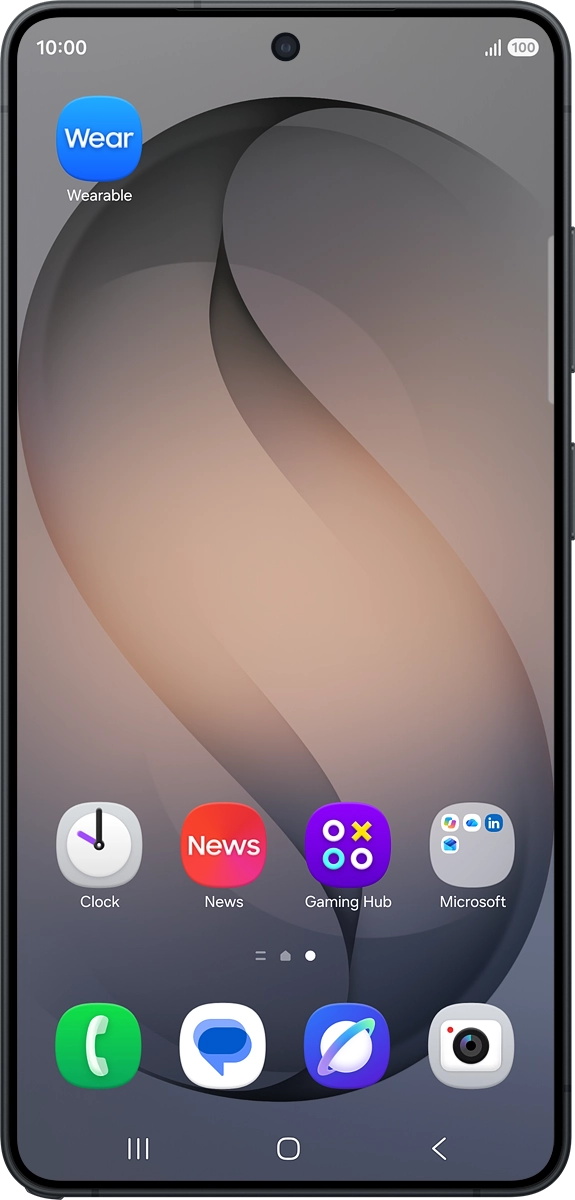
On your phone: Press Wearable.
Step 7 of 30

On your phone: Press Wearable.

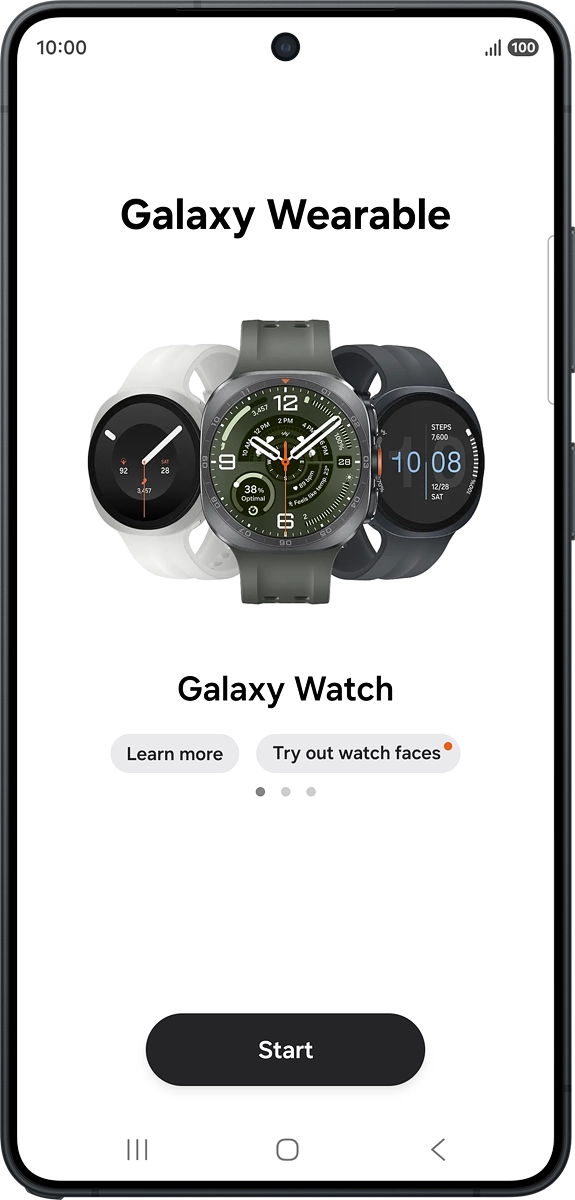
On your phone: Press Start.
Step 8 of 30

On your phone: Press Start.

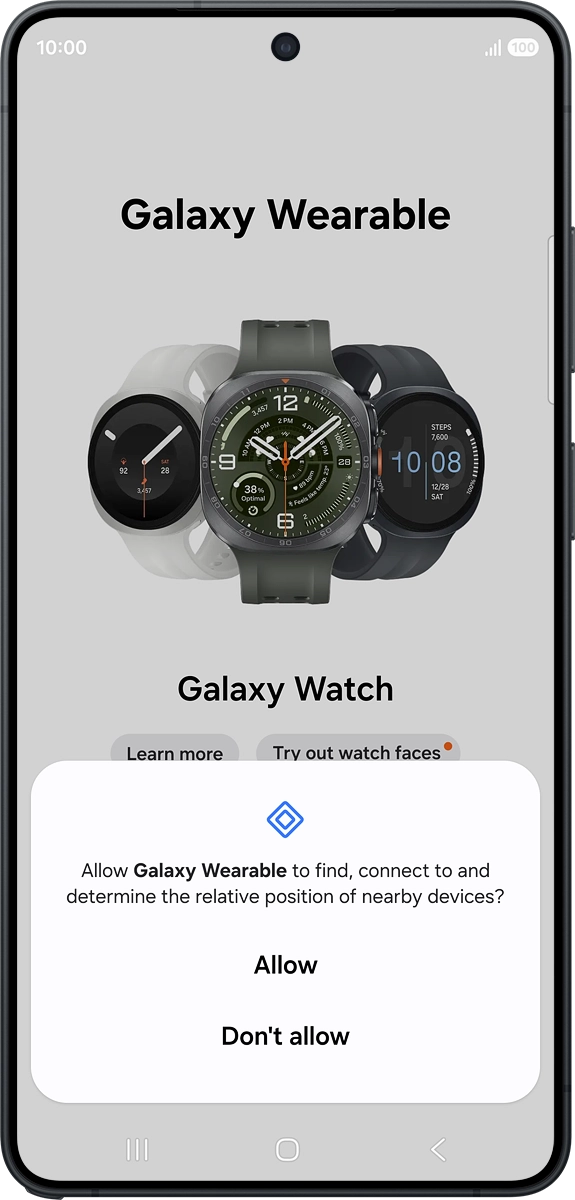
On your phone: Press Allow.
Step 9 of 30

On your phone: Press Allow.

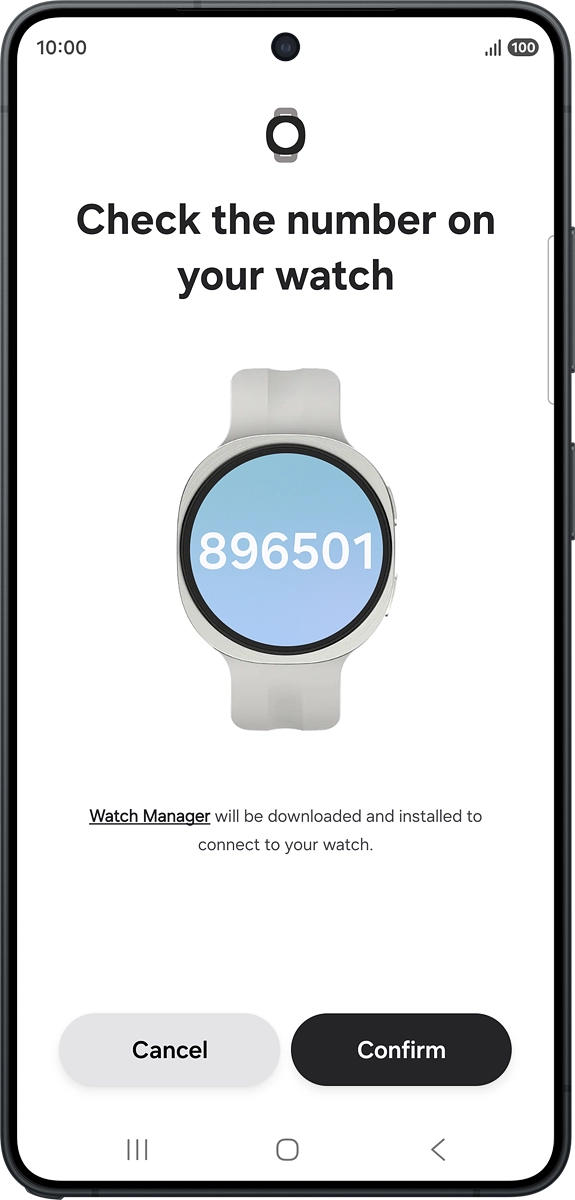
On your phone: Check that the code is identical to the code displayed on your smartwatch.
Step 10 of 30

On your phone: Check that the code is identical to the code displayed on your smartwatch.

On your phone: Press Confirm.
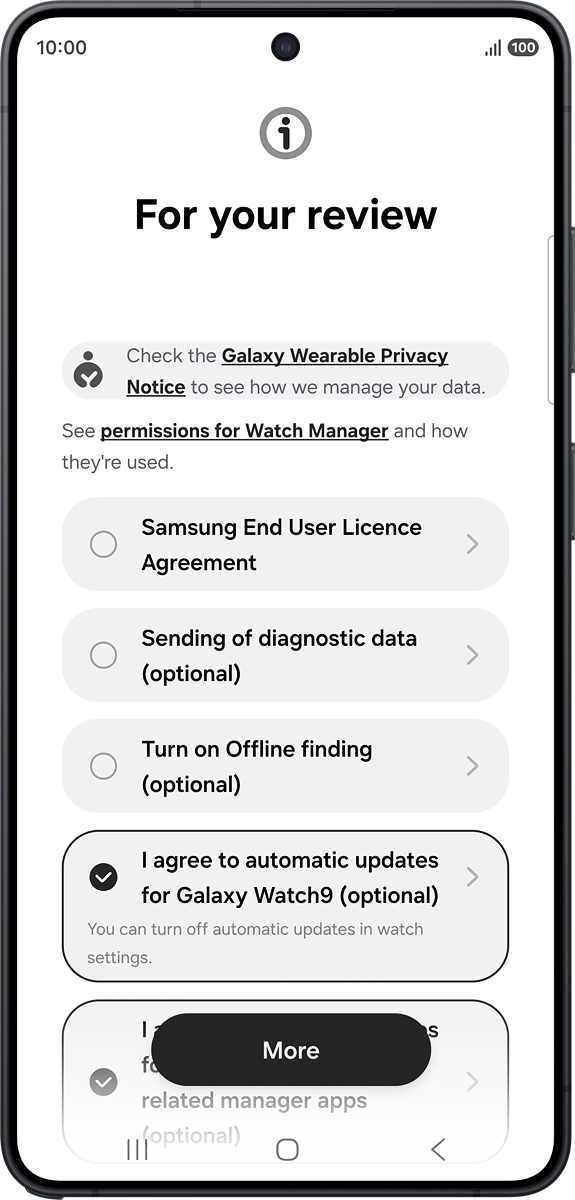
Step 11 of 30

On your phone: Press Confirm.

On your phone: Press the fields next to the required settings.
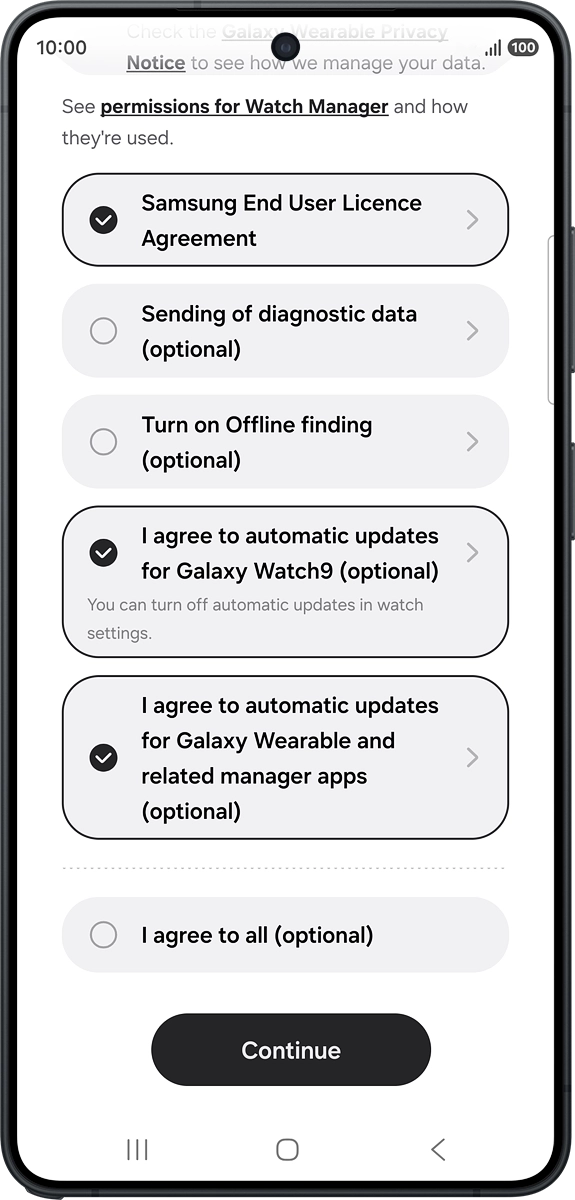
Step 12 of 30

On your phone: Press the fields next to the required settings.

On your phone: Press Continue.
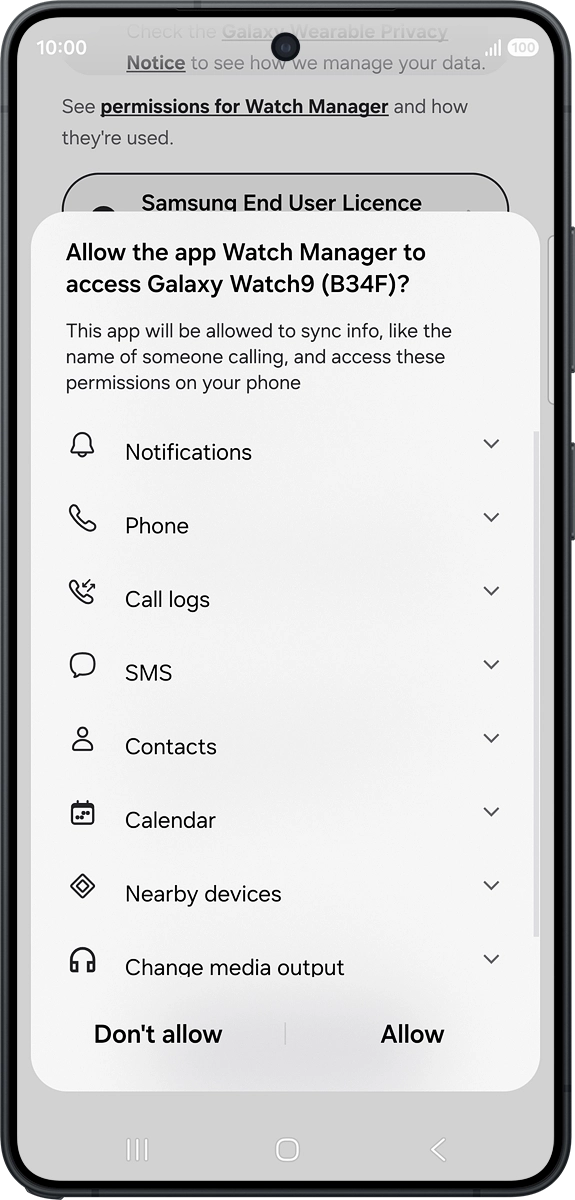
Step 13 of 30

On your phone: Press Continue.

On your phone: Press Allow.
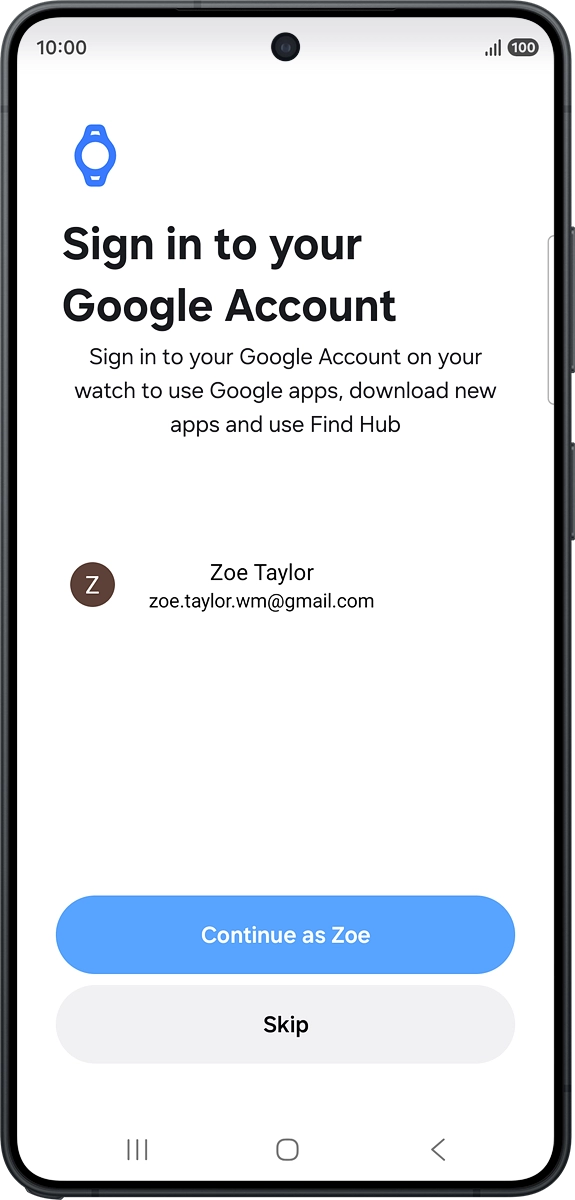
Step 14 of 30

On your phone: Press Allow.

On your phone: Press Continue as ‹›.
Step 15 of 30

On your phone: Press Continue as ‹›.

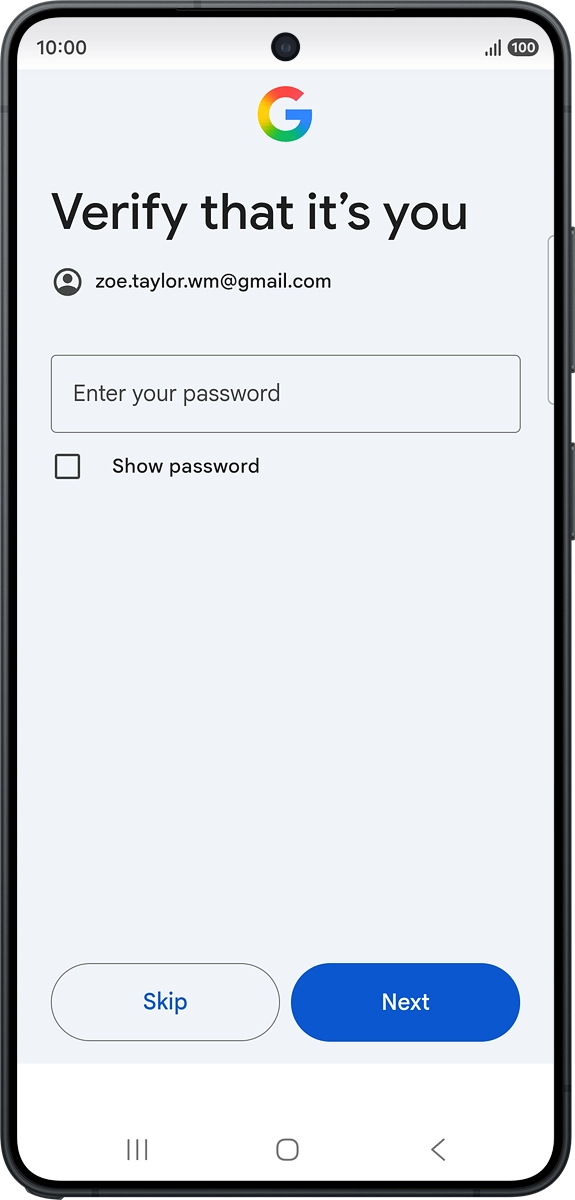
On your phone: Press Enter your password.
Step 16 of 30

On your phone: Press Enter your password.

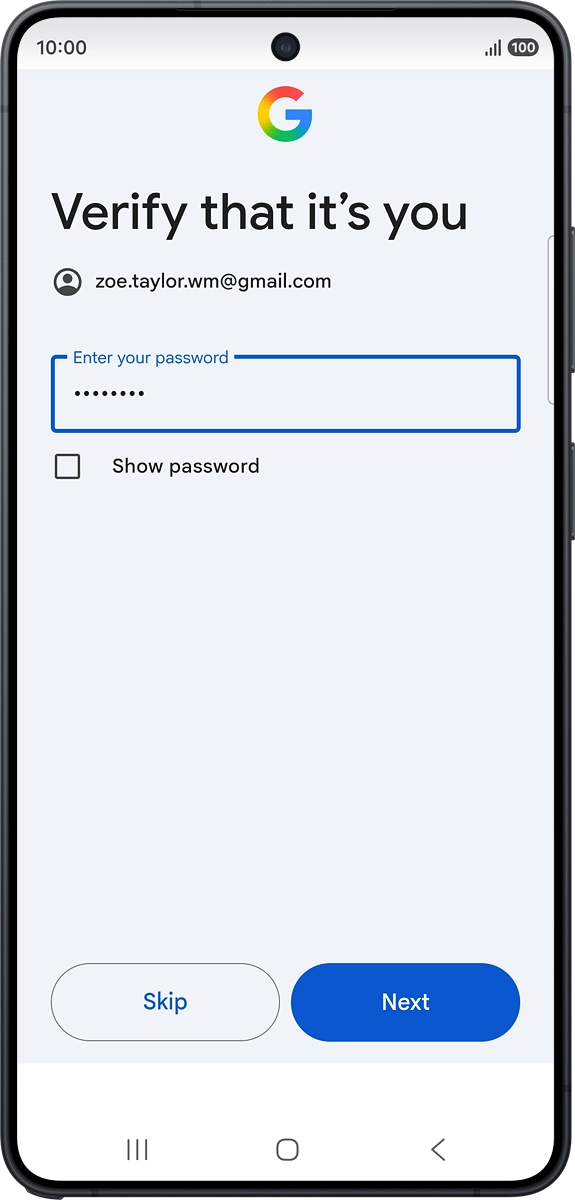
On your phone: Key in the password for your Google account and press Next.
Step 17 of 30

On your phone: Key in the password for your Google account and press Next.

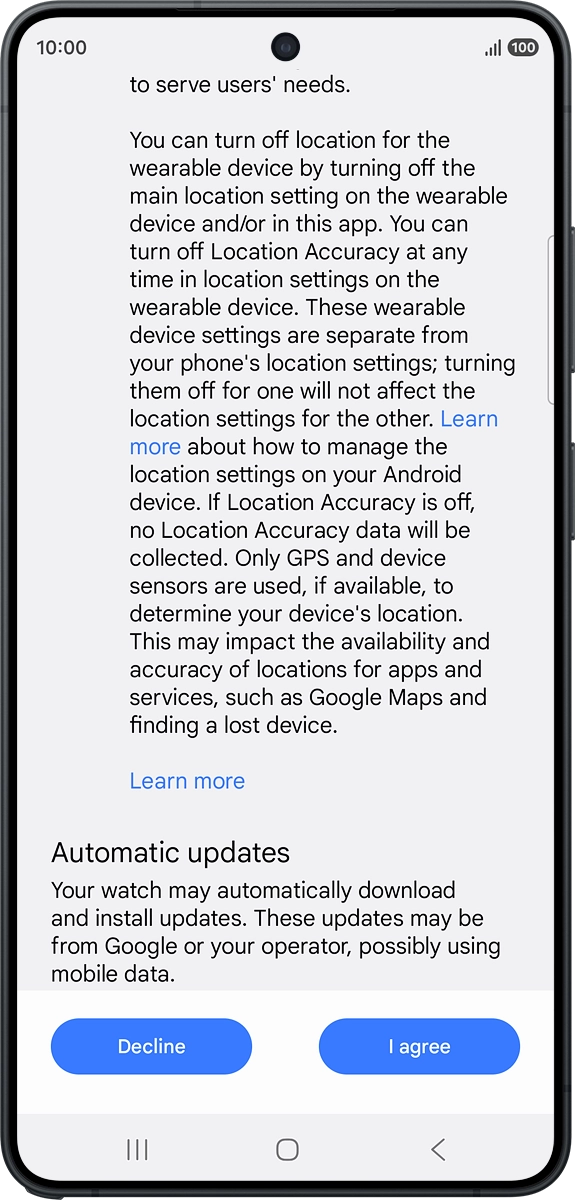
On your phone: Press I agree.
Step 18 of 30

On your phone: Press I agree.

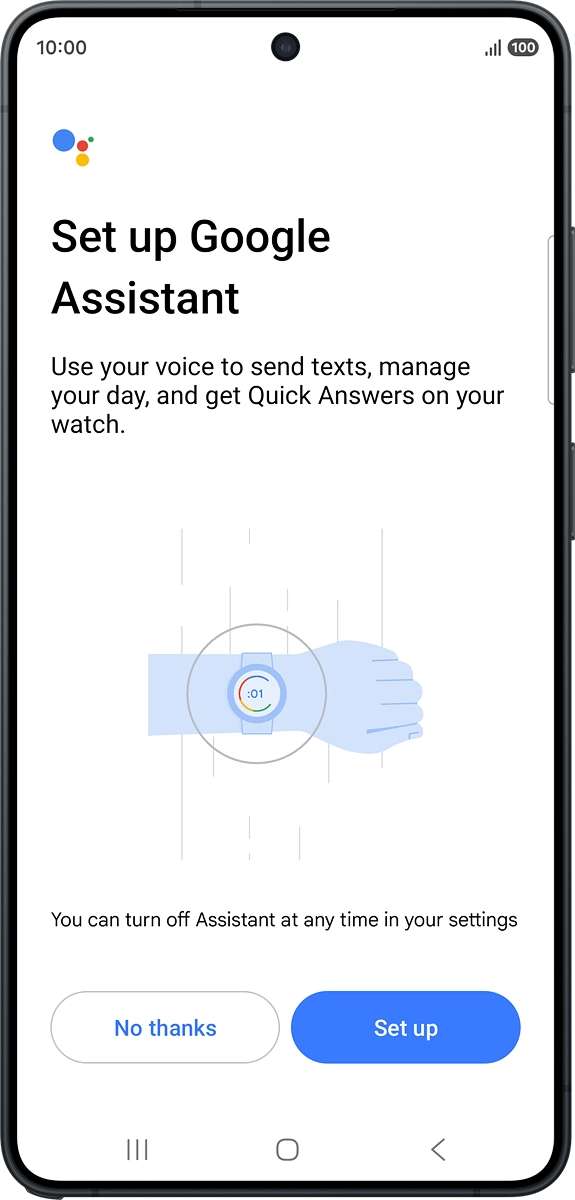
On your phone: Press Set up.
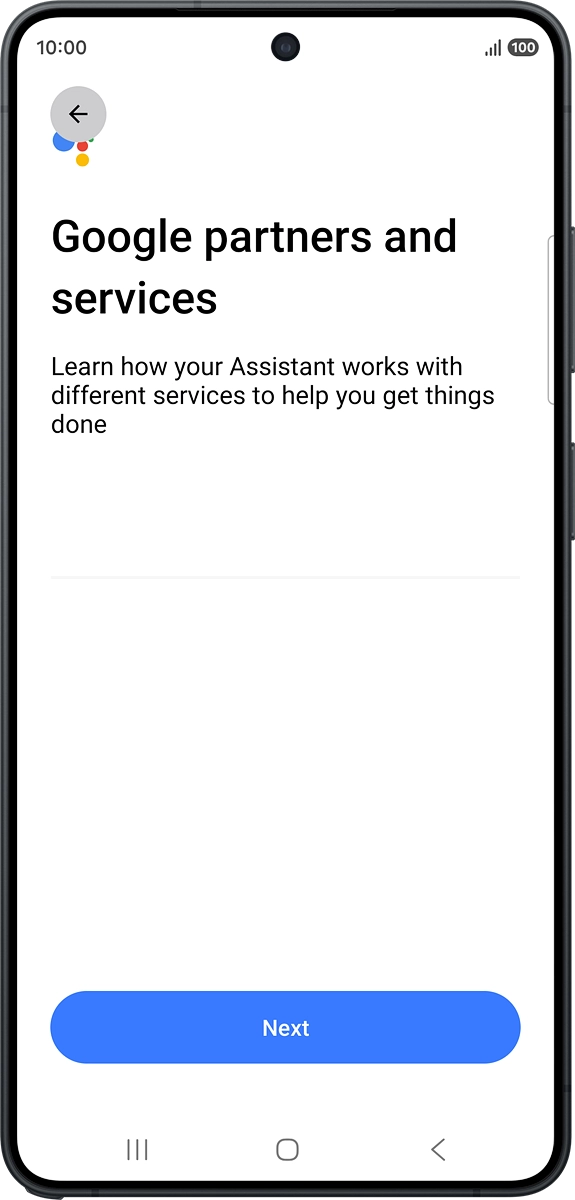
Step 19 of 30

On your phone: Press Set up.

On your phone: Press Next.
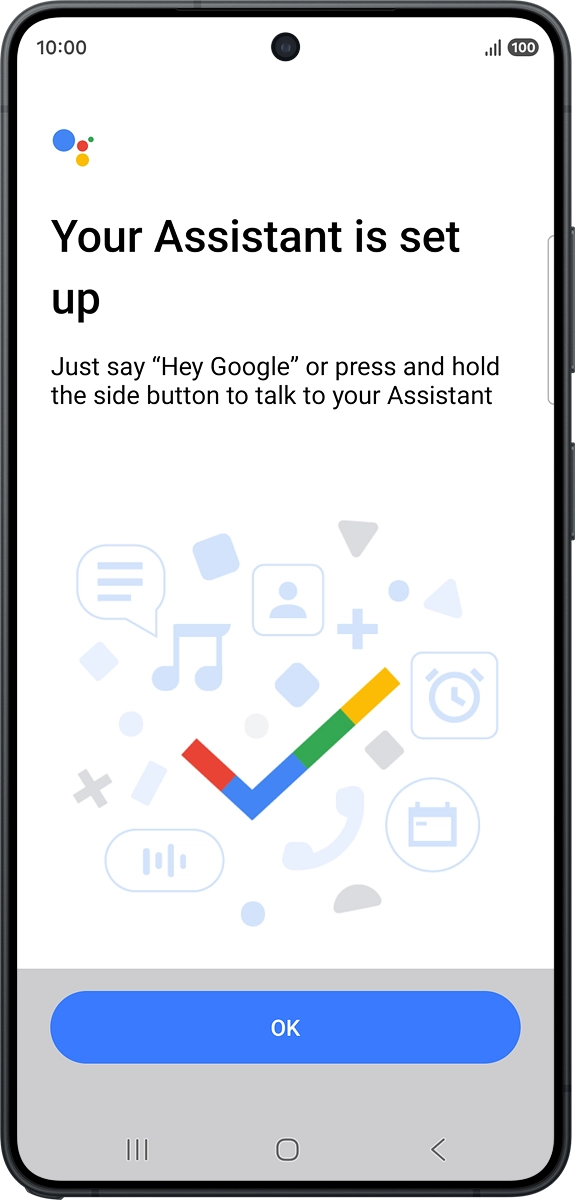
Step 20 of 30

On your phone: Press Next.

On your phone: Press OK.
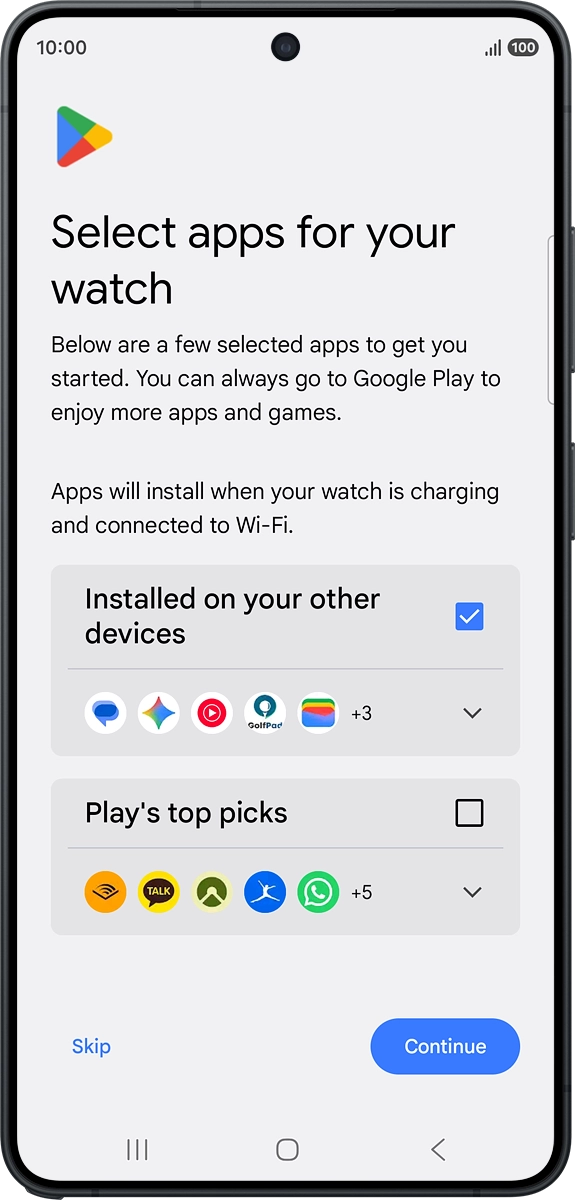
Step 21 of 30

On your phone: Press OK.

On your phone: Follow the instructions on the screen to select which additional apps to install on your smartwatch and press Continue.
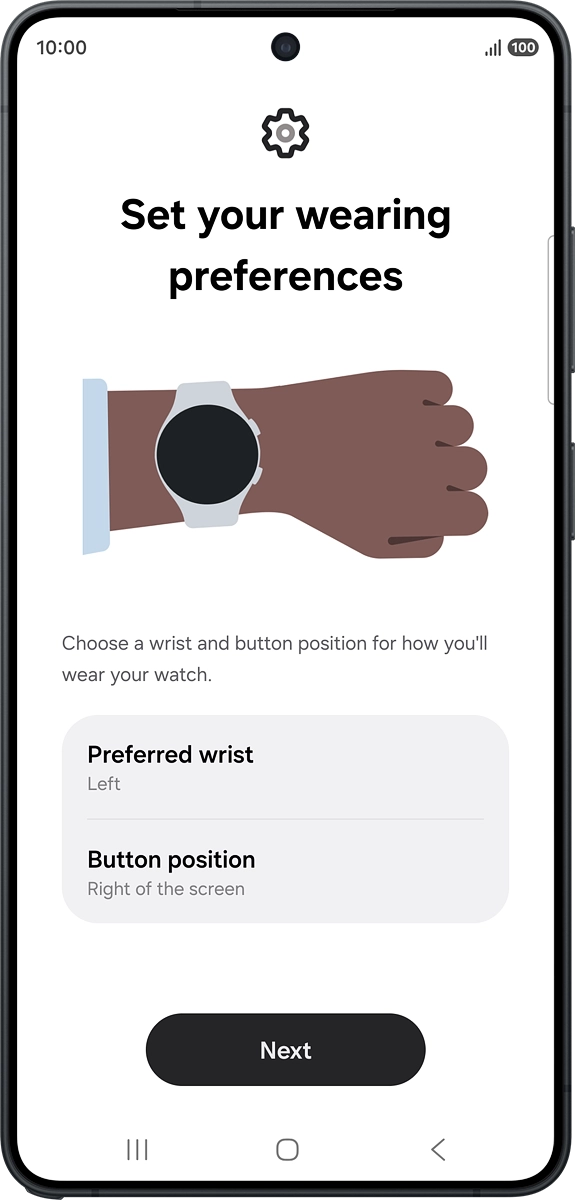
Step 22 of 30

On your phone: Follow the instructions on the screen to select which additional apps to install on your smartwatch and press Continue.

On your phone: Follow the instructions on the screen to select the required settings and press Next.
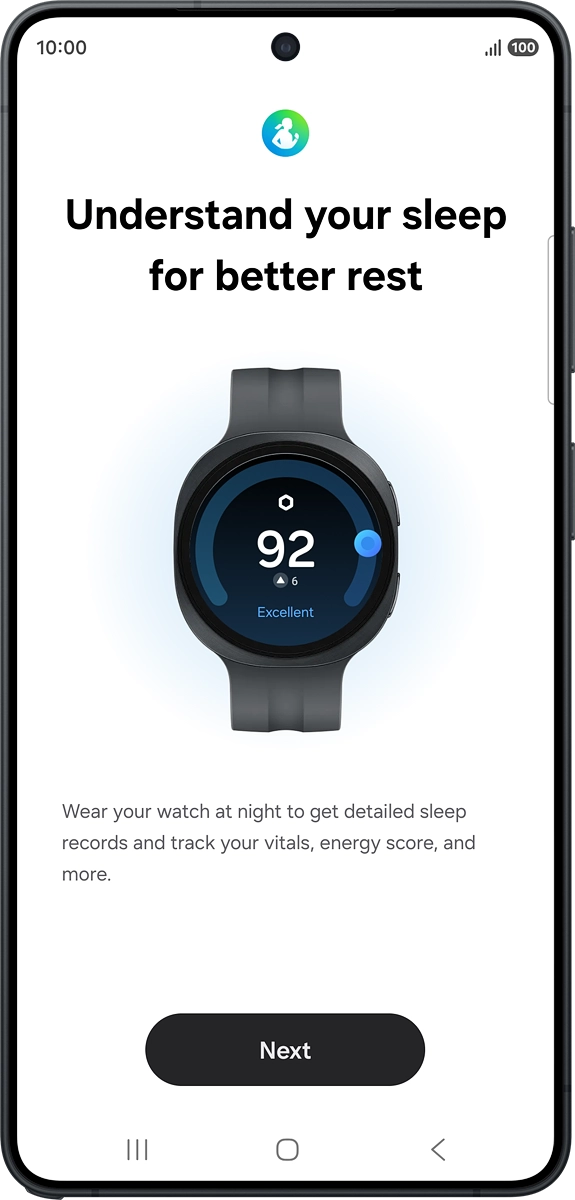
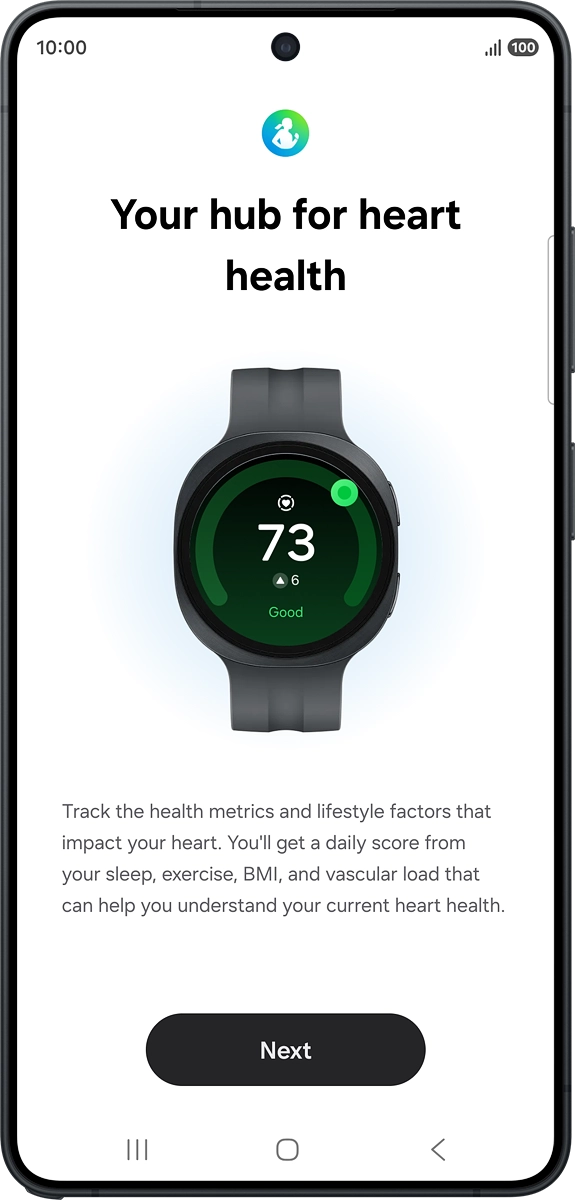
Step 23 of 30

On your phone: Follow the instructions on the screen to select the required settings and press Next.

On your phone: Follow the instructions on the screen to select the required settings and press Next.
Step 24 of 30

On your phone: Follow the instructions on the screen to select the required settings and press Next.

On your phone: Press Next.
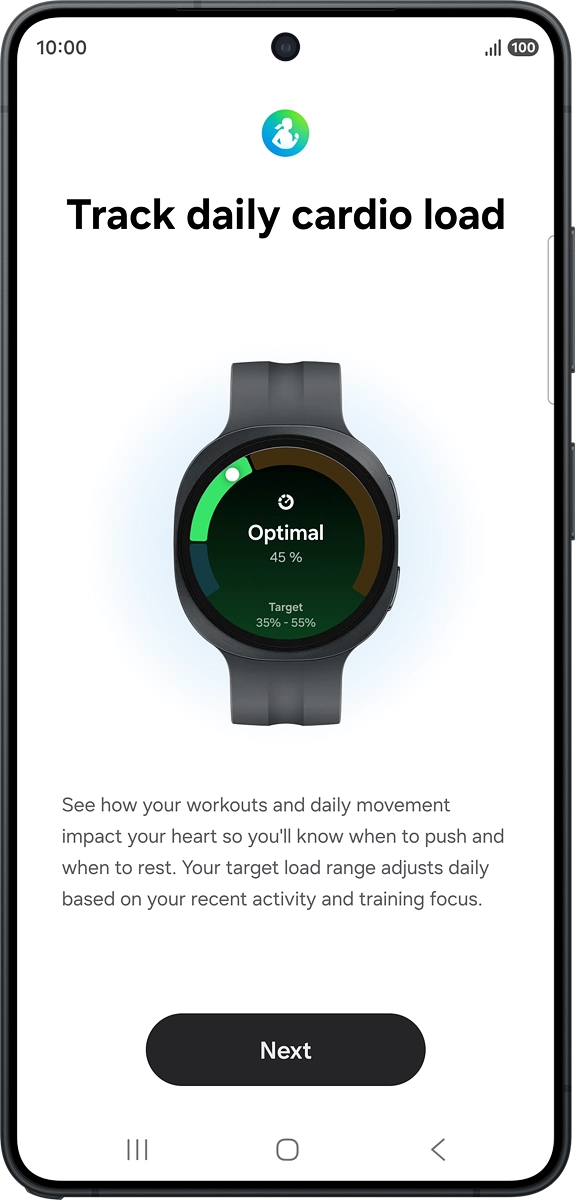
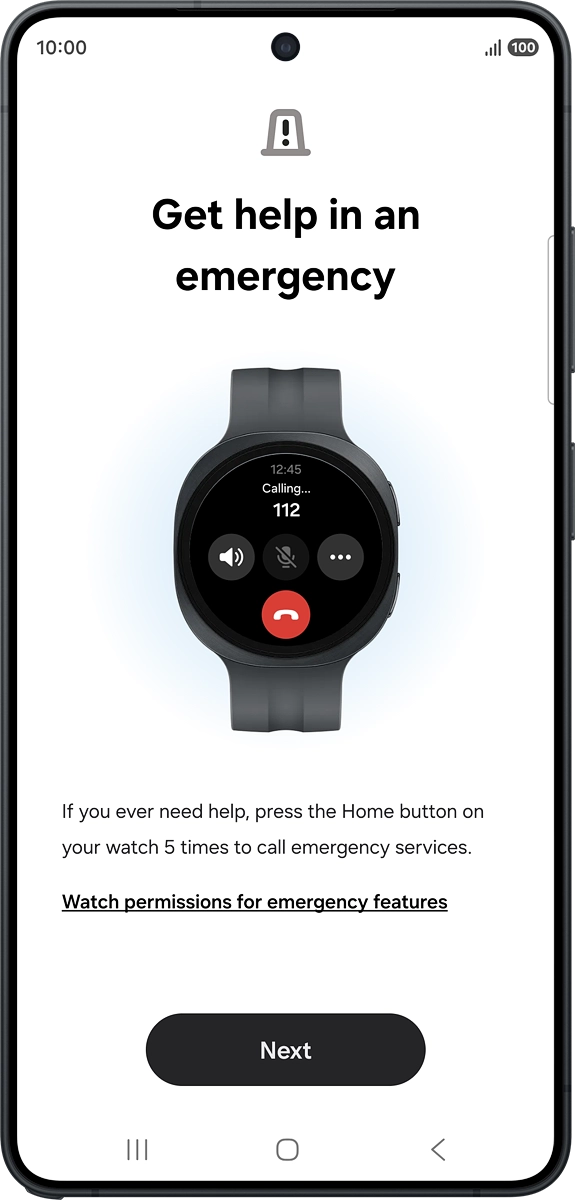
Step 25 of 30

On your phone: Press Next.

On your phone: Press Next.
Step 26 of 30

On your phone: Press Next.

On your phone: Press Next.
Step 27 of 30

On your phone: Press Next.

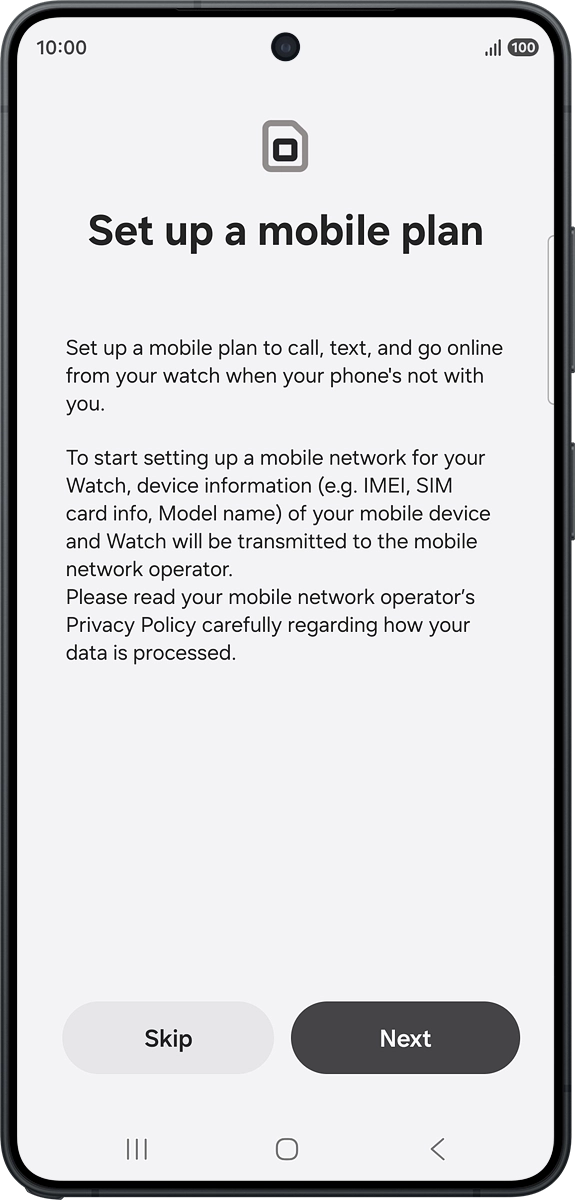
On your phone: To set up mobile data on your smartwatch, follow the instructions on the screen to finish setting up your smartwatch.
Step 28 of 30

On your phone: To set up mobile data on your smartwatch, follow the instructions on the screen to finish setting up your smartwatch.

On your phone: To set up mobile data on your smartwatch later, press Skip.
Step 29 of 30

On your phone: To set up mobile data on your smartwatch later, press Skip.

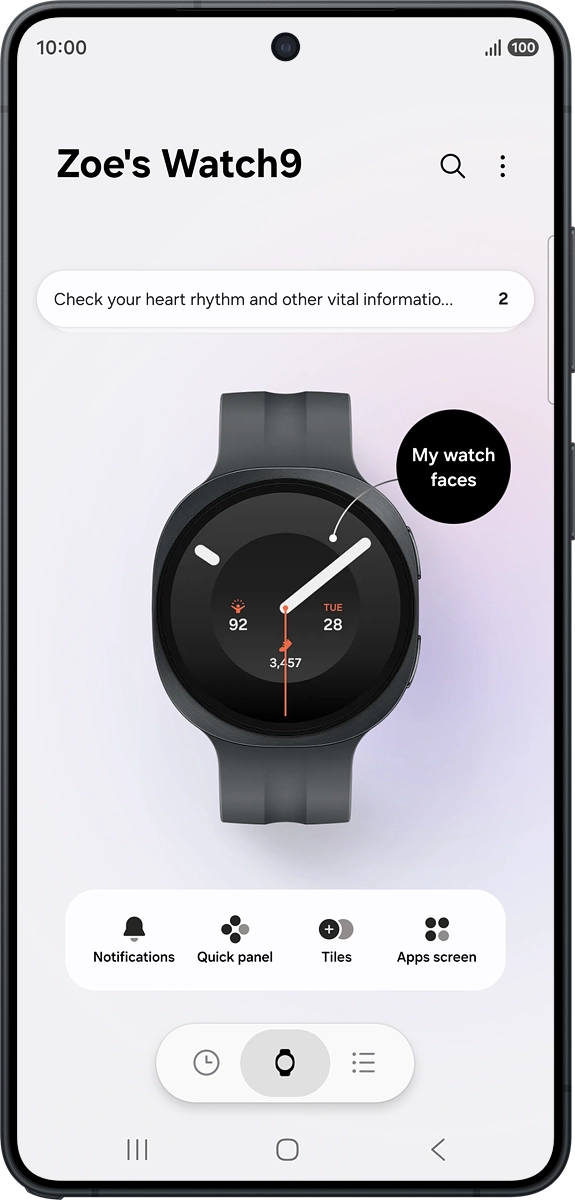
On your phone: When this screen is displayed, your smartwatch is activated and synchronised with your phone.
Step 30 of 30

On your phone: When this screen is displayed, your smartwatch is activated and synchronised with your phone.


Did this solve your problem?

Yes No

Get information on...

Or choose...

Show more