Help
Device guides
Samsung
Galaxy Z Flip

Samsung Galaxy Z Flip
f-87321f46-a363-4f1a-8623-588cddaffa86
f-e757ca9c-c688-4143-a359-268f9fcf3480
f-1aab6645-695f-4897-a44c-025273c76a78
f-5b316b46-fbfa-49d5-8f09-bde3227a2516
f-295f8b0c-a912-4ae9-9c16-a59db5fe6891
f-93a93baa-0109-419e-bd83-b64694ae9f5f
  • Device home
  • Getting started
  • Basic functions
  • Calls, contacts, messaging
  • Connectivity
  • Specifications
  • Device home
  • Getting started
  • Basic functions
  • Calls, contacts, messaging
  • Connectivity
  • Specifications

Uninstalling apps

You can uninstall apps to free up memory.

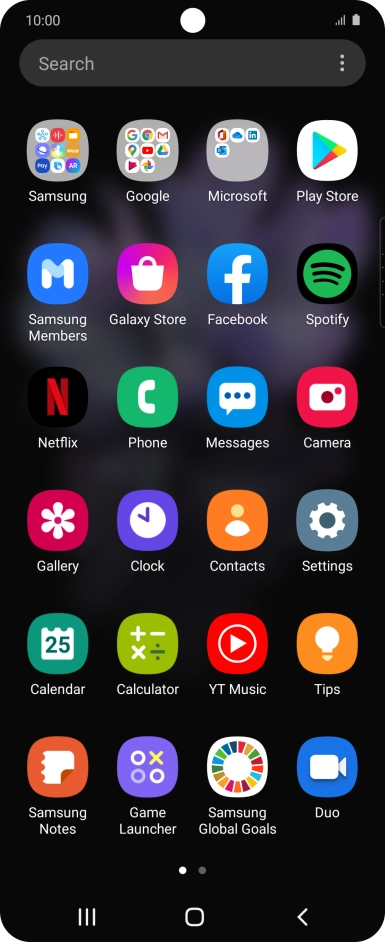
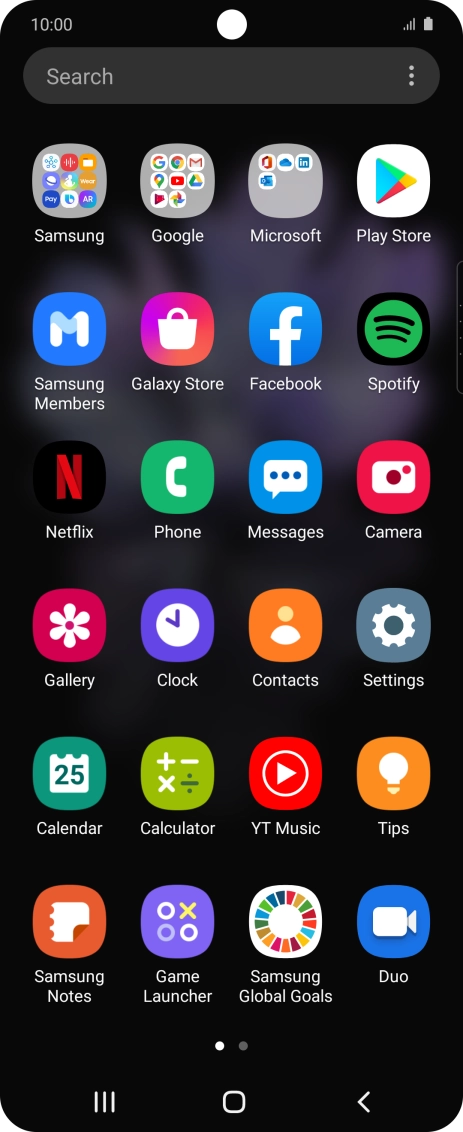
Slide your finger upwards on the screen.
Step 1 of 9

Slide your finger upwards on the screen.

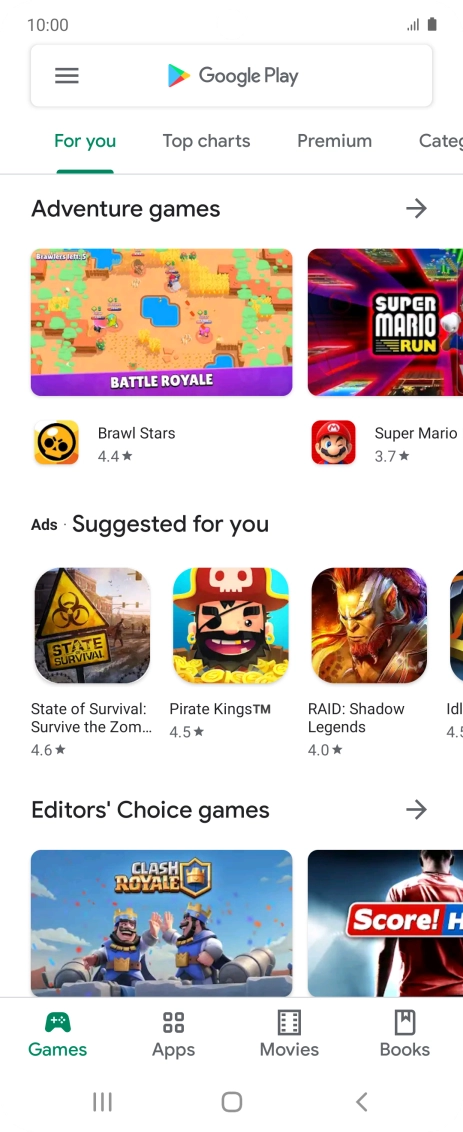
Press Play Store.
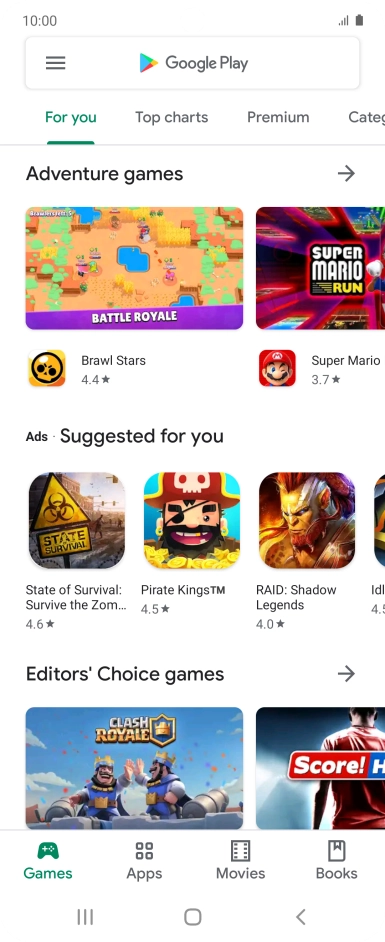
Press Play Store.
Step 2 of 9

Press Play Store.

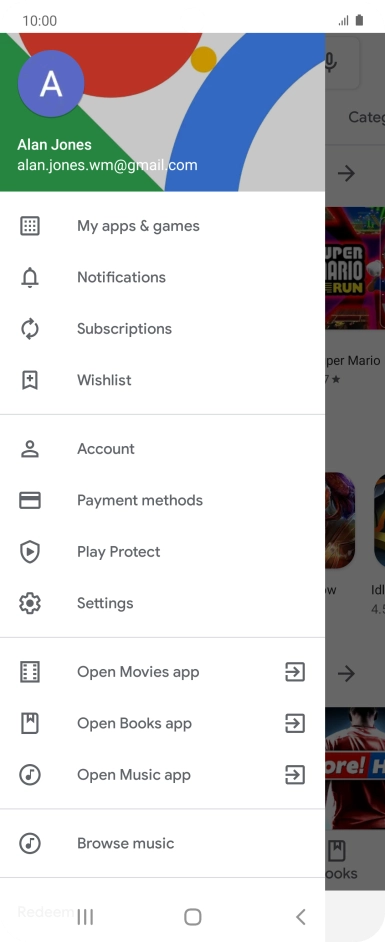
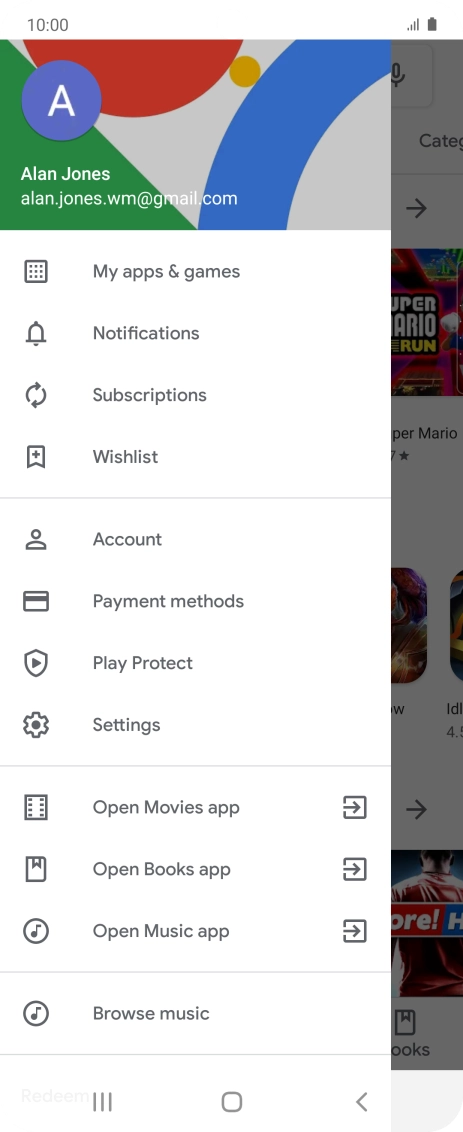
Slide your finger right starting from the left side of the screen.
Step 3 of 9

Slide your finger right starting from the left side of the screen.

Press My apps & games.
Step 4 of 9

Press My apps & games.

Press Installed.
Press Installed.
Step 5 of 9

Press Installed.

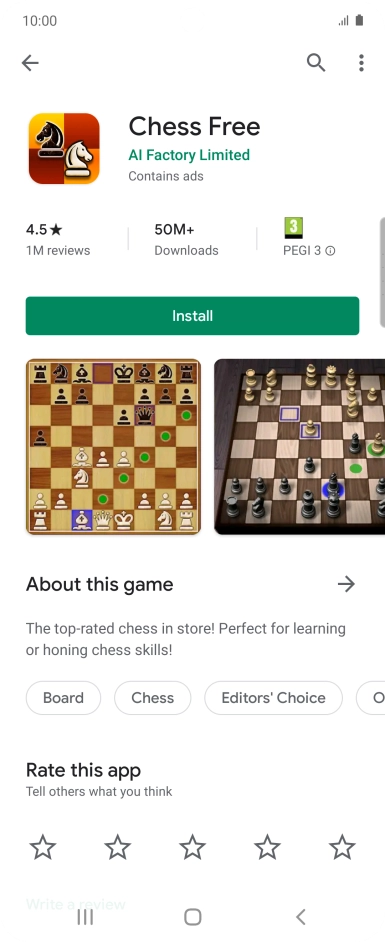
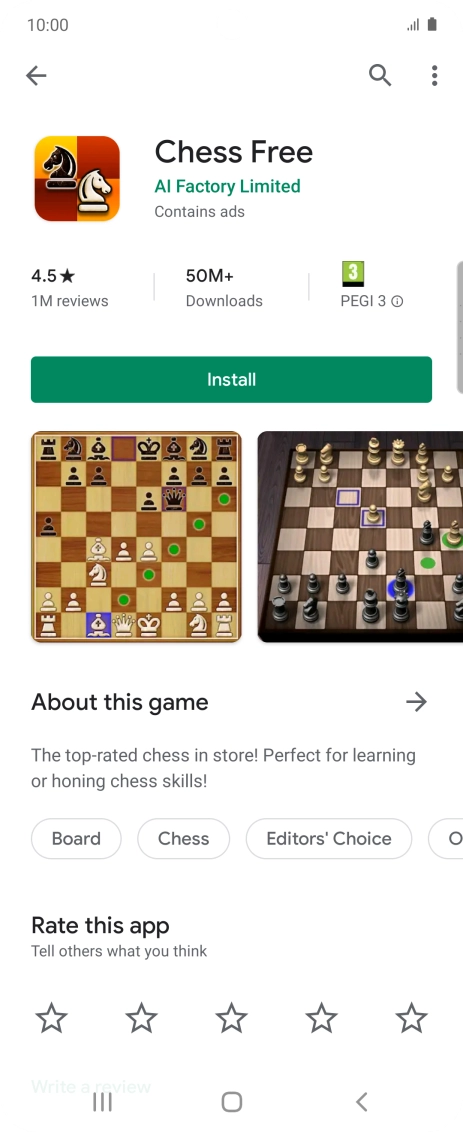
Press the required app.
Step 6 of 9

Press the required app.

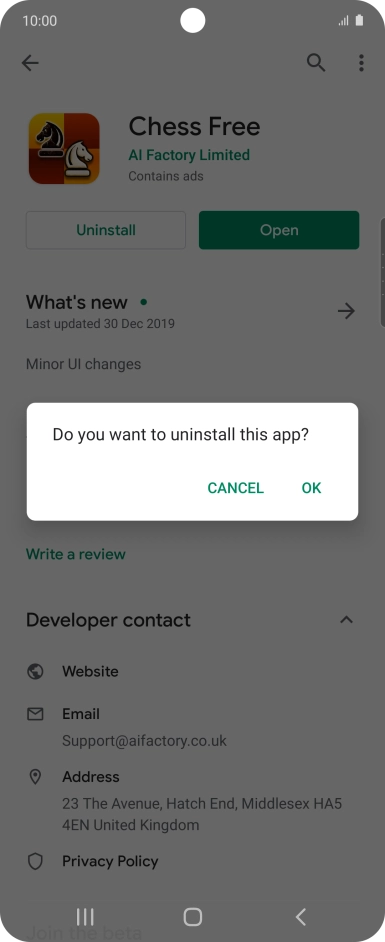
Press Uninstall.
Press Uninstall.
Step 7 of 9

Press Uninstall.

Press OK.
Press OK.
Step 8 of 9

Press OK.

Press the Home key to return to the home screen.
Step 9 of 9

Press the Home key to return to the home screen.

Get information on...

Or choose...

Show more