Help
Device guides
Samsung
Galaxy Z Flip3 5G

Samsung Galaxy Z Flip3 5G
f-c3216ad3-6f8e-4ffd-8160-22a028c8685a
f-188ff6d4-5373-4589-9672-a80dc9a1a056
f-83e98720-456d-4fa6-b924-a58acf6a5059
f-7e8d9786-dcfd-4b4d-bd0e-9a7dd759fb45
f-f49ffbe2-2fe7-4b3c-bf25-9e9e6ec13cd6
f-5811b48e-b78b-40bf-8476-807537189c73
  • Device home
  • Getting started
  • Basic functions
  • Calls, contacts, messaging
  • Connectivity
  • Specifications
  • Device home
  • Getting started
  • Basic functions
  • Calls, contacts, messaging
  • Connectivity
  • Specifications

Creating contact

You can save your contacts in your phone's address book. You can save additional information to a contact such as email address and personal ring tone.
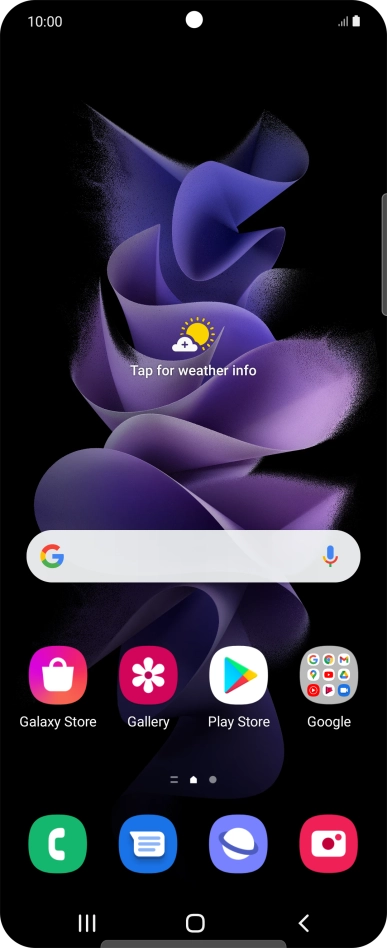
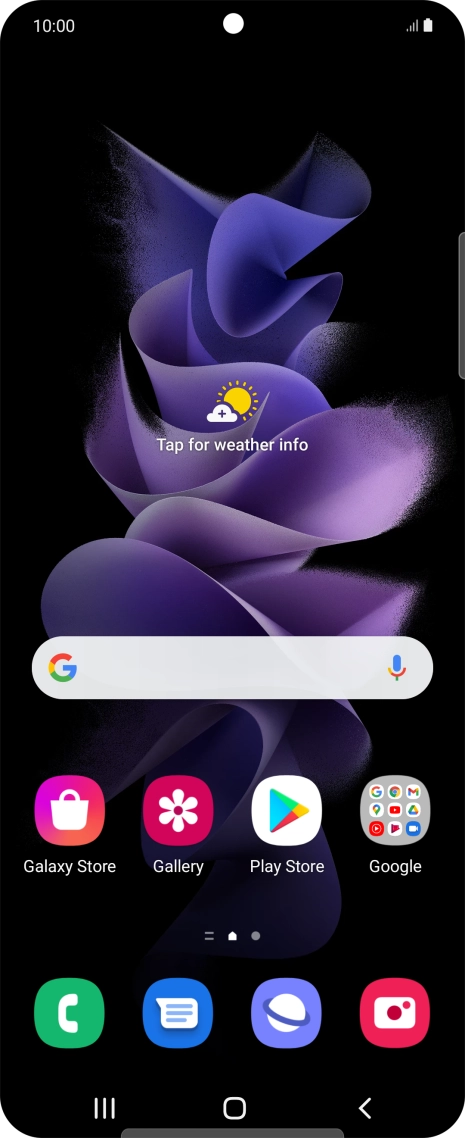
Slide your finger upwards on the screen.
Step 1 of 9

Slide your finger upwards on the screen.

Press Contacts.
Press Contacts.
Step 2 of 9

Press Contacts.

Press the new contact icon.
Step 3 of 9

Press the new contact icon.

Press the address book drop down list.
Step 4 of 9

Press the address book drop down list.

Press Phone.
Press Phone.
Step 5 of 9

Press Phone.

Press the field below
Step 6 of 9

Press the field below "Name" and key in the required name.

Press Phone and key in the required phone number.
Step 7 of 9

Press Phone and key in the required phone number.

Follow the instructions on the screen to add more information such as an email address and a personal ring tone.
Press Save.
Press Save.
Step 8 of 9

Press Save.

Press the Home key to return to the home screen.
Step 9 of 9

Press the Home key to return to the home screen.

Get information on...

Or choose...

Show more