Help
Device guides
Samsung
Galaxy Z Flip6 5G

Samsung Galaxy Z Flip6 5G
f-052feda7-984a-4381-8c40-ade7936800e2
f-0e0c2dc4-ebca-49b7-acb0-f419fc56e4ec
f-e1a02b98-2ae5-4a45-a14e-927d357ac49f
f-14ccdedd-3c33-4212-9384-43ddfe439e99
f-e21d52da-d8ab-43c0-b8f3-efea4c19cb93
f-907d5f88-7794-46f3-b9f4-75a58b8aecf2
f-7cd96be6-2e52-4d04-b9aa-98a5da1f8d46
f-0790f121-0dea-4c24-a780-33ec40e75f14
  • Device home
  • Getting started
  • Basic functions
  • Calls, contacts, messaging
  • Connectivity
  • Specifications
  • Device home
  • Getting started
  • Basic functions
  • Calls, contacts, messaging
  • Connectivity
  • Specifications

Uninstalling apps

You can uninstall apps to free up memory.

Slide your finger upwards on the screen.
Step 1 of 9

Slide your finger upwards on the screen.

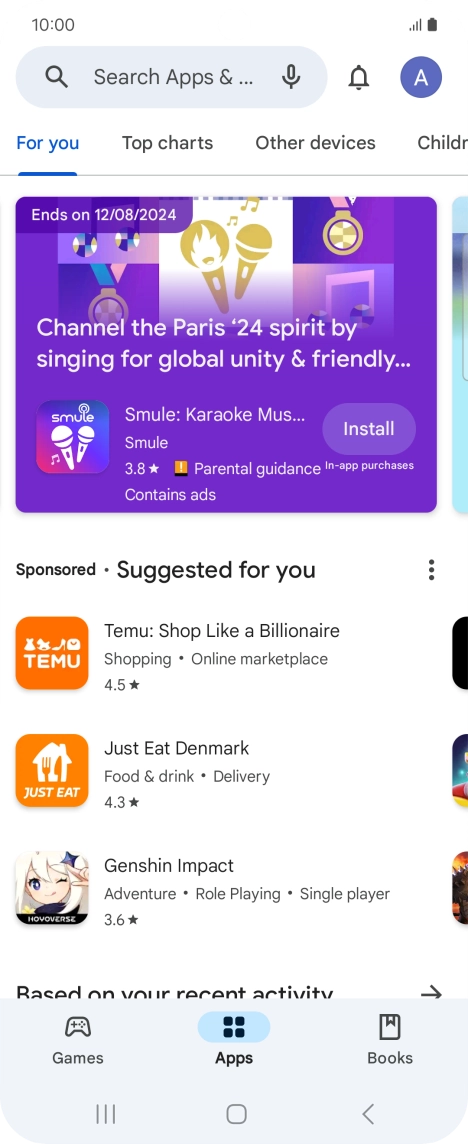
Press Play Store.
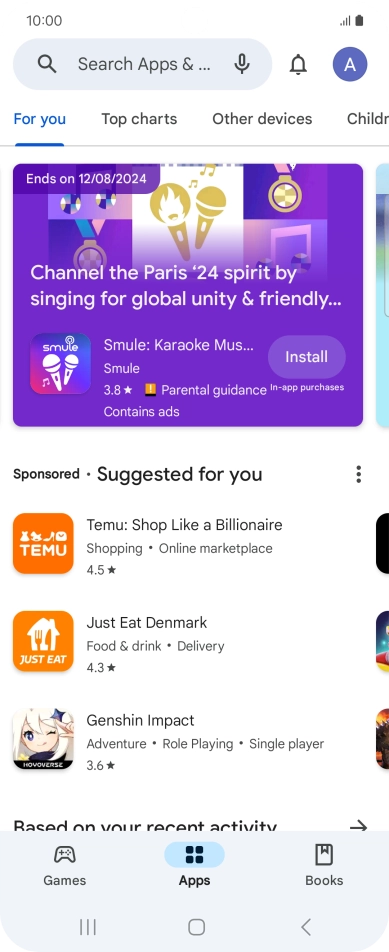
Press Play Store.
Step 2 of 9

Press Play Store.

Press the profile icon.
Step 3 of 9

Press the profile icon.

Press Manage apps and device.
Step 4 of 9

Press Manage apps and device.

Press Manage.
Press Manage.
Step 5 of 9

Press Manage.

Press the required app.
Step 6 of 9

Press the required app.

Press Uninstall.
Press Uninstall.
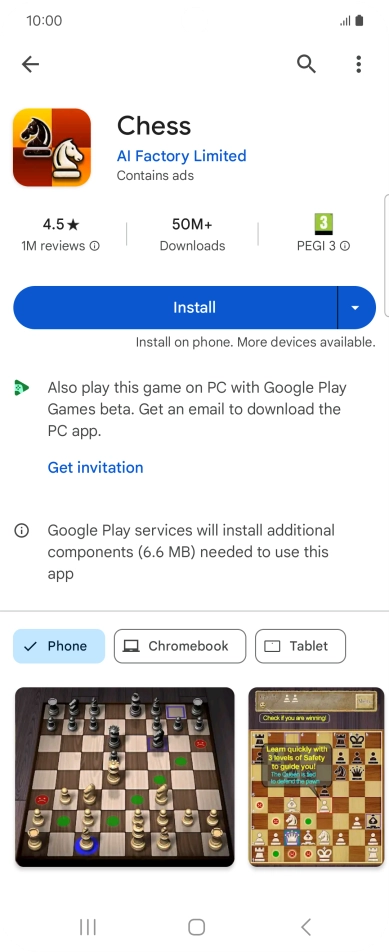
Step 7 of 9

Press Uninstall.

Press Uninstall.
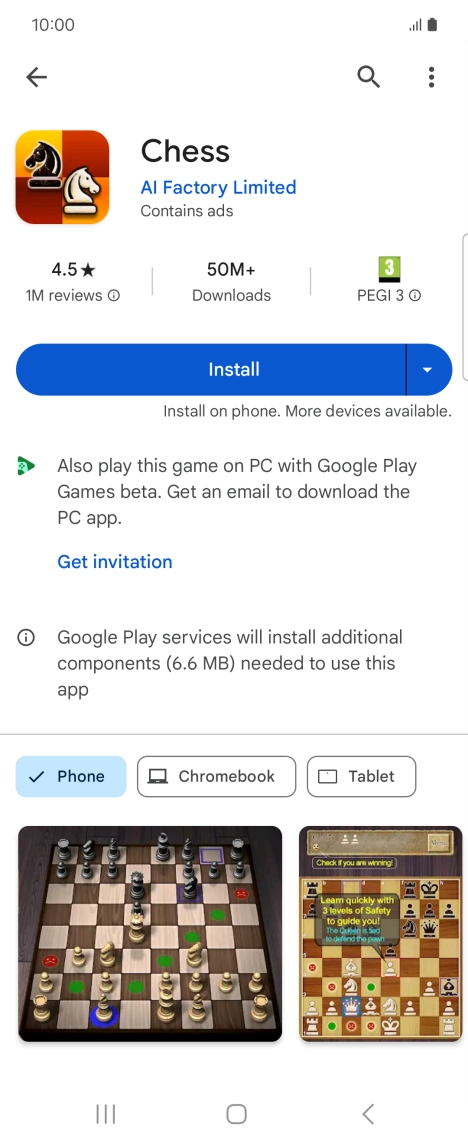
Press Uninstall.
Step 8 of 9

Press Uninstall.

Press the Home key to return to the home screen.
Step 9 of 9

Press the Home key to return to the home screen.

Get information on...

Or choose...

Show more