Help
Device guides
Samsung
Galaxy Z Flip7

Samsung Galaxy Z Flip7

f-eafb9da5-8750-4fef-9dc1-f725f5a7feba
f-a11dae12-8f1b-46b5-90be-089309c402b1
f-b5831145-f08f-4974-b925-a37657fac740
f-7530b2ce-d864-4400-8d6b-a7d32f13d1b2
f-41d1016f-92fd-49b0-a59c-1f80c6b00022
f-c3b6b92f-4355-420c-822a-109bd44ae8ef
f-427e4f8b-31ae-40f7-afc9-7ad76d2c0535
f-b7563523-dccc-4ee8-bd43-9552a241ac3a
  • Device home
  • Getting started
  • Basic functions
  • Calls, contacts, messaging
  • Connectivity
  • Specifications
  • Device home
  • Getting started
  • Basic functions
  • Calls, contacts, messaging
  • Connectivity
  • Specifications

Uninstalling apps

You can uninstall apps to free up memory.
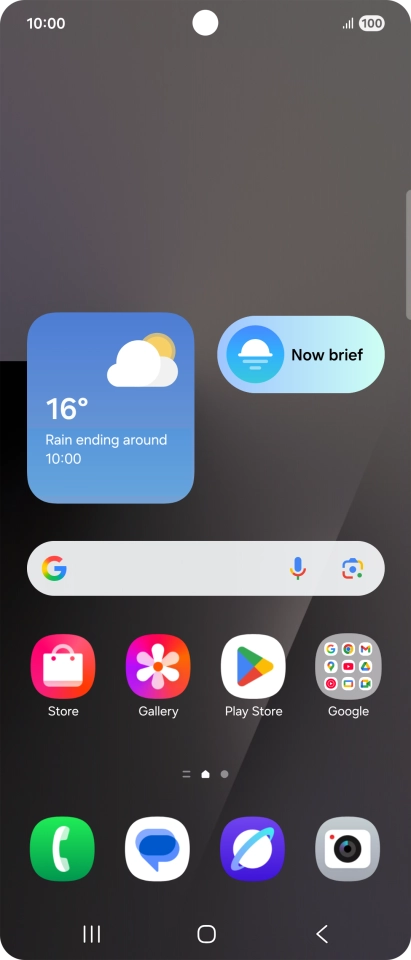
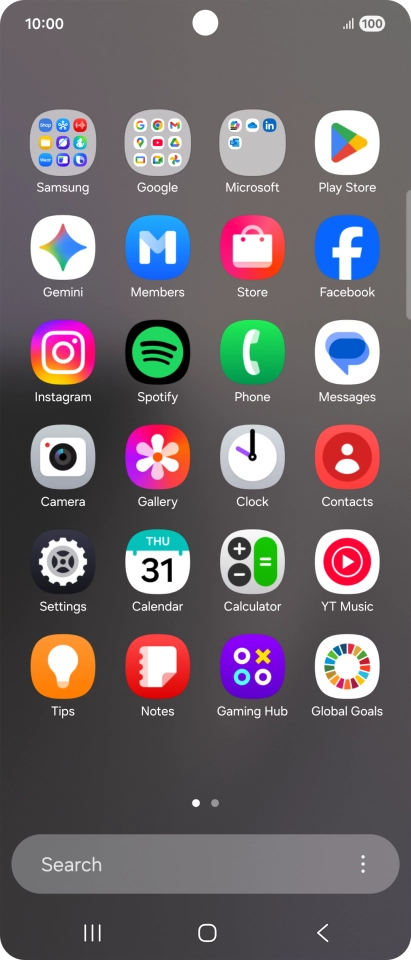
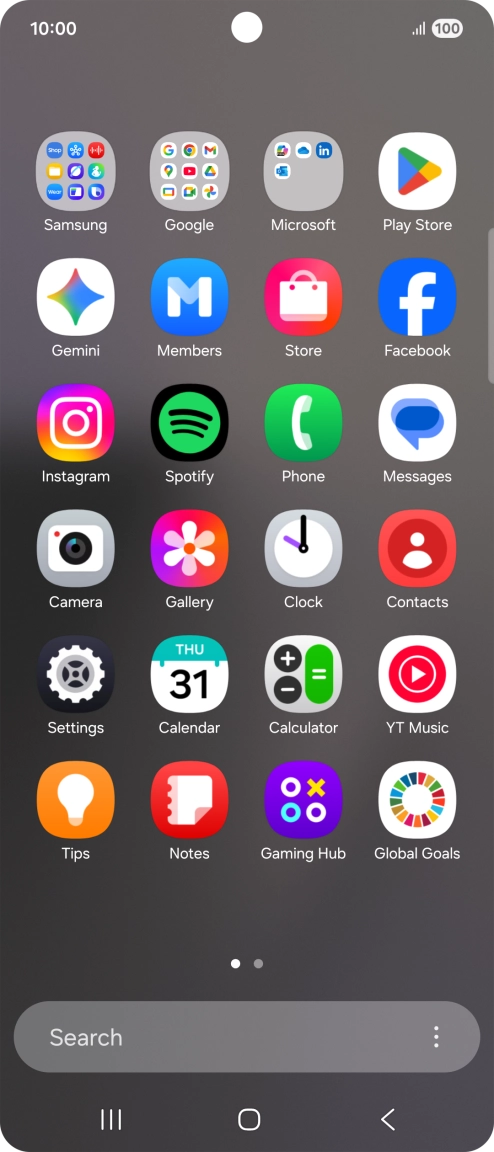
Slide your finger upwards on the screen.
Step 1 of 9

Slide your finger upwards on the screen.

Press Play Store.
Press Play Store.
Step 2 of 9

Press Play Store.

Press the profile icon.
Step 3 of 9

Press the profile icon.

Press Manage apps and device.
Step 4 of 9

Press Manage apps and device.

Press Manage.
Press Manage.
Step 5 of 9

Press Manage.

Press the required app.
Step 6 of 9

Press the required app.

Press Uninstall.
Press Uninstall.
Step 7 of 9

Press Uninstall.

Press Uninstall.
Press Uninstall.
Step 8 of 9

Press Uninstall.

Press the Home key to return to the home screen.
Step 9 of 9

Press the Home key to return to the home screen.

Get information on...

Or choose...

Show more