Help
Device guides
Samsung
Galaxy Z Flip7 FE

Samsung Galaxy Z Flip7 FE

f-d0956f4f-c453-42bf-8bc7-49431b6d1052
f-12226dc9-ac9f-4454-9791-75acc499dabd
f-5c9305be-c85d-44c5-b56b-efc9f6a9cb00
f-d3417c21-b69c-406b-b6f0-4515f239882e
f-bf6ad10e-fc9c-4dad-869f-0cb37069d5d4
f-25a90496-feed-4dd2-9a06-8b83b924a717
  • Device home
  • Getting started
  • Basic functions
  • Calls, contacts, messaging
  • Connectivity
  • Specifications
  • Device home
  • Getting started
  • Basic functions
  • Calls, contacts, messaging
  • Connectivity
  • Specifications

Uninstalling apps

You can uninstall apps to free up memory.

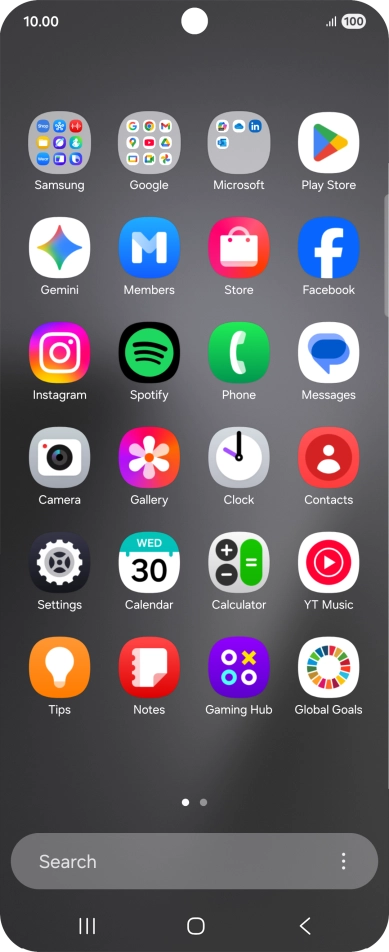
Slide your finger upwards on the screen.
Step 1 of 9

Slide your finger upwards on the screen.

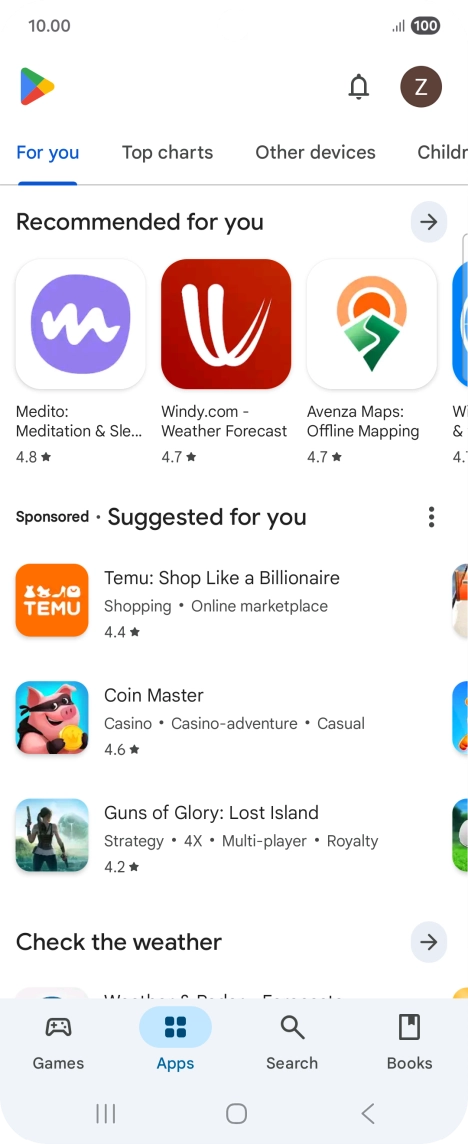
Press Play Store.
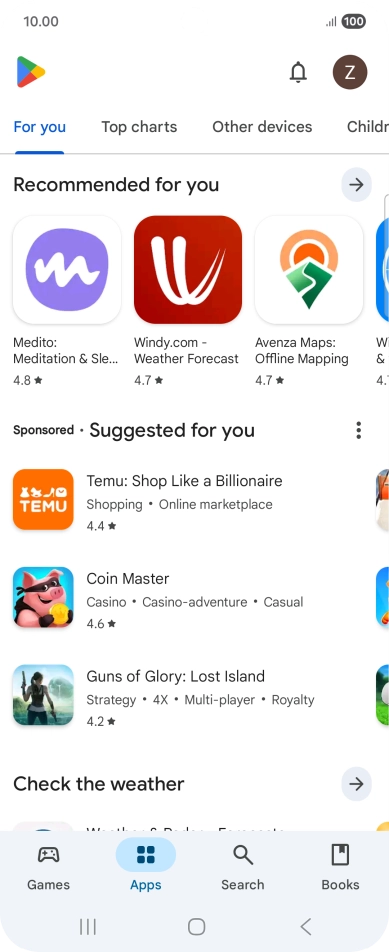
Press Play Store.
Step 2 of 9

Press Play Store.

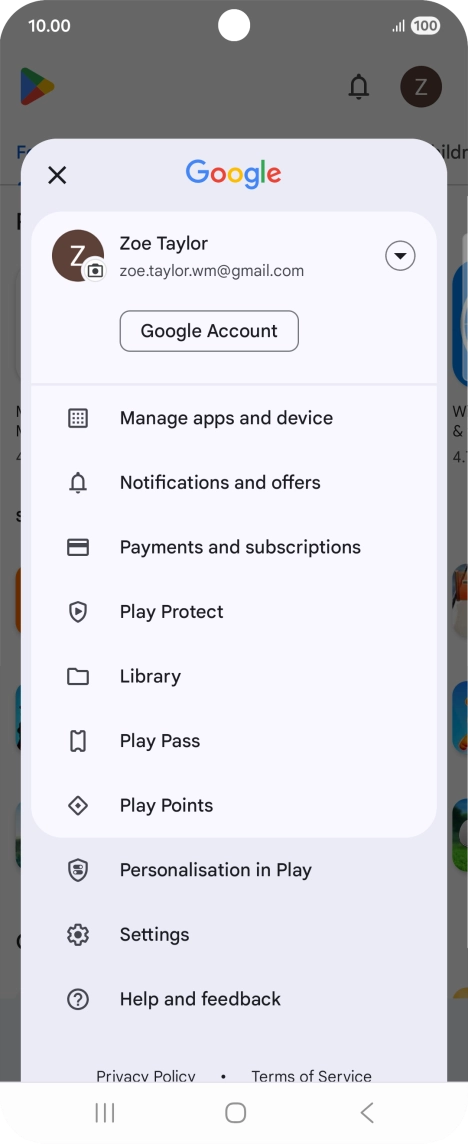
Press the profile icon.
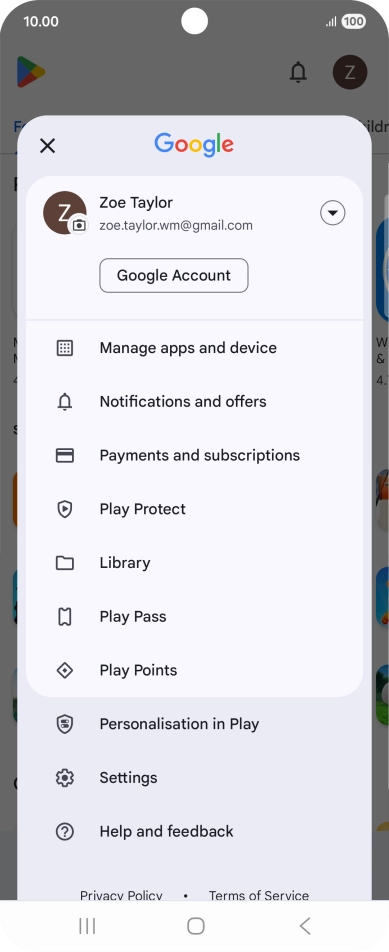
Step 3 of 9

Press the profile icon.

Press Manage apps and device.
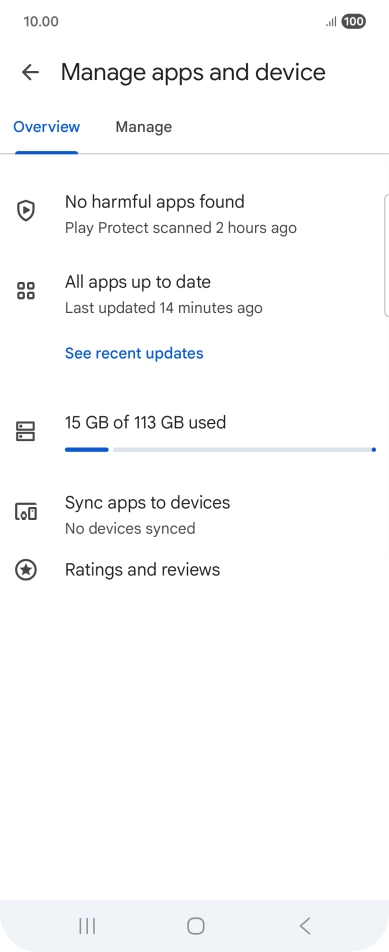
Step 4 of 9

Press Manage apps and device.

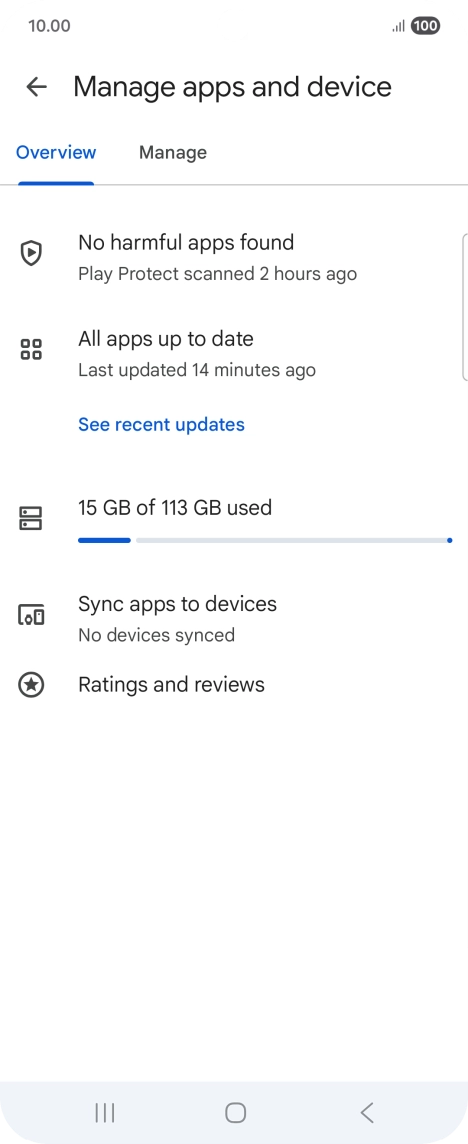
Press Manage.
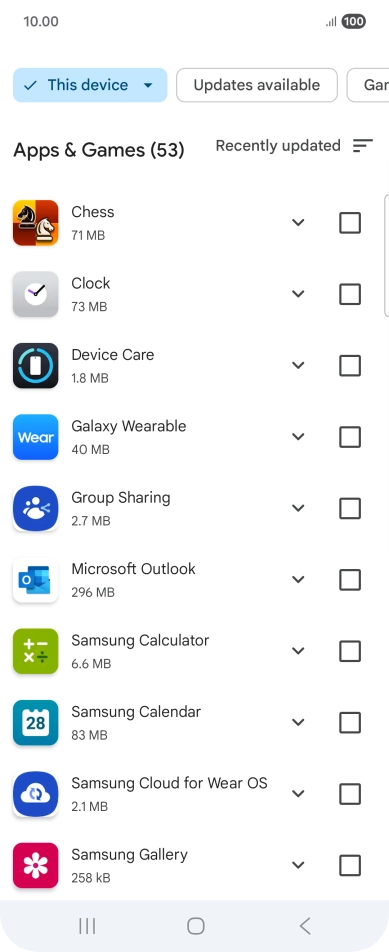
Press Manage.
Step 5 of 9

Press Manage.

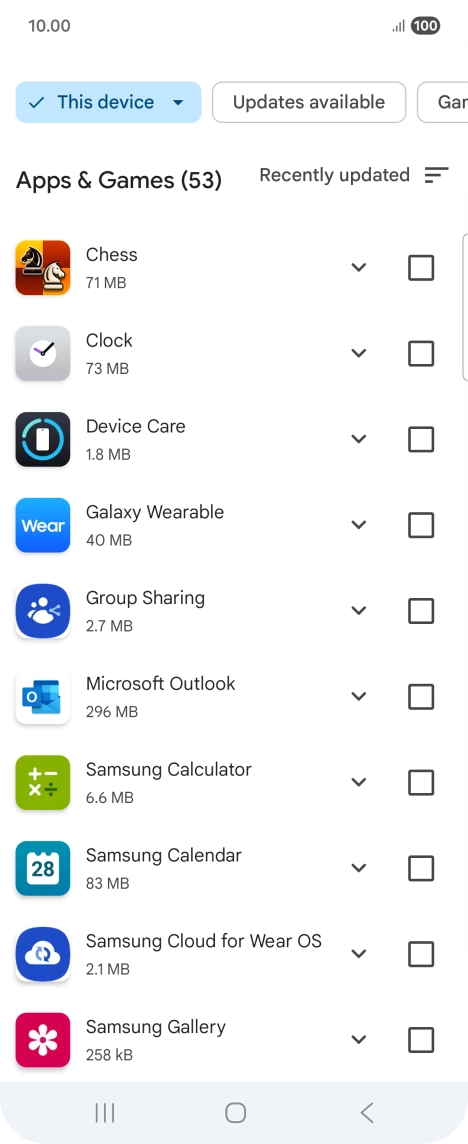
Press the required app.
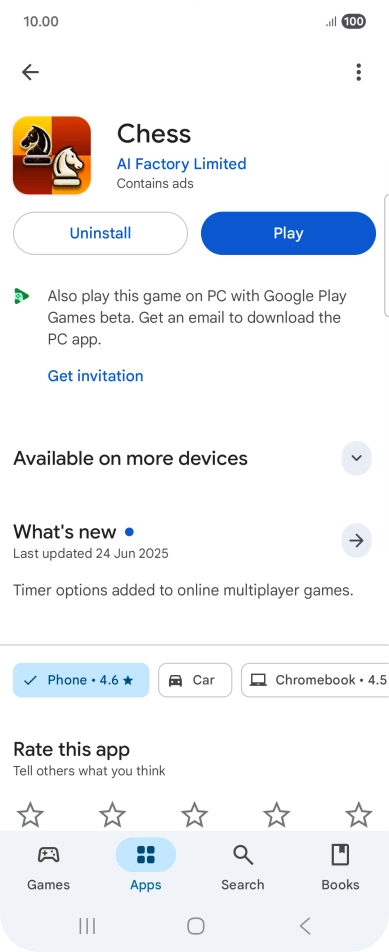
Step 6 of 9

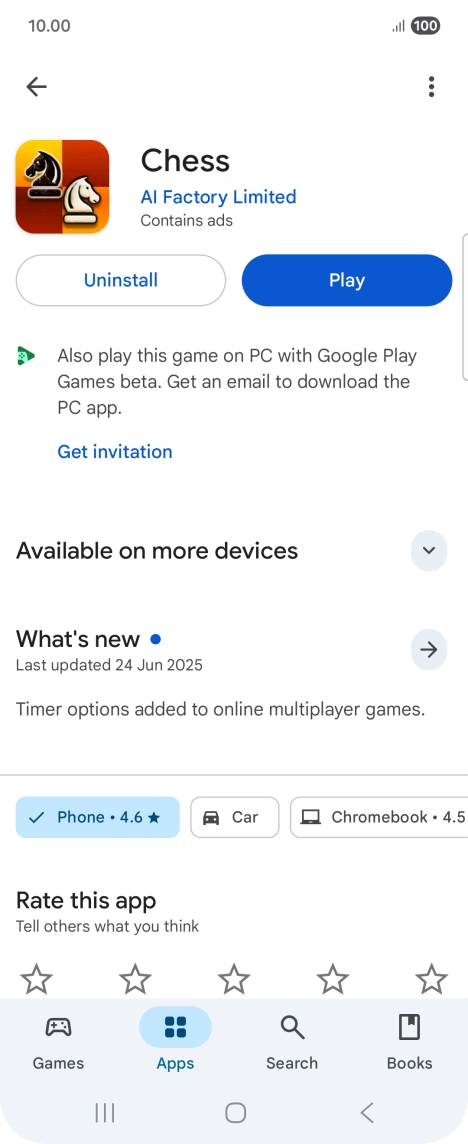
Press the required app.

Press Uninstall.
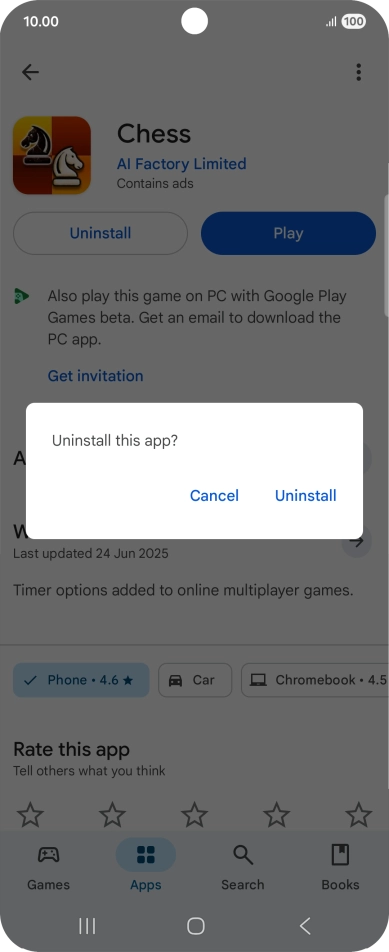
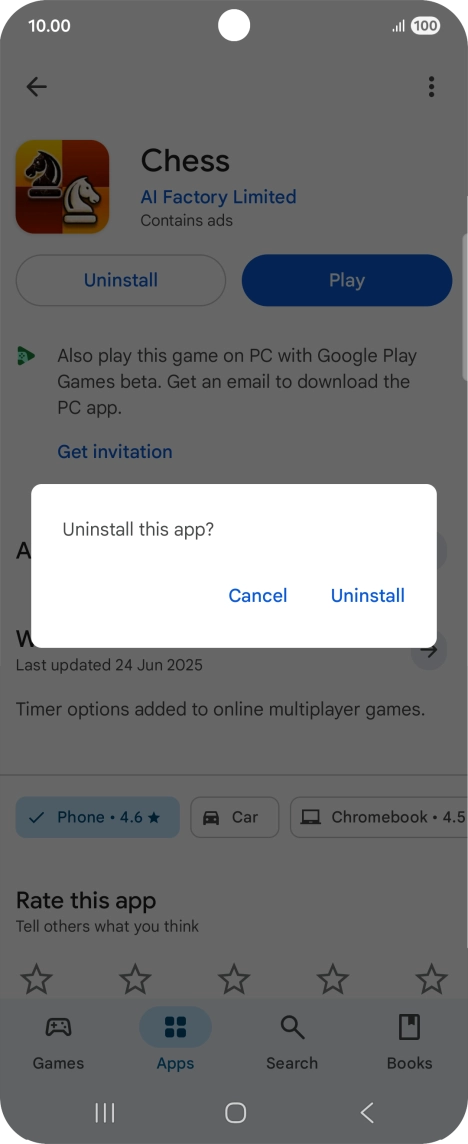
Press Uninstall.
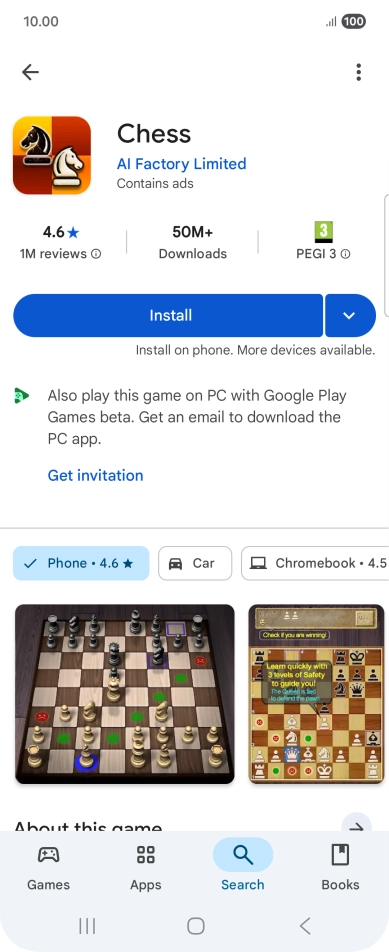
Step 7 of 9

Press Uninstall.

Press Uninstall.
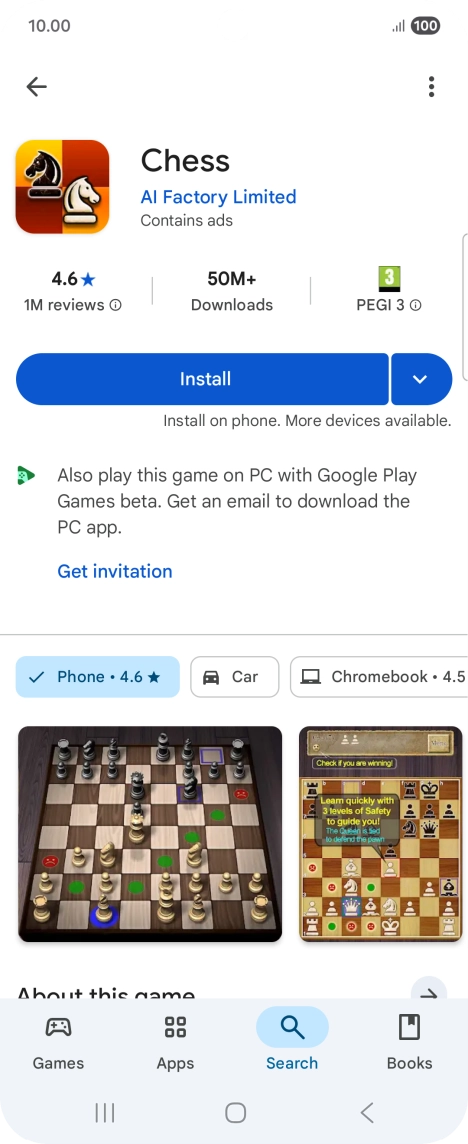
Press Uninstall.
Step 8 of 9

Press Uninstall.

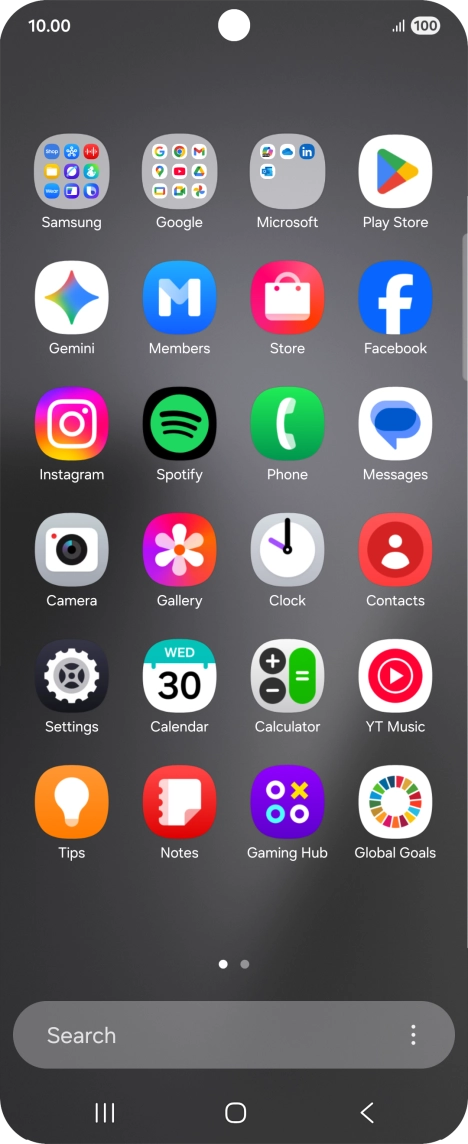
Press the Home key to return to the home screen.
Step 9 of 9

Press the Home key to return to the home screen.

Get information on...

Or choose...

Show more