Help
Device guides
Samsung
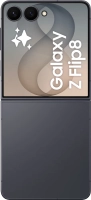
Galaxy Z Flip8

Samsung Galaxy Z Flip8
f-5aedd798-186f-4e71-90fc-4e1513546251
f-6bd5226d-d9fc-45e3-8a5c-6b0c038c2ab6
f-5b509b74-6a5d-4388-a56e-6005c3fc8da2
f-a1a07bb0-ef17-4106-8bf6-dc195b92229f
f-2d94f1d6-cd64-4b03-accc-876c58b0487f
f-8e585268-cefb-4603-8304-d551c6b3f589
f-3217fe45-6c6f-4ca2-a501-0a9520c867df
f-f50ae5aa-b891-40ef-b8ad-1ded268abacc
  • Device home
  • Getting started
  • Basic functions
  • Calls, contacts, messaging
  • Connectivity
  • Specifications
  • Device home
  • Getting started
  • Basic functions
  • Calls, contacts, messaging
  • Connectivity
  • Specifications

Turning Wi-Fi calling on or off

When Wi-Fi calling is turned on, you can make and answer calls using a Wi-Fi network when you're in an area with little or no network coverage. To turn on Wi-Fi calling, you need to establish a connection to a Wi-Fi network, select 4G (LTE) as network mode and follow the steps below. You can also visit the EE web page for more information about Wi-Fi calling.

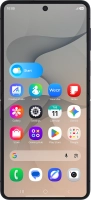
Slide your finger downwards starting from the top right side of the screen.
Step 1 of 3

Slide your finger downwards starting from the top right side of the screen.

Press the Wi-Fi calling icon to turn the function on or off.
Step 2 of 3

Press the Wi-Fi calling icon to turn the function on or off.

Press the Home key to return to the home screen.
Step 3 of 3

Press the Home key to return to the home screen.

Get information on...

Or choose...

Show more