Help
Device guides
Samsung
Galaxy Z Fold5

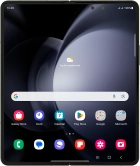
Samsung Galaxy Z Fold5
f-84fe8186-7b85-430f-945a-fd3aeb752513
f-70f4573f-b7d2-4bc3-bd4b-dc0db7478caa
f-882029de-3189-4279-99b9-86c8e2746f45
f-dc858432-a497-4886-9553-d1cc9a02b75d
f-2b620b3b-b1b7-4c06-9e23-e5388b1db8aa
f-6b3d18ff-f3bc-4509-b583-9e148e3c05e0
  • Device home
  • Getting started
  • Basic functions
  • Calls, contacts, messaging
  • Connectivity
  • Specifications
  • Device home
  • Getting started
  • Basic functions
  • Calls, contacts, messaging
  • Connectivity
  • Specifications

Uninstalling apps

You can uninstall apps to free up memory.
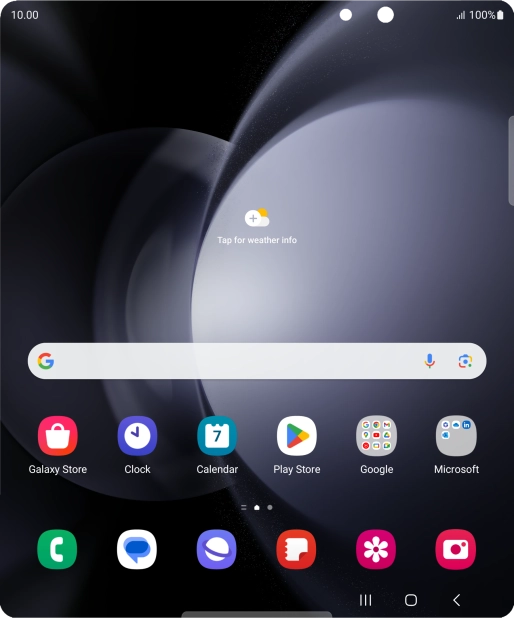
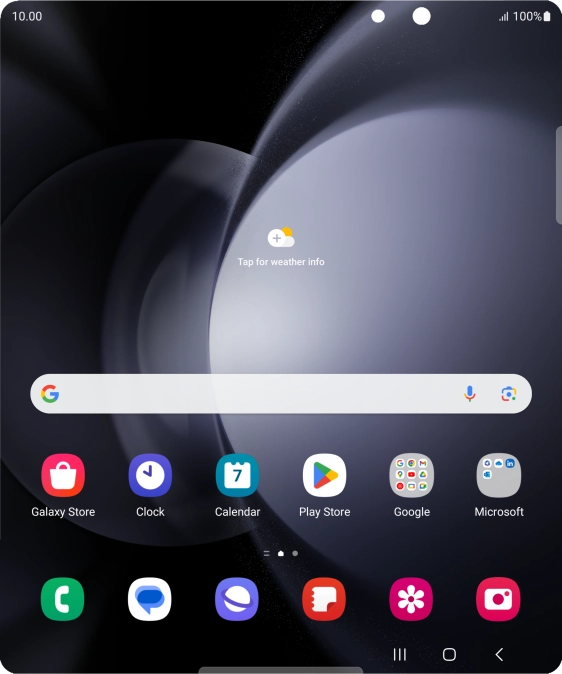
Slide your finger upwards on the screen.
Step 1 of 9

Slide your finger upwards on the screen.

Press Play Store.
Press Play Store.
Step 2 of 9

Press Play Store.

Press the profile icon.
Step 3 of 9

Press the profile icon.

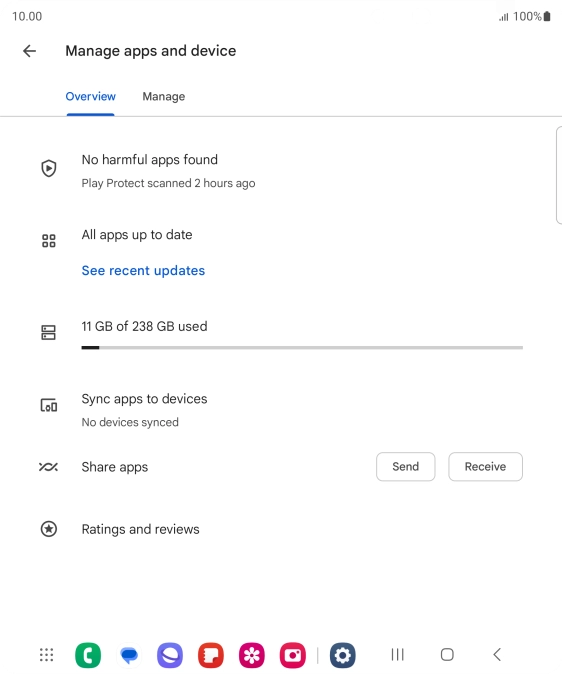
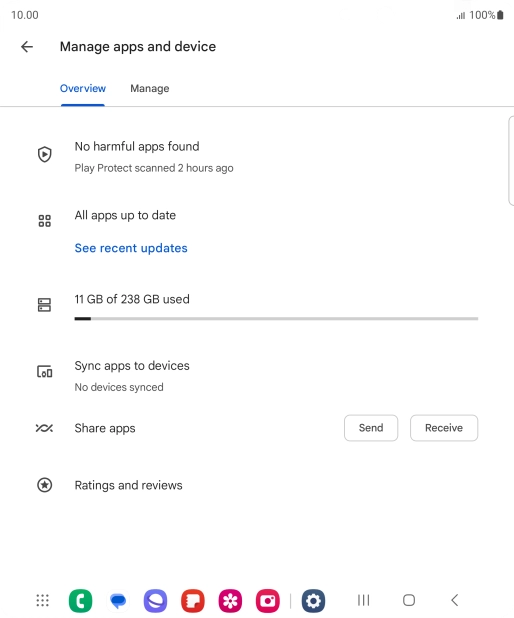
Press Manage apps and device.
Step 4 of 9

Press Manage apps and device.

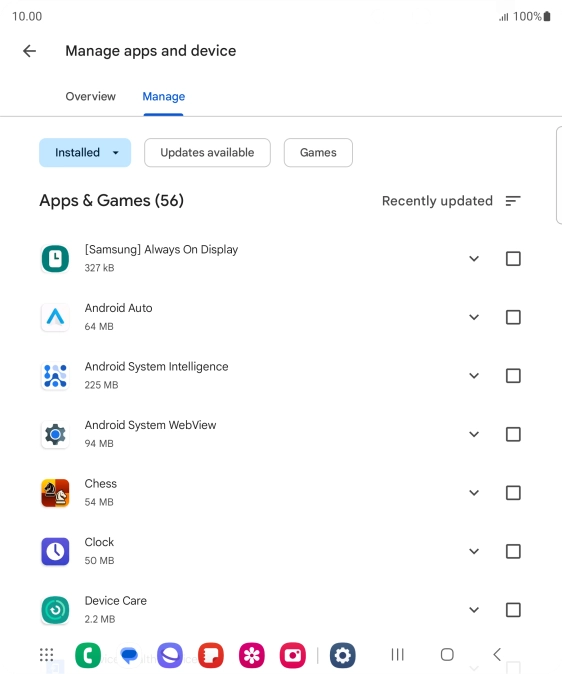
Press Manage.
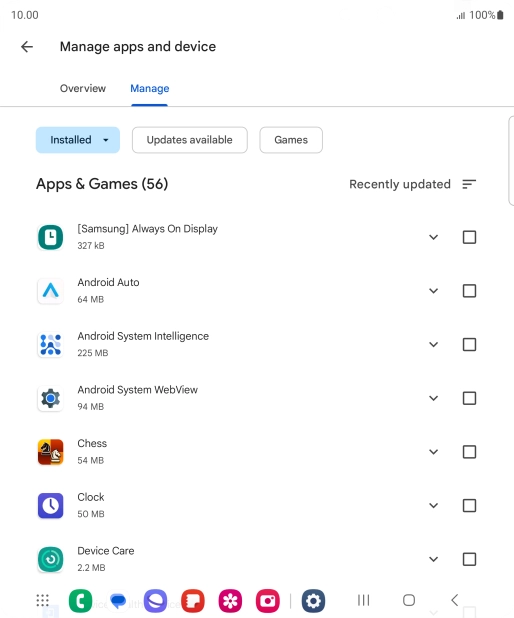
Press Manage.
Step 5 of 9

Press Manage.

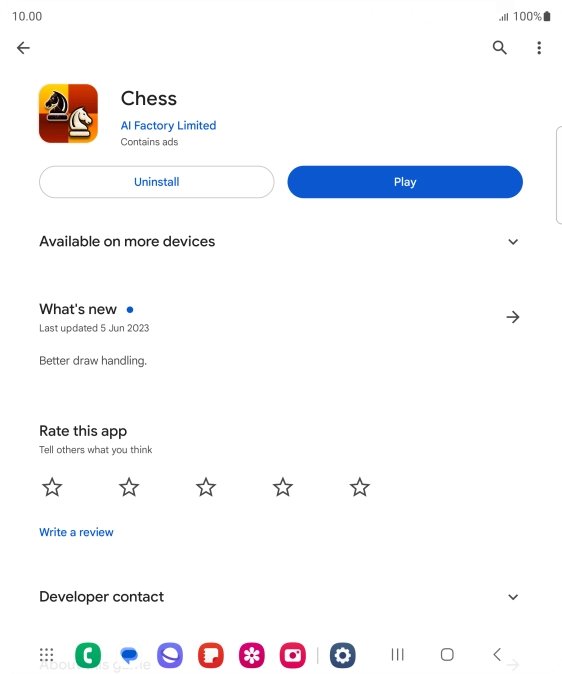
Press the required app.
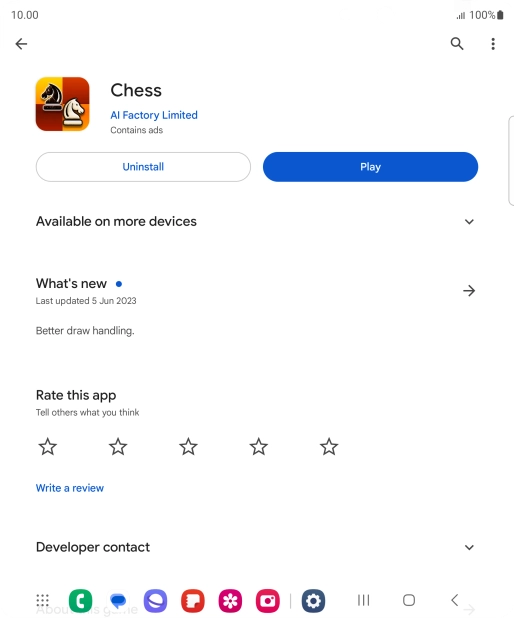
Step 6 of 9

Press the required app.

Press Uninstall.
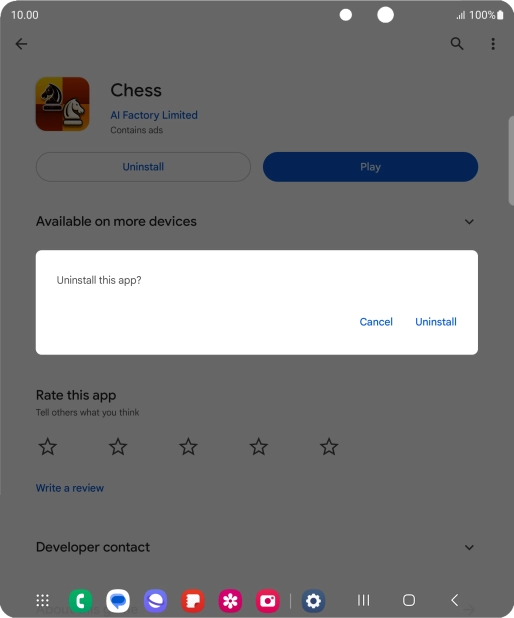
Press Uninstall.
Step 7 of 9

Press Uninstall.

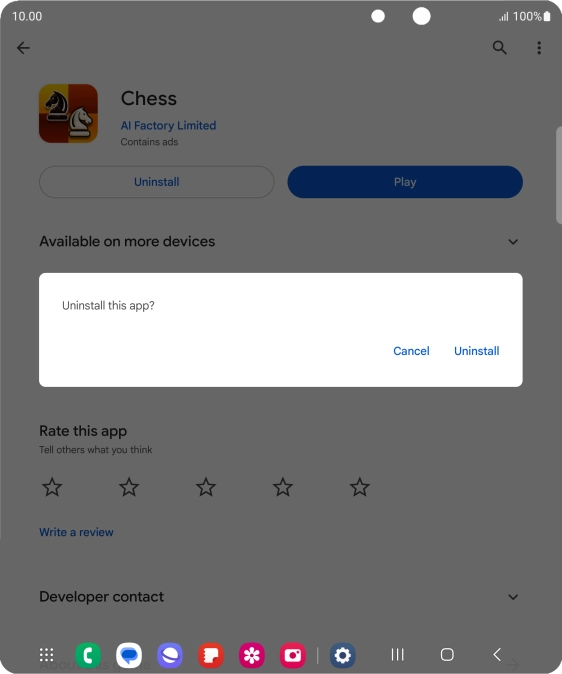
Press Uninstall.
Press Uninstall.
Step 8 of 9

Press Uninstall.

Press the Home key to return to the home screen.
Step 9 of 9

Press the Home key to return to the home screen.

Get information on...

Or choose...

Show more