Help
Device guides
Samsung
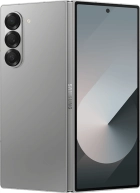
Galaxy Z Fold6 5G

Samsung Galaxy Z Fold6 5G
f-173ca7a9-44b9-4fe2-96a1-41efaaa6a62d
f-bffd5c5d-6c09-41dc-a314-4b5a902f34f0
f-918b1254-e180-4ce6-a452-a957b83dca04
f-efcfc76a-dbef-4595-9f47-3abccb37de68
f-025f7b26-ca08-466c-bd23-8ec72f7442b9
f-c336b28e-b919-4ee2-af82-098db57b8e2a
f-82b84242-62cd-4f9f-997e-ec000cf3492c
f-d71eebf3-3965-48e9-b02f-258e08fbf2e9
  • Device home
  • Getting started
  • Basic functions
  • Calls, contacts, messaging
  • Connectivity
  • Specifications
  • Device home
  • Getting started
  • Basic functions
  • Calls, contacts, messaging
  • Connectivity
  • Specifications

Uninstalling apps

You can uninstall apps to free up memory.

Slide your finger upwards on the screen.
Step 1 of 9

Slide your finger upwards on the screen.

Press Play Store.
Press Play Store.
Step 2 of 9

Press Play Store.

Press the profile icon.
Step 3 of 9

Press the profile icon.

Press Manage apps and device.
Step 4 of 9

Press Manage apps and device.

Press Manage.
Press Manage.
Step 5 of 9

Press Manage.

Press the required app.
Step 6 of 9

Press the required app.

Press Uninstall.
Press Uninstall.
Step 7 of 9

Press Uninstall.

Press Uninstall.
Press Uninstall.
Step 8 of 9

Press Uninstall.

Press the Home key to return to the home screen.
Step 9 of 9

Press the Home key to return to the home screen.

Get information on...

Or choose...

Show more