Help
Device guides
Samsung
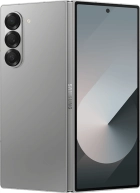
Galaxy Z Fold6 5G

Samsung Galaxy Z Fold6 5G
f-173ca7a9-44b9-4fe2-96a1-41efaaa6a62d
f-bffd5c5d-6c09-41dc-a314-4b5a902f34f0
f-918b1254-e180-4ce6-a452-a957b83dca04
f-efcfc76a-dbef-4595-9f47-3abccb37de68
f-025f7b26-ca08-466c-bd23-8ec72f7442b9
f-c336b28e-b919-4ee2-af82-098db57b8e2a
f-82b84242-62cd-4f9f-997e-ec000cf3492c
f-d71eebf3-3965-48e9-b02f-258e08fbf2e9
  • Device home
  • Getting started
  • Basic functions
  • Calls, contacts, messaging
  • Connectivity
  • Specifications
  • Device home
  • Getting started
  • Basic functions
  • Calls, contacts, messaging
  • Connectivity
  • Specifications

My phone's battery life is short

Solution 5 of 15: Automatic app update is turned on

You can set your phone to update apps automatically so you always have the newest versions installed.
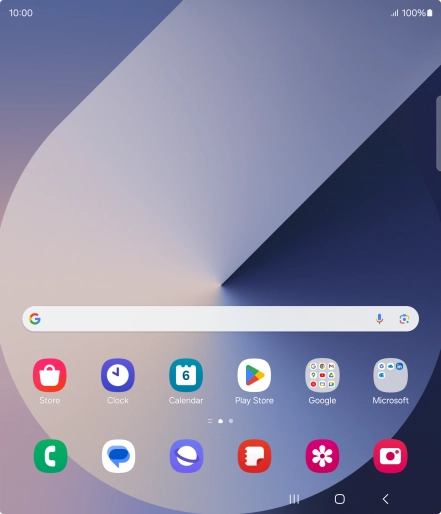
Slide your finger upwards on the screen.
Step 1 of 10

Slide your finger upwards on the screen.

Press Play Store.
Press Play Store.
Step 2 of 10

Press Play Store.

Press the profile icon.
Step 3 of 10

Press the profile icon.

Press Settings.
Press Settings.
Step 4 of 10

Press Settings.

Press Network preferences.
Step 5 of 10

Press Network preferences.

Press Auto-update apps.
Step 6 of 10

Press Auto-update apps.

To turn on automatic update of apps using mobile network, press Update all apps over Wi-Fi or mobile data.
Step 7 of 10

To turn on automatic update of apps using mobile network, press Update all apps over Wi-Fi or mobile data.

To turn on automatic update of apps using Wi-Fi, press Update over Wi-Fi only.
Step 8 of 10

To turn on automatic update of apps using Wi-Fi, press Update over Wi-Fi only.

To turn off automatic update of apps, press Don't auto-update apps.
Step 9 of 10

To turn off automatic update of apps, press Don't auto-update apps.

Press the Home key to return to the home screen.
Step 10 of 10

Press the Home key to return to the home screen.


Did this solve your problem?

Yes No

Get information on...

Or choose...

Show more