


Help
Device guides
TCL
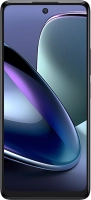
50 5G

TCL 50 5G

f-b6566bd3-e7fc-4fc8-9a5f-a75505894a77
f-6c4ee75e-46a3-4b66-a052-ad9fc936ffcc
f-85282573-4852-4ee1-b32f-d6340ebd4705
f-1973e2b8-a4ab-4364-8e1c-058b89634bb1
f-1f58e8e8-2ac4-4ce5-9185-c1396afa5272
f-b12207a3-cc3c-430b-93d1-c70b2db5247e
f-4680b6ca-1b8c-4a6f-b104-feaab6ec69e6
f-9b540082-6466-4f29-ad29-682415659b5e
  • Device home
  • Getting started
  • Basic functions
  • Calls, contacts, messaging
  • Connectivity
  • Specifications
  • Device home
  • Getting started
  • Basic functions
  • Calls, contacts, messaging
  • Connectivity
  • Specifications

Taking screenshot

You can take a picture of your screen if you want to share something with your friends or save the picture for later use.

Press the Side key.
Press the Side key.
Step 1 of 2

Press the Side key.

At the same time, press the lower part of the Volume key to take a screenshot.
Step 2 of 2

At the same time, press the lower part of the Volume key to take a screenshot.

The picture is saved in the phone gallery.

Get information on...

Or choose...

Show more