Help
Device guides
Apple
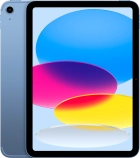
iPad (11th Generation)

iPad (11th Generation)

f-00c9765e-6f6e-4522-818e-f8455fa7a868
f-e59856ae-d2e8-4683-b359-7d474580d9eb
f-b594f807-b95b-4574-8f84-af7093476ee2
f-da61eeb4-ab27-4f2d-8dd3-3b6f3eb0ccb2
f-82090464-bc29-44d7-a9e5-728d82734170
f-22b607ec-c3b7-4bde-b6a4-f63e196ad4c1
f-651d4ff6-b3d7-45ab-845c-691c74ae9ab6
f-1611bb2c-ba8a-4c32-be07-ac0557184841
  • Device home
  • Getting started
  • Basic functions
  • Contacts and messages
  • Connectivity
  • Specifications
  • Device home
  • Getting started
  • Basic functions
  • Contacts and messages
  • Connectivity
  • Specifications

It's not possible to turn on my tablet

Solution 2 of 3: Your tablet isn't turned on correctly

See how to turn your tablet on and off.

Press and hold the Top key until your tablet is turned on.
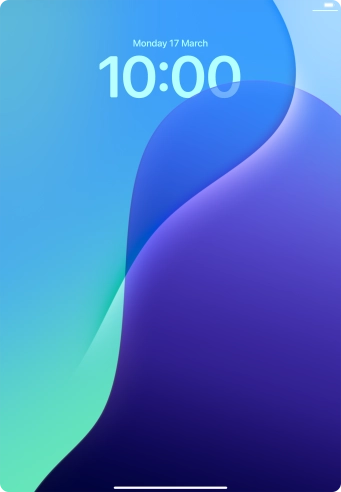
Step 1 of 4

Press and hold the Top key until your tablet is turned on.

Slide your finger upwards starting from the bottom of the screen.
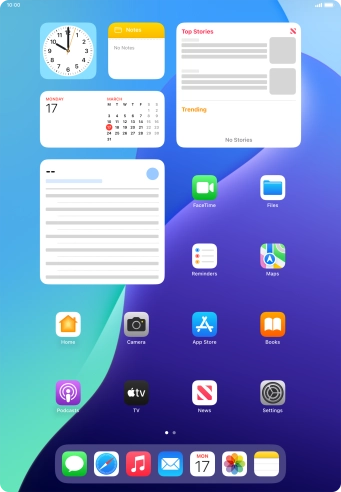
Step 2 of 4

Slide your finger upwards starting from the bottom of the screen.

Simultaneously, press and hold the Top key and the Bottom volume key until the power off icon is displayed.
Step 3 of 4

Simultaneously, press and hold the Top key and the Bottom volume key until the power off icon is displayed.

Press and drag the power off icon right.
Step 4 of 4

Press and drag the power off icon right.


Did this solve your problem?

Yes No

Get information on...

Or choose...

Show more