Help
Device guides
Apple
iPad (8th Generation)
iPad (8th Generation)
f-6f1a1b65-69a3-4943-bfe5-22217d4bfd36
f-0889e855-ca56-4ebf-a659-8c7ea5cebe68
f-188b61d5-e1da-4335-b7d7-3f574d3ad5c0
f-eafb10c0-c254-419a-98ca-0d45339a81a7
f-5f486f02-27fe-43bb-a5e9-53e58df08982
f-929f9df6-0609-42f7-9cf1-a90a33b34898
  • Device home
  • Getting started
  • Basic functions
  • Contacts and messages
  • Connectivity
  • Specifications
  • Device home
  • Getting started
  • Basic functions
  • Contacts and messages
  • Connectivity
  • Specifications

My tablet uses a large amount of mobile data

Solution 4 of 6: Background refresh of apps is turned on

Some apps keep running in the background when you return to the home screen. You can set your tablet to refresh apps in the background so that you'll still get notifications even if the app isn't actively in use.
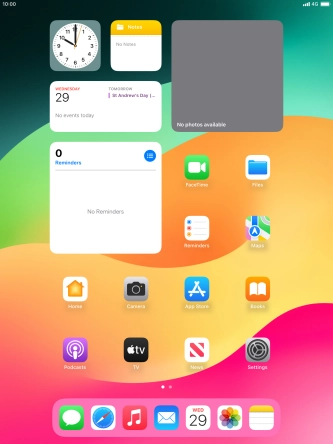
Press Settings.
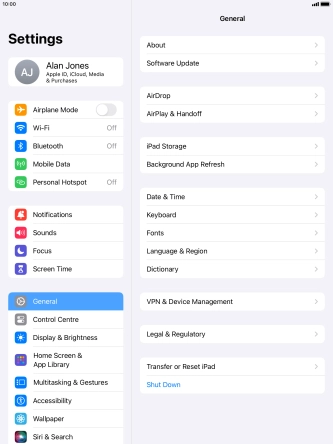
Press Settings.
Step 1 of 10

Press Settings.

Press General.
Press General.
Step 2 of 10

Press General.

Press Background App Refresh.
Step 3 of 10

Press Background App Refresh.

Press Background App Refresh.
Step 4 of 10

Press Background App Refresh.

To turn off background refresh of apps, press Off.
Step 5 of 10

To turn off background refresh of apps, press Off.

To turn on background refresh of apps using Wi-Fi, press Wi-Fi.
Step 6 of 10

To turn on background refresh of apps using Wi-Fi, press Wi-Fi.

To turn on background refresh of apps using mobile network, press Wi-Fi & Mobile Data.
Step 7 of 10

To turn on background refresh of apps using mobile network, press Wi-Fi & Mobile Data.

Press arrow left.
Press arrow left.
Step 8 of 10

Press arrow left.

Press the indicators next to the required apps to turn the function on or off.
Step 9 of 10

Press the indicators next to the required apps to turn the function on or off.

Press the Home key to return to the home screen.
Step 10 of 10

Press the Home key to return to the home screen.


Did this solve your problem?

Yes No

Get information on...

Or choose...

Show more