Help
Device guides
Apple
iPad (9th Generation)

iPad (9th Generation)

f-4e7a51cf-ff37-475a-be26-a3d890cd5bb0
f-2a8e34d9-c42b-4bb5-be09-4a38b0f9b66b
f-6039b335-de61-41b2-a699-a406fca89fe7
f-0922ebd7-1d52-4920-b438-1ecc9b067ecb
f-f2d3ea03-61c5-4329-8d18-0b64be3d3eec
f-b6ecda51-2d42-45ef-b982-d0fada882d7a
  • Device home
  • Getting started
  • Basic functions
  • Contacts and messages
  • Connectivity
  • Specifications
  • Device home
  • Getting started
  • Basic functions
  • Contacts and messages
  • Connectivity
  • Specifications

My tablet uses a large amount of mobile data

Solution 1 of 6: GPS position usage for applications is turned on

Your tablet can determine your geographical position using GPS (Global Positioning System). The information about your location can be used by a number of applications on your tablet such as navigation, the search function or weather forecast.
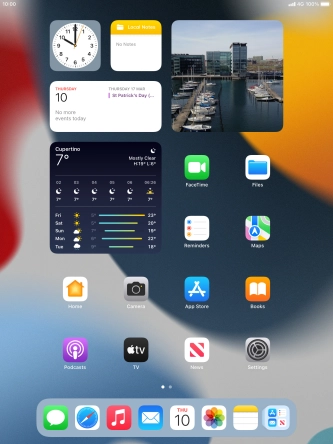
Press Settings.
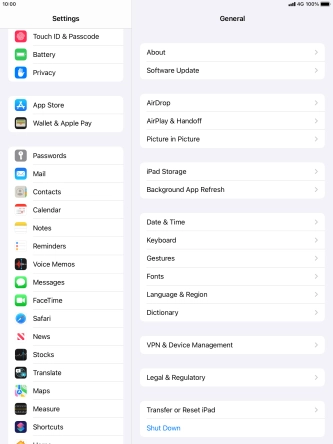
Press Settings.
Step 1 of 7

Press Settings.

Press Privacy.
Press Privacy.
Step 2 of 7

Press Privacy.

Press Location Services.
Step 3 of 7

Press Location Services.

Press the indicator next to
Step 4 of 7

Press the indicator next to "Location Services" to turn the function on or off.

Press the required application.
Step 5 of 7

Press the required application.

Press the required setting to turn the function on or off.
Step 6 of 7

Press the required setting to turn the function on or off.

Press the Home key to return to the home screen.
Step 7 of 7

Press the Home key to return to the home screen.


Did this solve your problem?

Yes No

Get information on...

Or choose...

Show more