


Help
Device guides
Apple
iPad Air 13”

iPad Air 13”

f-3b16d0f1-a74a-4a3b-a972-934acdf0ed8f
f-86ca2712-dc1a-4295-9bb5-fec0374c55ac
f-487f33e9-6eed-47c6-a2c6-d3a064bb3d25
f-a98ef22b-6849-417f-b438-52afe1a90cfc
f-4719d1c2-a300-4a5a-9bda-94c5cbc366e1
f-442feee3-e8dc-4304-8ab8-cde01b429407
  • Device home
  • Getting started
  • Basic functions
  • Contacts and messages
  • Connectivity
  • Specifications
  • Device home
  • Getting started
  • Basic functions
  • Contacts and messages
  • Connectivity
  • Specifications

Updating tablet software

It's recommended that you update your tablet with the newest software, as the manufacturer continuously corrects errors. It's a good idea to back up the memory first. Before you can update your tablet's software, you need to set up your tablet for internet.

Press Settings.
Press Settings.
Step 1 of 3

Press Settings.

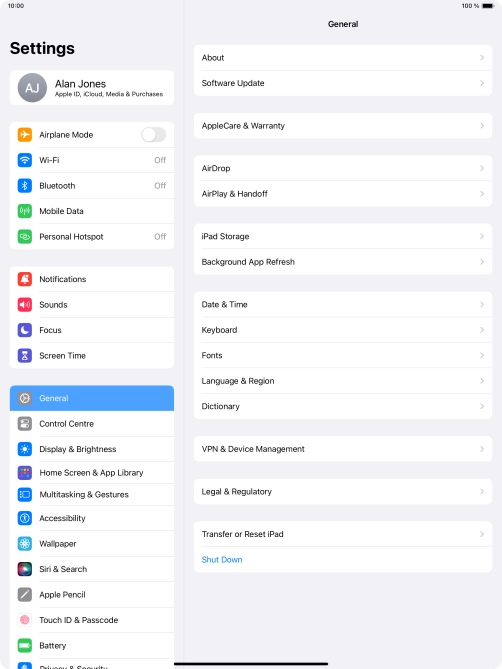
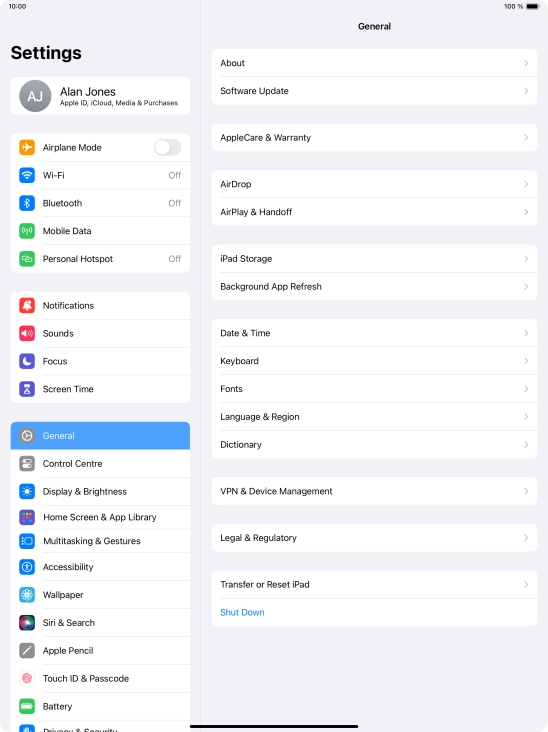
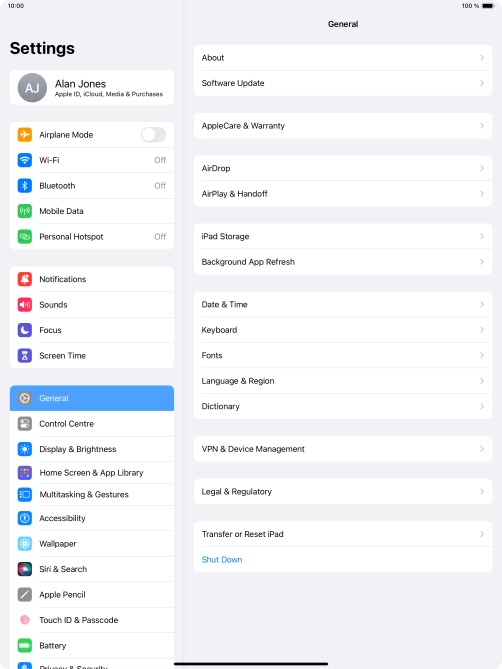
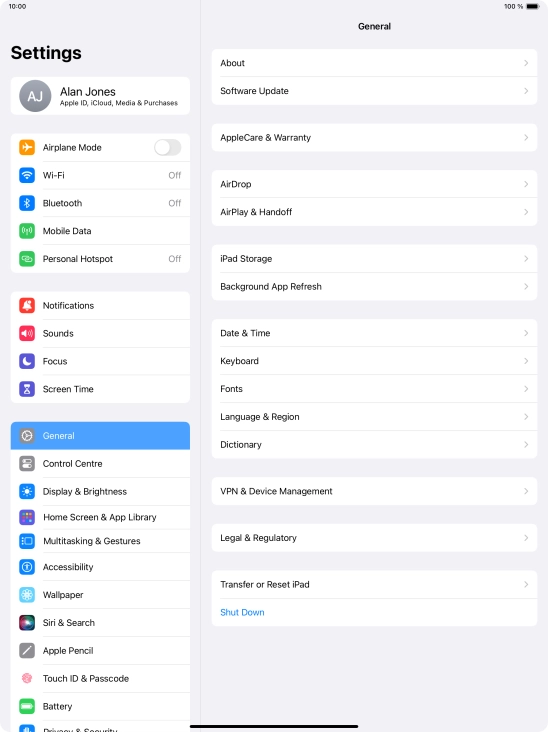
Press General.
Press General.
Step 2 of 3

Press General.

Press Software Update. If a new software version is available, it's displayed. Follow the instructions on the screen to update the tablet software.
Step 3 of 3

Press Software Update. If a new software version is available, it's displayed. Follow the instructions on the screen to update the tablet software.

Get information on...

Or choose...

Show more