


Help
Device guides
Apple
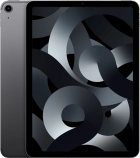
iPad Air 5G

iPad Air 5G

f-7db4bd72-dbec-46bb-88d5-ea5fc91e50e1
f-e35e89ab-8cc6-405c-a4b8-92c0f32646a4
f-b7376491-1e54-4bf0-a162-97827adf44f8
f-65eb8580-c080-4b26-9669-17d08cb1a7ea
f-1c173ef3-ef8d-484f-aacb-e566b5fb72b0
f-5de01b4a-1678-467e-98cc-7ac4cb5668de
f-f71c9f13-139d-45e8-a176-78829c1de235
f-c01964c2-82b2-4501-8f15-16c38391336e
  • Device home
  • Getting started
  • Basic functions
  • Contacts and messages
  • Connectivity
  • Specifications
  • Device home
  • Getting started
  • Basic functions
  • Contacts and messages
  • Connectivity
  • Specifications

Updating tablet software

It's recommended that you update your tablet with the newest software, as the manufacturer continuously corrects errors. It's a good idea to back up the memory first. Before you can update your tablet's software, you need to set up your tablet for internet.

Press Settings.
Press Settings.
Step 1 of 3

Press Settings.

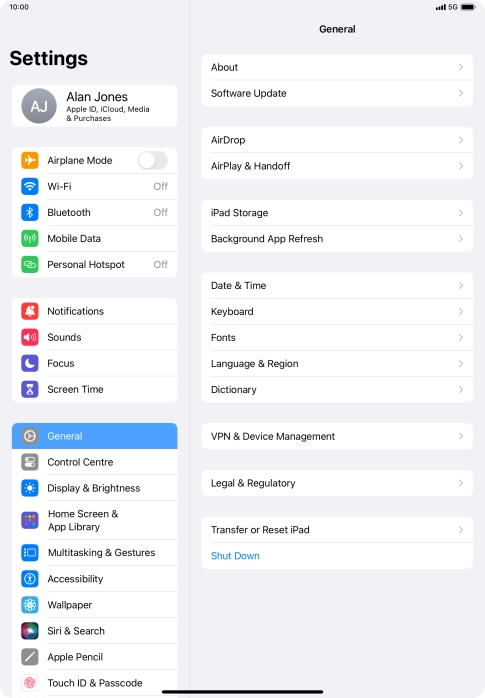
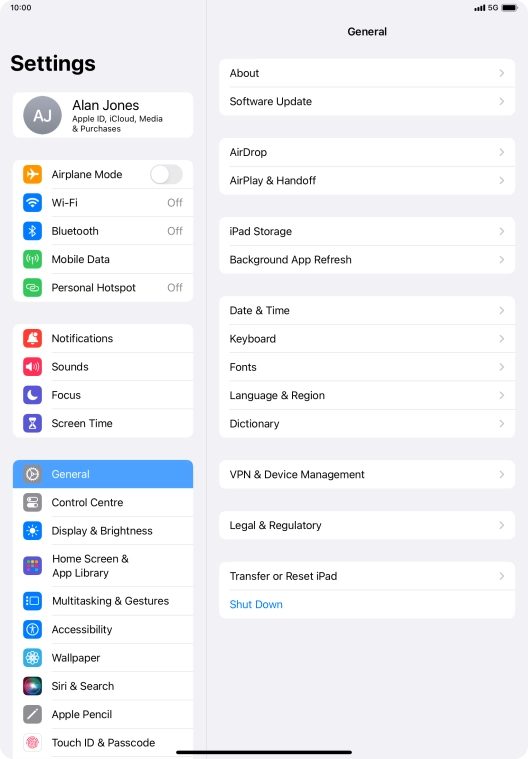
Press General.
Press General.
Step 2 of 3

Press General.

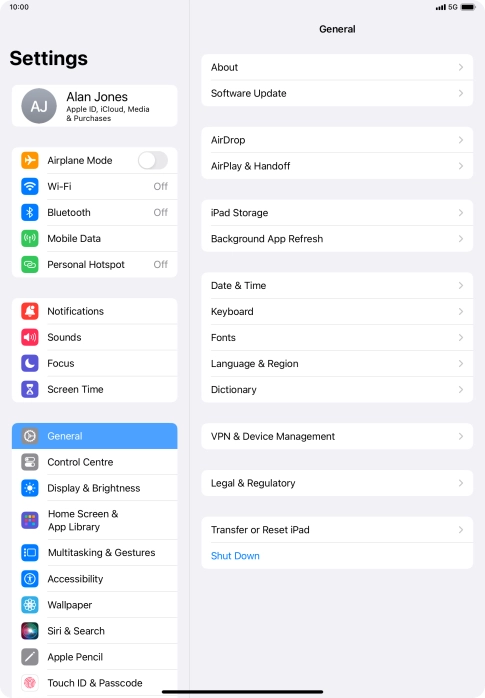
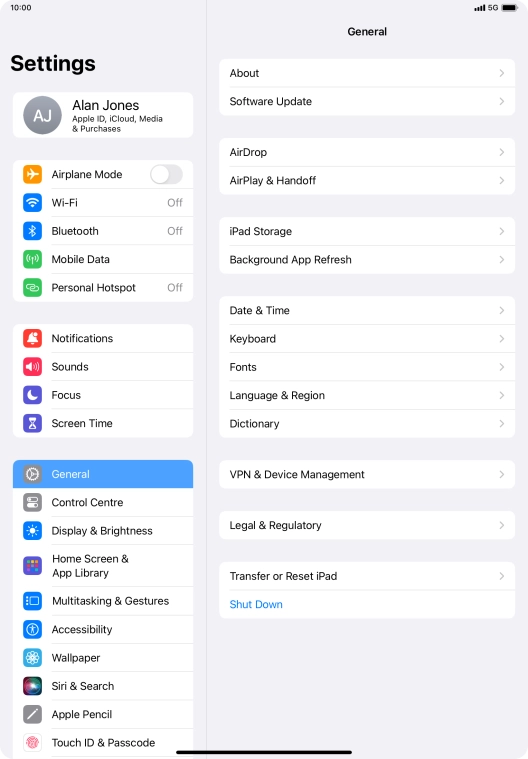
Press Software Update. If a new software version is available, it's displayed. Follow the instructions on the screen to update the tablet software.
Step 3 of 3

Press Software Update. If a new software version is available, it's displayed. Follow the instructions on the screen to update the tablet software.

Get information on...

Or choose...

Show more