




Help
Device guides
Apple
iPad mini (2026)

iPad mini (2026)

f-f872fa3a-014c-4760-acb4-a8d742d28403
f-3fb0e88f-45da-47ea-add5-781ff34fd8aa
f-93d63d92-16c8-48ac-9876-e781dc410000
f-918b40a3-9891-468f-8d70-42e4c0a2075e
f-75f2f1e8-b958-4c5e-a30d-dd747bcde8a4
f-583fa6a0-faca-4b66-b4b7-f244852ecc68
f-ac1a435c-625f-4e14-a18b-db49407754c3
f-d8915d9a-9ec8-480d-b7f4-5b88001a7243
  • Device home
  • Getting started
  • Basic functions
  • Contacts and messages
  • Connectivity
  • Specifications
  • Device home
  • Getting started
  • Basic functions
  • Contacts and messages
  • Connectivity
  • Specifications

Updating tablet software

It's recommended that you update your tablet with the newest software, as the manufacturer continuously corrects errors. It's a good idea to back up the memory first. Before you can update your tablet's software, you need to set up your tablet for internet.
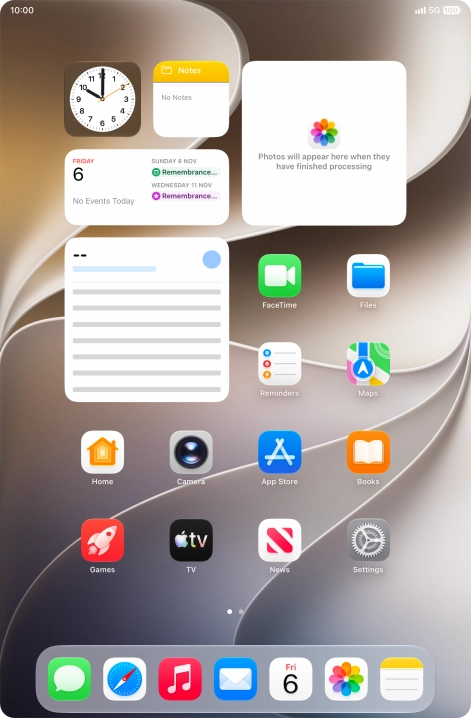
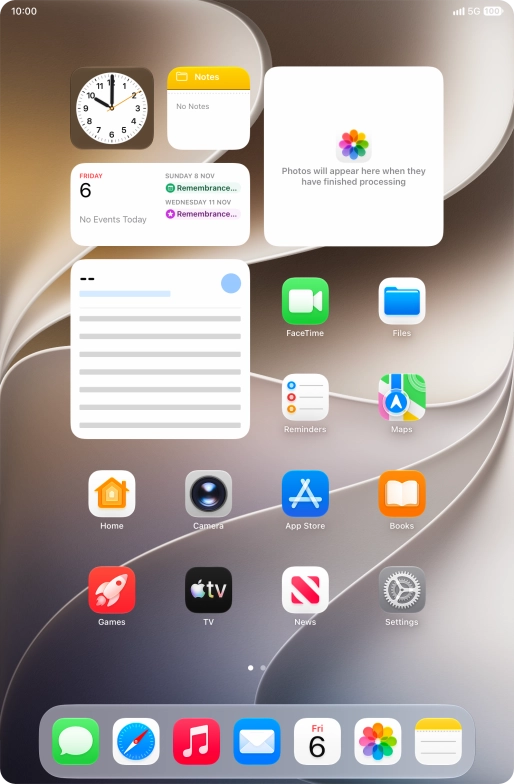
Press Settings.
Press Settings.
Step 1 of 3

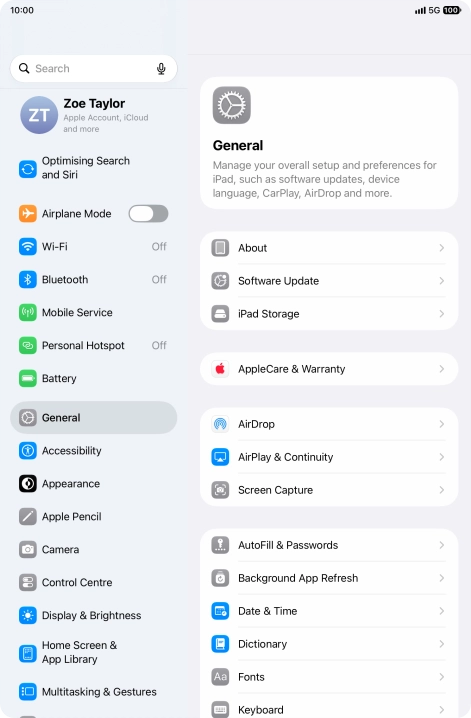
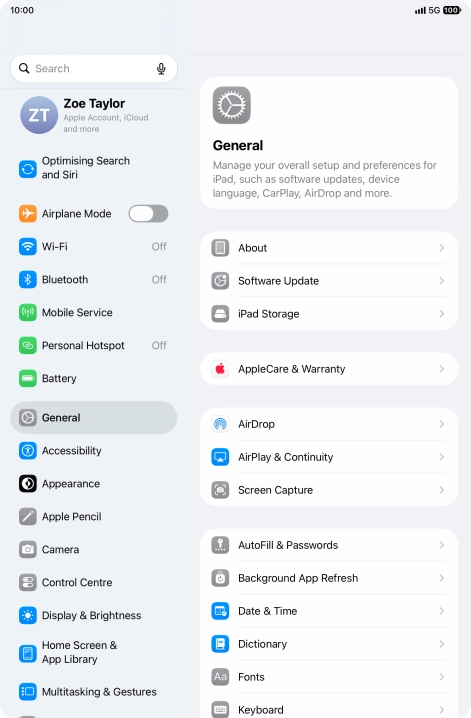
Press Settings.

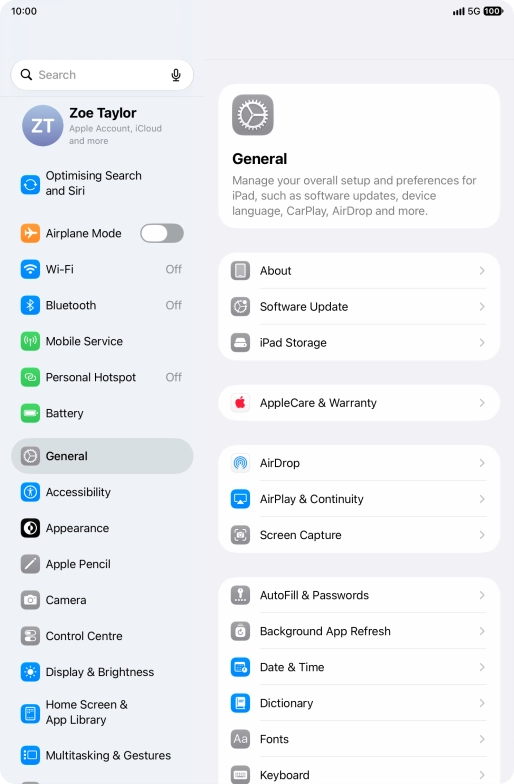
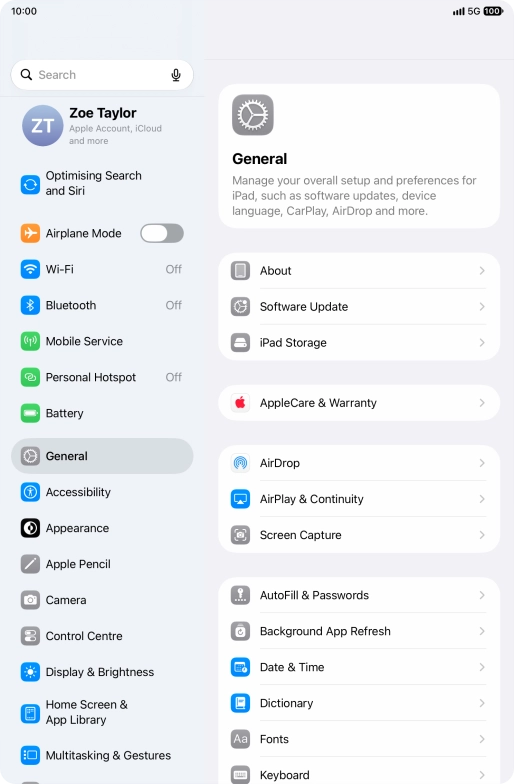
Press General.
Press General.
Step 2 of 3

Press General.

Press Software Update. If a new software version is available, it's displayed. Follow the instructions on the screen to update the tablet software.
Step 3 of 3

Press Software Update. If a new software version is available, it's displayed. Follow the instructions on the screen to update the tablet software.

Get information on...

Or choose...

Show more