Help
Device guides
Apple
iPhone 15

iPhone 15

f-e4aa51aa-4d0b-4189-a806-d14b3785f22c
f-33ab9658-0a1c-486e-ac69-a40826e02586
f-2e8a5f5c-efd4-4d58-9cee-1880e63adac6
f-62396309-b78a-4577-ae99-606bbd40c6b3
f-790605c0-2f5e-4656-ab3c-e7d79621884a
f-4a5ce369-7ccc-455d-b470-39e010f4e168
f-4af20060-afcc-493e-9d94-742e0d31dc5a
f-9f6f4bcb-7502-4f7f-9b44-5ab164501f80
  • Device home
  • Getting started
  • Basic functions
  • Calls, contacts, messaging
  • Connectivity
  • Specifications
  • Device home
  • Getting started
  • Basic functions
  • Calls, contacts, messaging
  • Connectivity
  • Specifications

Updating phone software

It's recommended that you update your phone with the newest software, as the manufacturer continuously corrects errors. It's a good idea to back up the phone memory first. Before you can update the phone software, you need to set up your phone for internet.
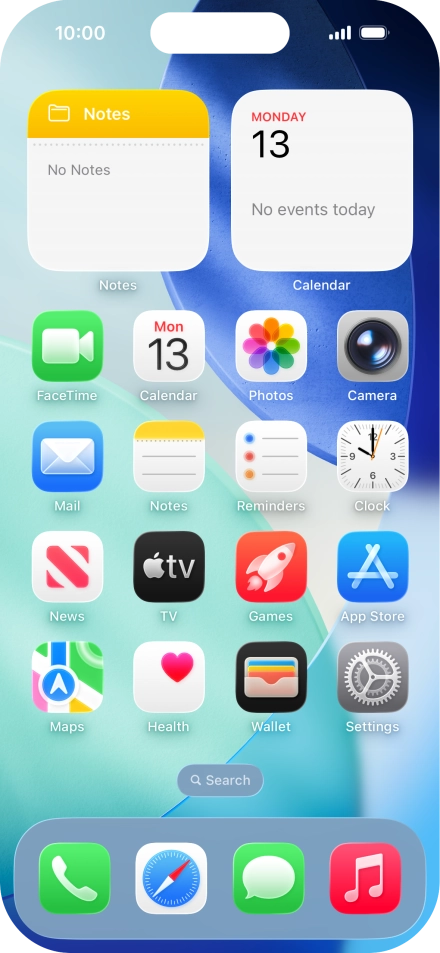
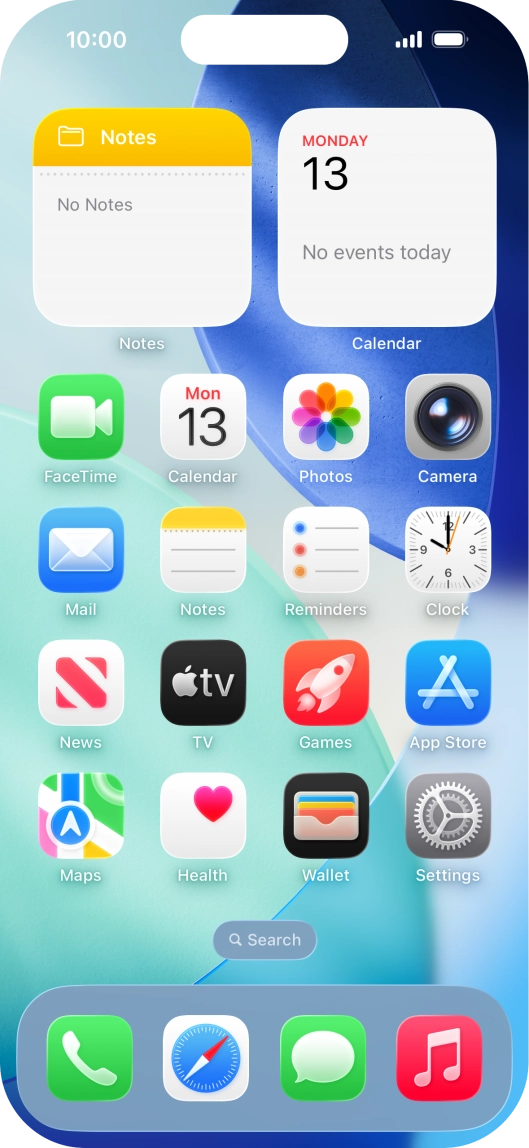
Press Settings.
Press Settings.
Step 1 of 3

Press Settings.

Press General.
Press General.
Step 2 of 3

Press General.

Press Software Update. If a new software version is available, it's displayed. Follow the instructions on the screen to update the phone software.
Step 3 of 3

Press Software Update. If a new software version is available, it's displayed. Follow the instructions on the screen to update the phone software.

Get information on...

Or choose...

Show more