Help
Device guides
Apple
iPhone 17

iPhone 17

f-316443f6-d15e-4005-8484-fd1f3a16c204
f-0b12a8c5-8393-4dd0-989a-a4c79dde2271
f-f071c909-a22c-485d-8450-db649e5da3fb
f-29a6b9d1-194d-4348-8349-802b9b1a2b7a
f-9da237eb-aad6-43f7-bda9-55452f44a2d0
f-95809a89-99e4-4a0c-8166-3ec0beea9734
f-aedf2783-0740-4645-9434-1ff98074ae5f
f-b0600c7c-39a3-4624-9b96-f7cfc905a29e
  • Device home
  • Getting started
  • Basic functions
  • Calls, contacts, messaging
  • Connectivity
  • Specifications
  • Device home
  • Getting started
  • Basic functions
  • Calls, contacts, messaging
  • Connectivity
  • Specifications

Updating phone software

It's recommended that you update your phone with the newest software, as the manufacturer continuously corrects errors. It's a good idea to back up the phone memory first. Before you can update the phone software, you need to set up your phone for internet.
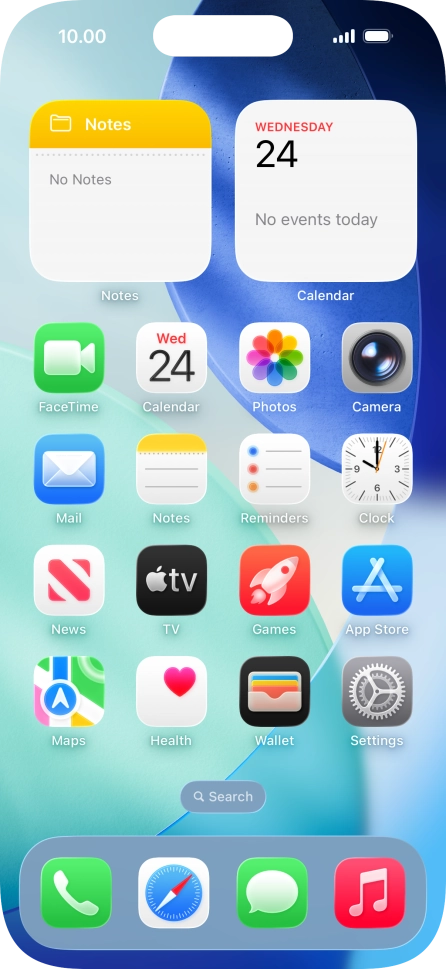
Press Settings.
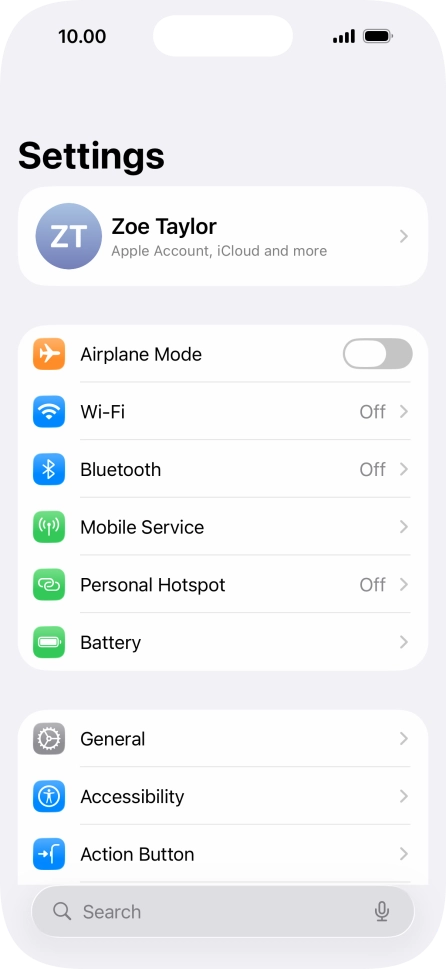
Press Settings.
Step 1 of 3

Press Settings.

Press General.
Press General.
Step 2 of 3

Press General.

Press Software Update. If a new software version is available, it's displayed. Follow the instructions on the screen to update the phone software.
Step 3 of 3

Press Software Update. If a new software version is available, it's displayed. Follow the instructions on the screen to update the phone software.

Get information on...

Or choose...

Show more