Help
Device guides
Apple
iPhone 17 Pro

iPhone 17 Pro

f-885aef9b-a664-46ab-937b-9f5222990f51
f-8ad24bae-ff79-4348-8f44-ad62e5835021
f-43c25fc8-eda1-40b9-b509-232998f2a53f
f-5a061fcc-65af-4b9a-a480-faf695ddede0
f-d08e6db8-2caf-47dd-8f10-6e107ec17b5c
f-3224778e-e228-4cf0-bd8e-82ff946fecda
f-d0359056-a6c4-4a86-b7c7-d62ad60586cc
f-f00d0e3c-0dab-4abf-84c7-6d39c34c523f
  • Device home
  • Getting started
  • Basic functions
  • Calls, contacts, messaging
  • Connectivity
  • Specifications
  • Device home
  • Getting started
  • Basic functions
  • Calls, contacts, messaging
  • Connectivity
  • Specifications

Updating phone software

It's recommended that you update your phone with the newest software, as the manufacturer continuously corrects errors. It's a good idea to back up the phone memory first. Before you can update the phone software, you need to set up your phone for internet.
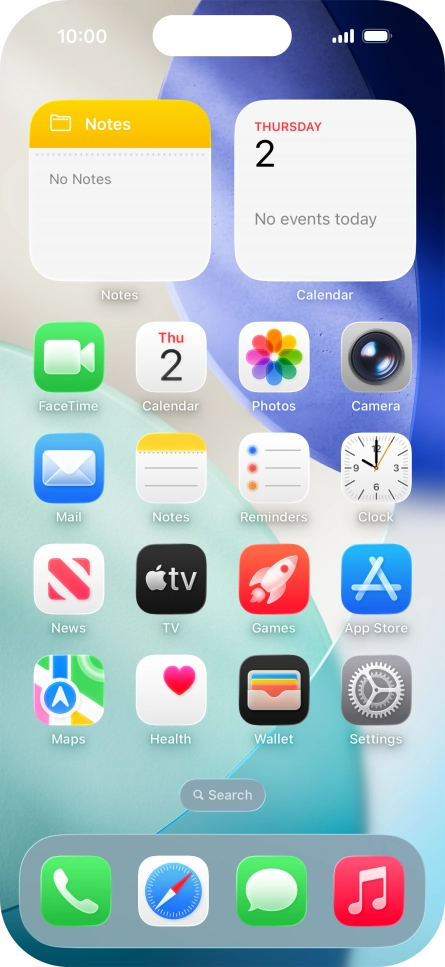
Press Settings.
Press Settings.
Step 1 of 3

Press Settings.

Press General.
Press General.
Step 2 of 3

Press General.

Press Software Update. If a new software version is available, it's displayed. Follow the instructions on the screen to update the phone software.
Step 3 of 3

Press Software Update. If a new software version is available, it's displayed. Follow the instructions on the screen to update the phone software.

Get information on...

Or choose...

Show more