






Help
Device guides
Apple
iPhone 17 Pro

iPhone 17 Pro

f-885aef9b-a664-46ab-937b-9f5222990f51
f-8ad24bae-ff79-4348-8f44-ad62e5835021
f-43c25fc8-eda1-40b9-b509-232998f2a53f
f-5a061fcc-65af-4b9a-a480-faf695ddede0
f-d08e6db8-2caf-47dd-8f10-6e107ec17b5c
f-3224778e-e228-4cf0-bd8e-82ff946fecda
f-d0359056-a6c4-4a86-b7c7-d62ad60586cc
f-f00d0e3c-0dab-4abf-84c7-6d39c34c523f
  • Device home
  • Getting started
  • Basic functions
  • Calls, contacts, messaging
  • Connectivity
  • Specifications
  • Device home
  • Getting started
  • Basic functions
  • Calls, contacts, messaging
  • Connectivity
  • Specifications

Backing up phone memory to iCloud

You can back up the phone memory to iCloud to ensure that no data is lost when you update your phone's software or if you lose your phone. To back up the phone memory to iCloud, you need to activate your Apple Account on your phone and establish a connection to a Wi-Fi network.
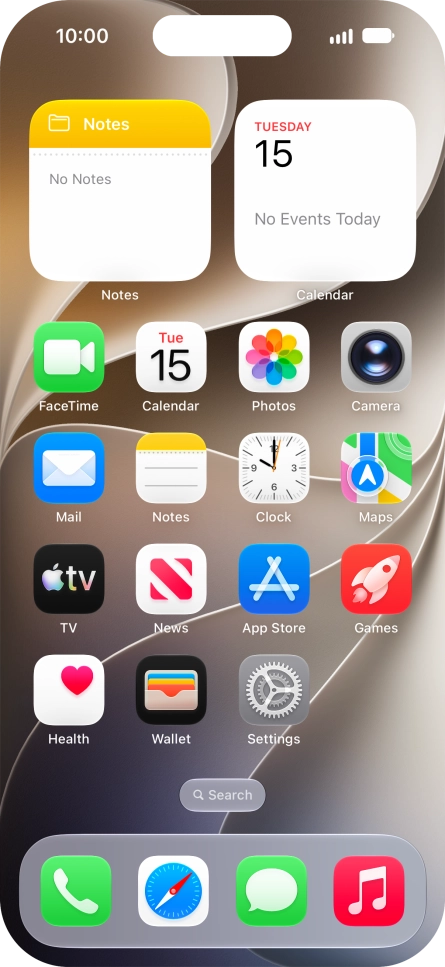
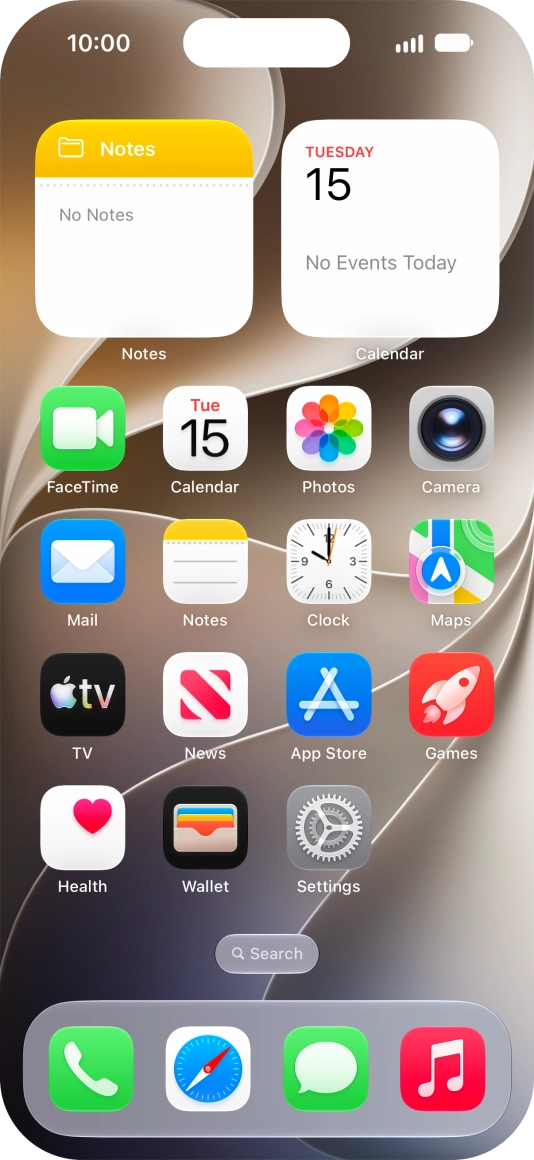
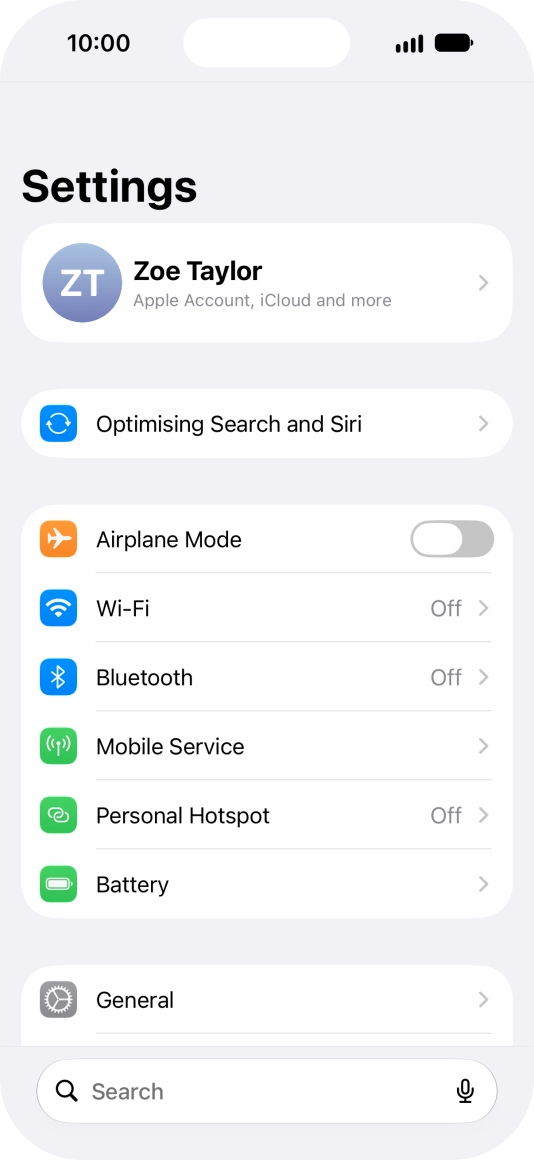
Press Settings.
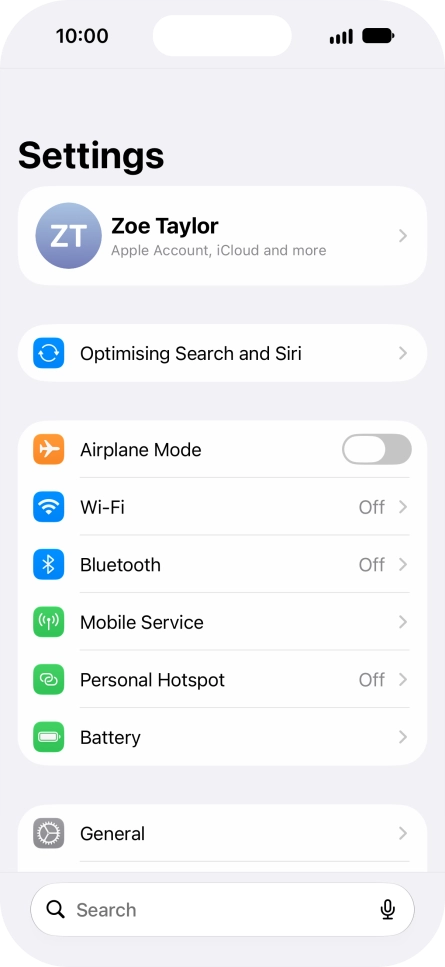
Press Settings.
Step 1 of 8

Press Settings.

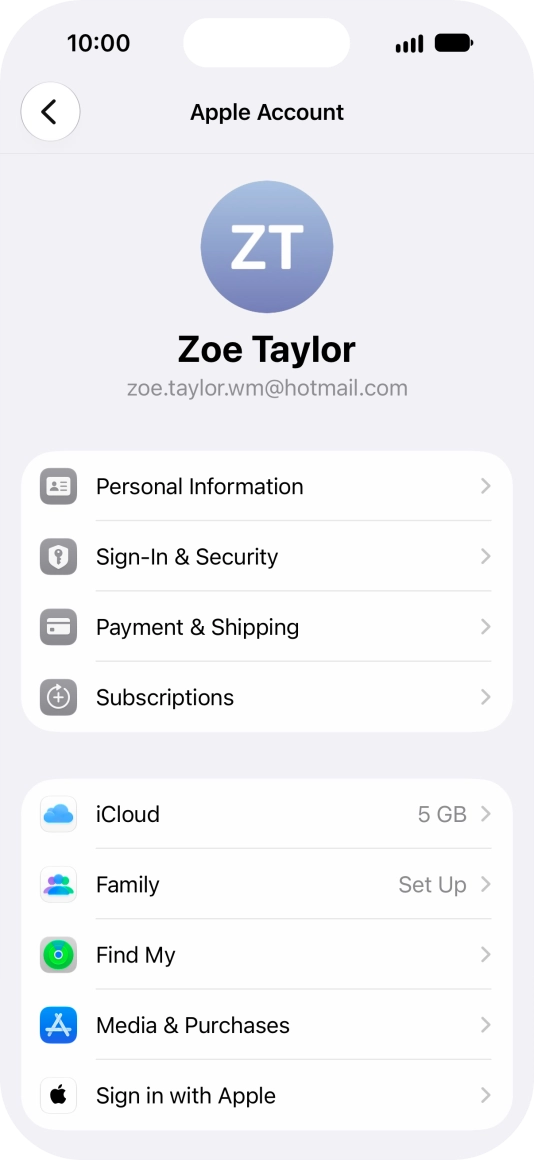
Press your Apple Account.
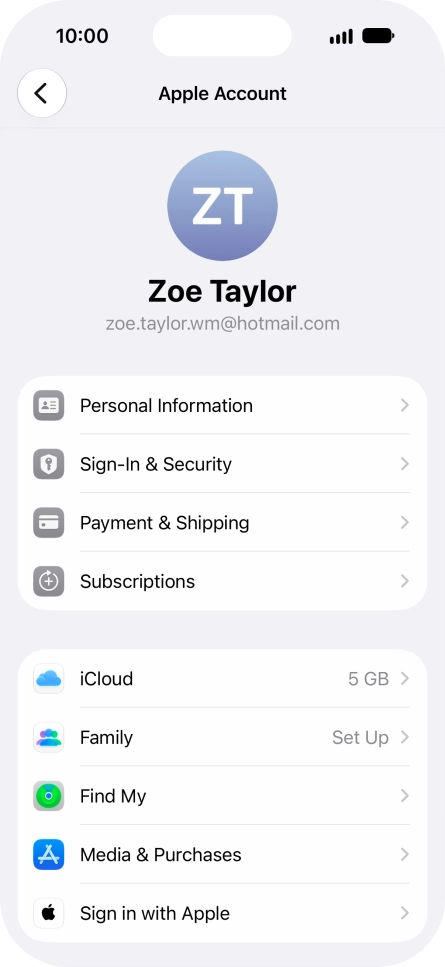
Step 2 of 8

Press your Apple Account.

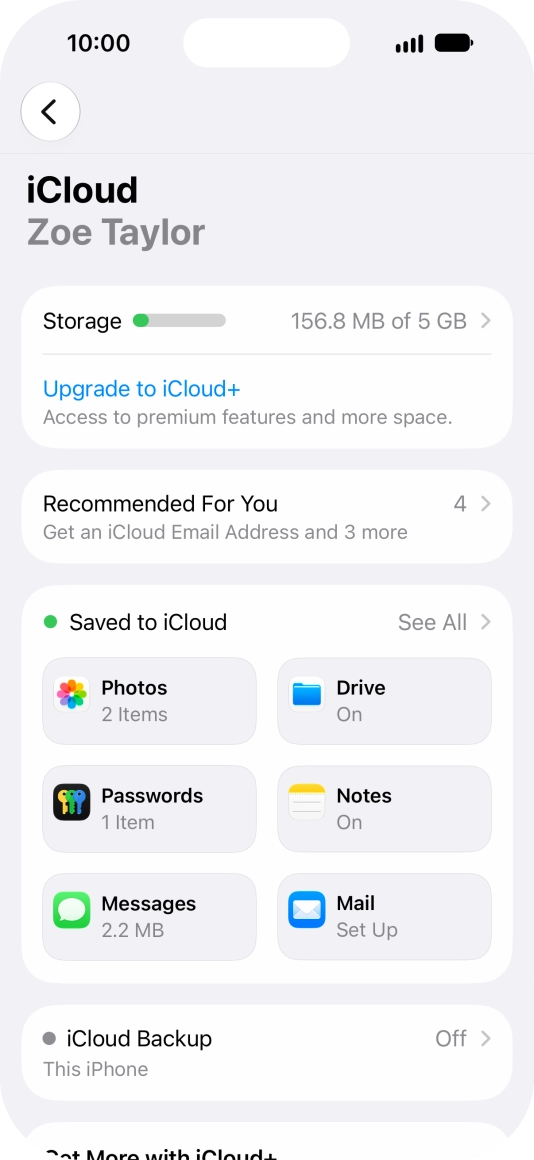
Press iCloud.
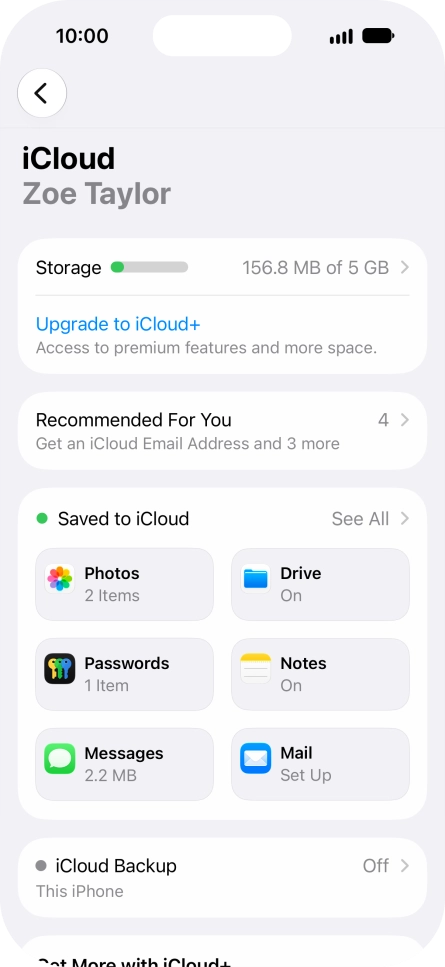
Press iCloud.
Step 3 of 8

Press iCloud.

Press iCloud Backup.
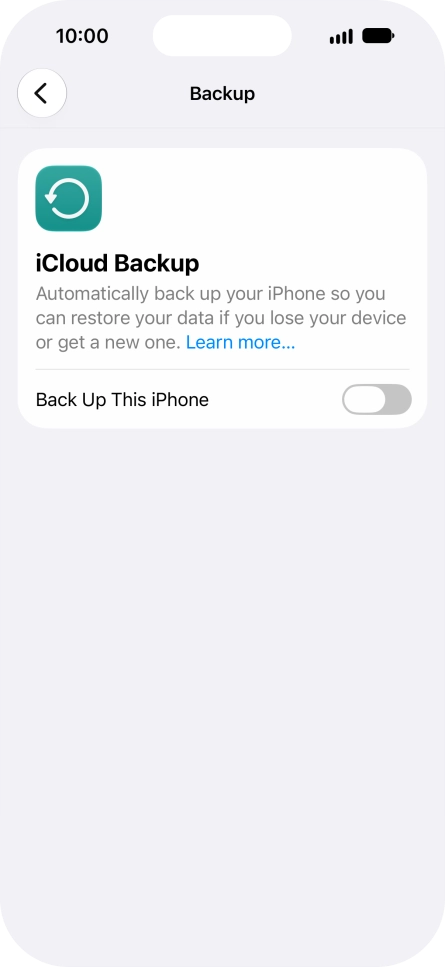
Step 4 of 8

Press iCloud Backup.

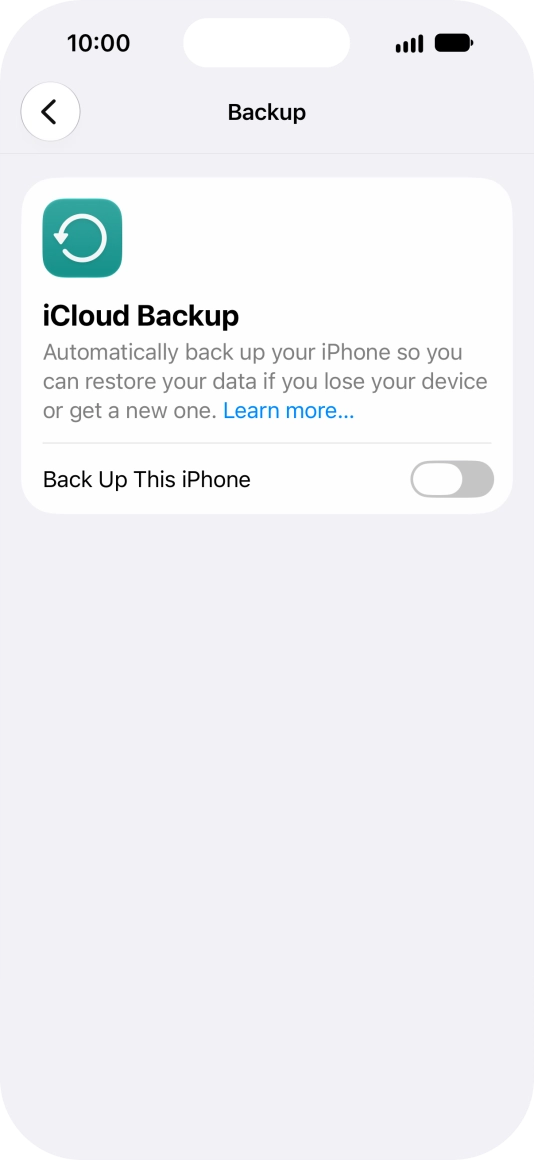
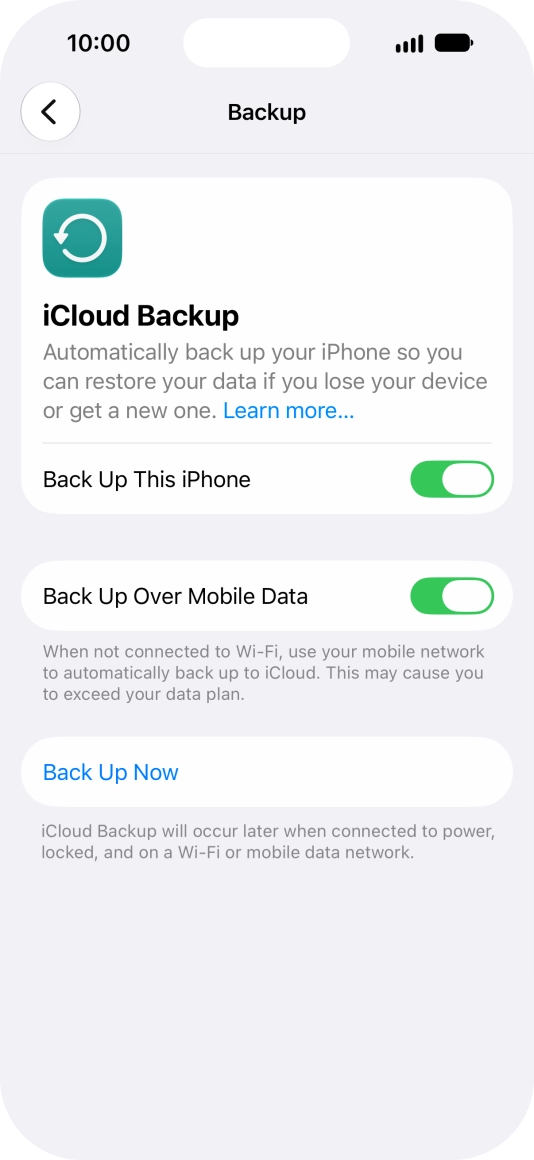
Press the indicator next to
Step 5 of 8

Press the indicator next to "Back Up This iPhone" to turn on the function.
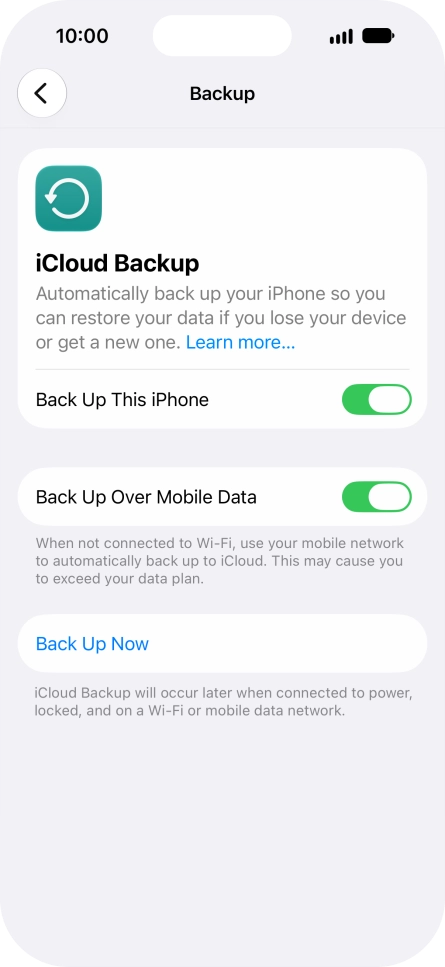
The phone memory will be backed up automatically when your phone is charging, the screen lock is turned on and a Wi-Fi connection is established.
Press the indicator next to
Step 6 of 8

Press the indicator next to "Back Up Over Mobile Data" to turn the function on or off.

The phone memory will be backed up automatically using the mobile network when no Wi-Fi networks are within range.
Press Back Up Now and wait while the phone memory is backed up.
Step 7 of 8

Press Back Up Now and wait while the phone memory is backed up.

Slide your finger upwards starting from the bottom of the screen to return to the home screen.
Step 8 of 8

Slide your finger upwards starting from the bottom of the screen to return to the home screen.

Get information on...

Or choose...

Show more