






Help
Device guides
Apple
iPhone 18 Pro

iPhone 18 Pro

f-c0d82afd-92ed-4142-826d-18947cb52929
f-e5905092-1405-4e7f-ac80-2a4b8ba0111d
f-2483b08e-e63f-41ee-aa5f-f75e29e4420f
f-9f481afa-8df5-42f3-b38b-6f80bd9ee8c7
f-9e6c328b-3f4d-46b8-968a-886814a4c8e3
f-9a1517d1-e0b4-4516-b839-6640d204fbc6
f-4ffdbffe-5984-4711-9209-2797dc5ca54e
f-ed5aba1e-8164-47e4-a7aa-d110cc7d0944
  • Device home
  • Getting started
  • Basic functions
  • Calls, contacts, messaging
  • Connectivity
  • Specifications
  • Device home
  • Getting started
  • Basic functions
  • Calls, contacts, messaging
  • Connectivity
  • Specifications

Updating phone software

It's recommended that you update your phone with the newest software, as the manufacturer continuously corrects errors. It's a good idea to back up the phone memory first. Before you can update the phone software, you need to set up your phone for internet.
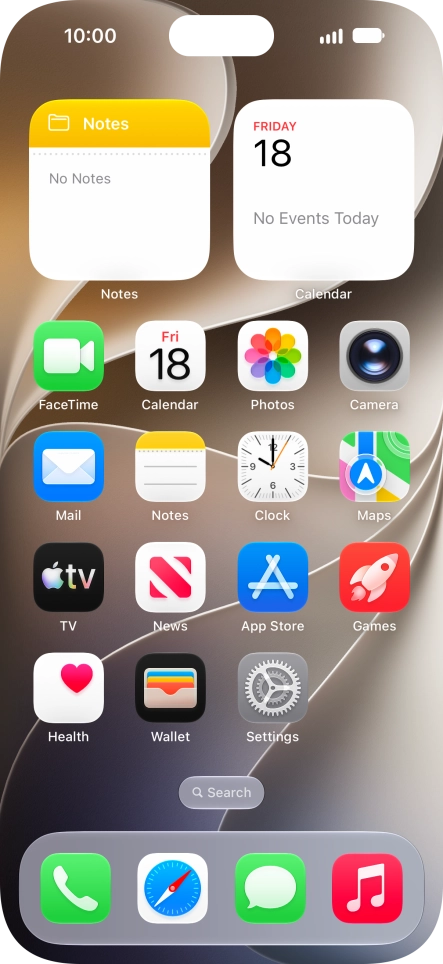
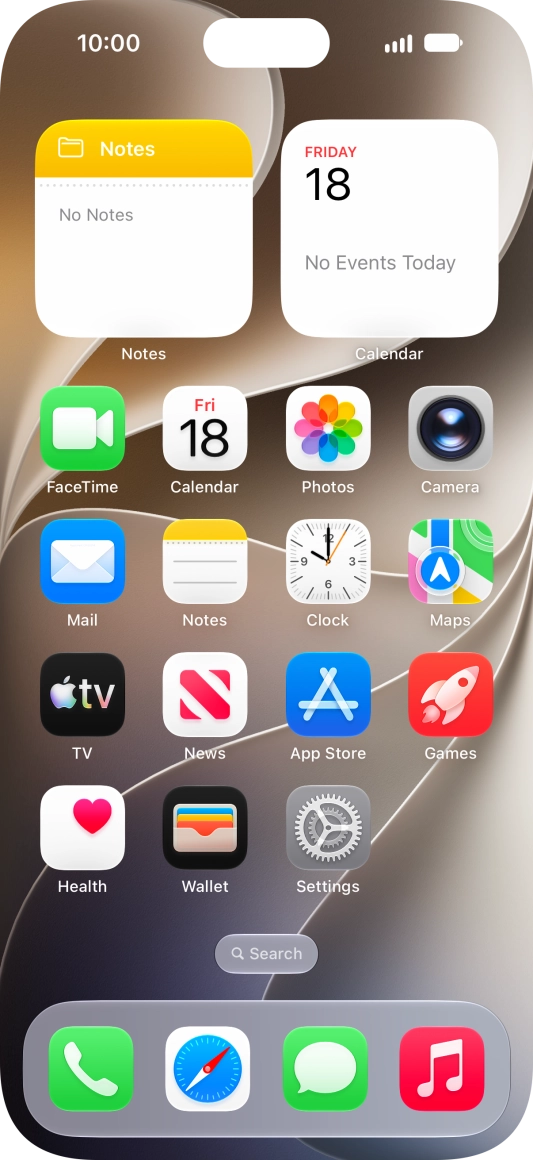
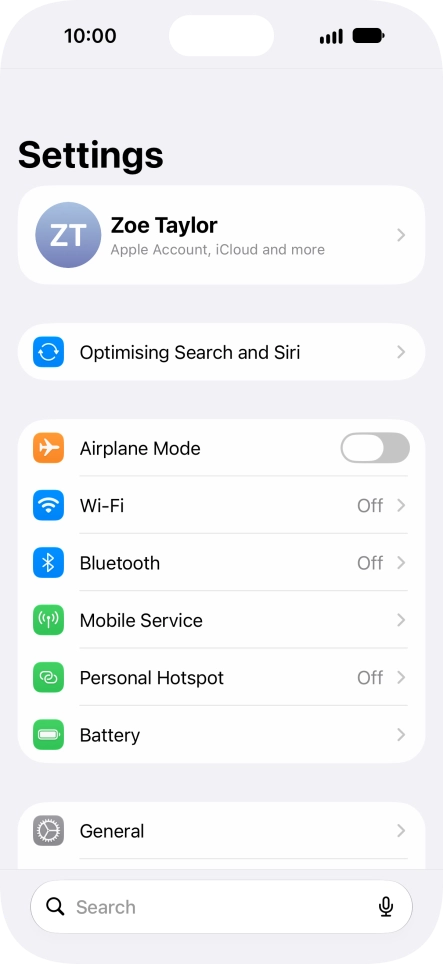
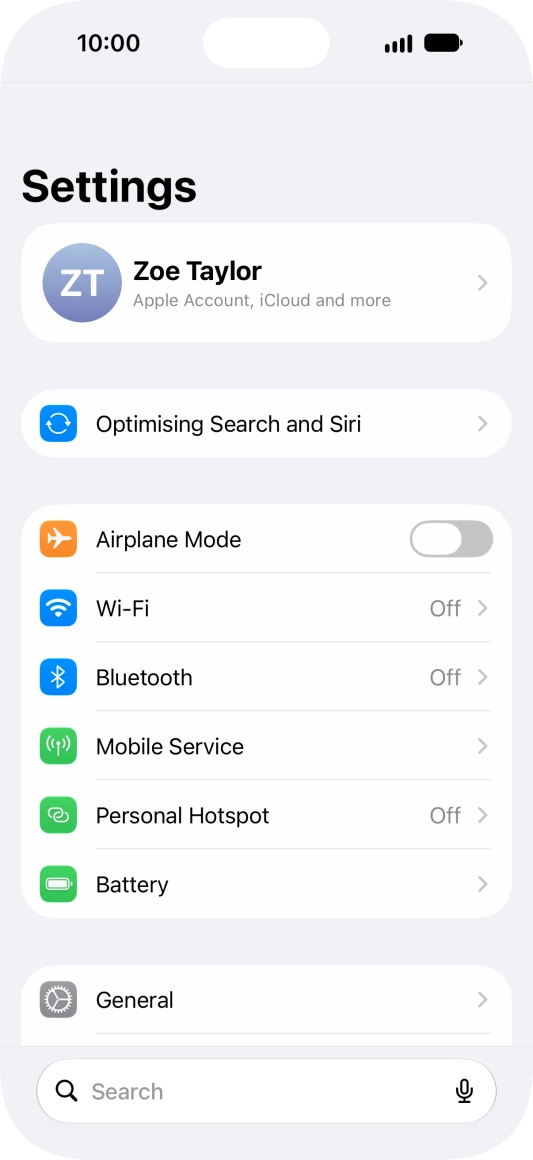
Press Settings.
Press Settings.
Step 1 of 3

Press Settings.

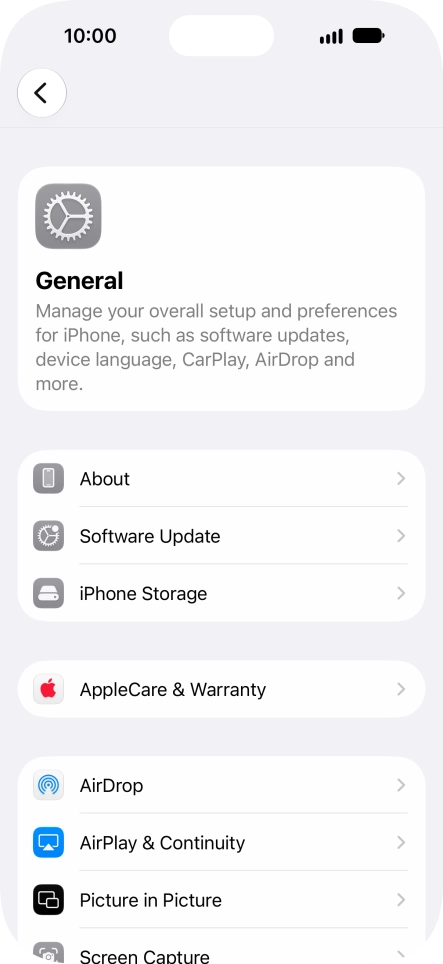
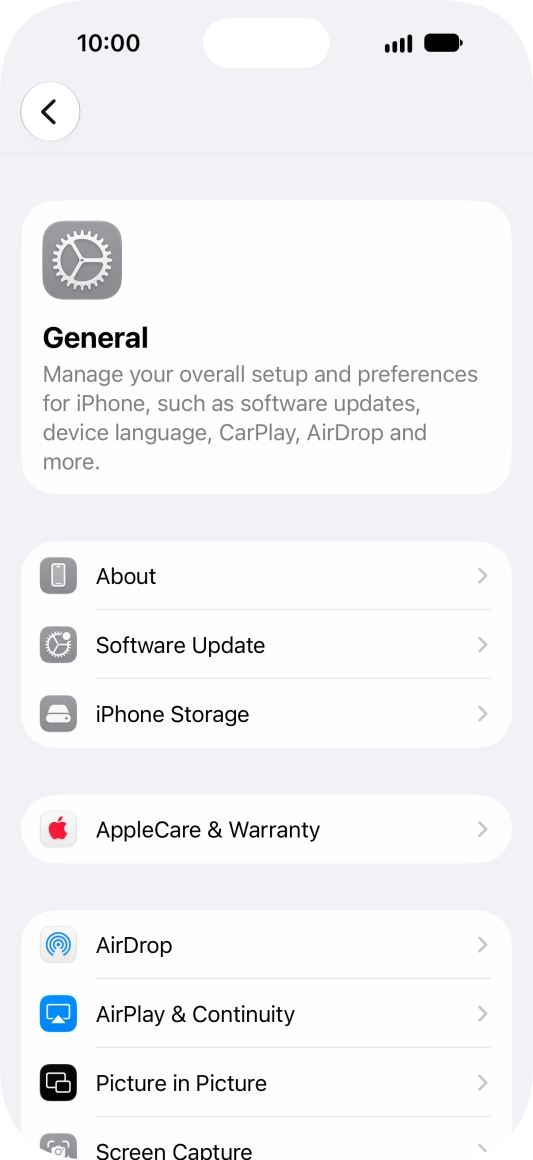
Press General.
Press General.
Step 2 of 3

Press General.

Press Software Update. If a new software version is available, it's displayed. Follow the instructions on the screen to update the phone software.
Step 3 of 3

Press Software Update. If a new software version is available, it's displayed. Follow the instructions on the screen to update the phone software.

Get information on...

Or choose...

Show more