Help
Device guides
Apple
iPhone Air

iPhone Air

f-beec3b98-feb2-4c58-801a-e61edcde4893
f-145ede38-4807-4065-adf4-aab365a48c2b
f-c12eb90e-d1e5-4273-9184-5c6d94a6e969
f-746c395d-cb2e-4d6e-9cf4-d09285c4f856
f-d932d0d2-3ecd-4a2a-8fa0-7591000f1a31
f-6baeb869-b393-4a3c-90e7-e544b8478b38
f-47ab1666-d9f2-4b4d-8034-9e5445c14c6e
f-25c5e2cc-85f0-4e8e-9232-399887a07fdf
  • Device home
  • Getting started
  • Basic functions
  • Calls, contacts, messaging
  • Connectivity
  • Specifications
  • Device home
  • Getting started
  • Basic functions
  • Calls, contacts, messaging
  • Connectivity
  • Specifications

Setting up your phone for picture messaging

An MMS is a message which can contain pictures and other media files and can be sent to other mobile phones. You can send and receive picture messages as soon as you've activated your eSIM. If this isn't the case, you can set up your phone for picture messaging manually.
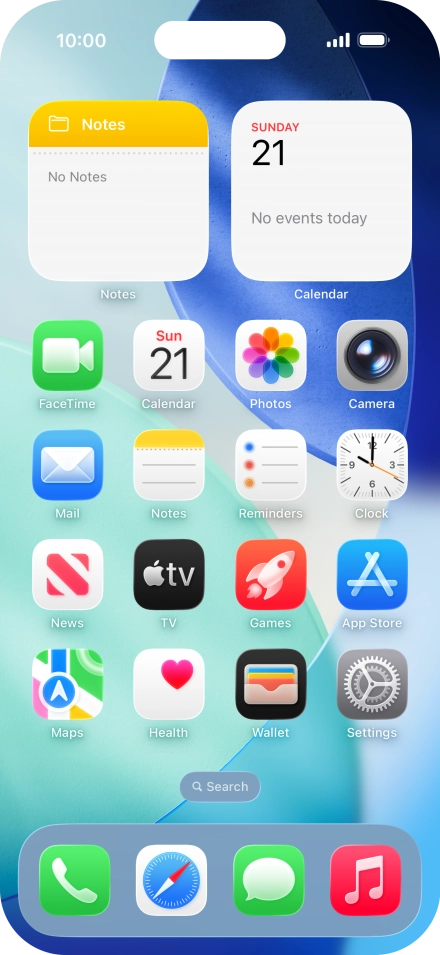
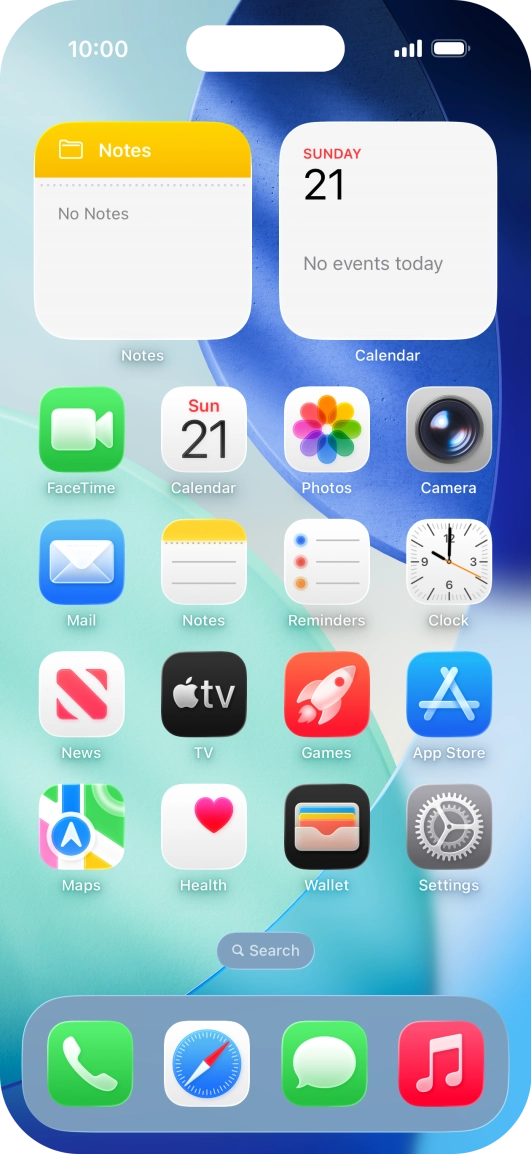
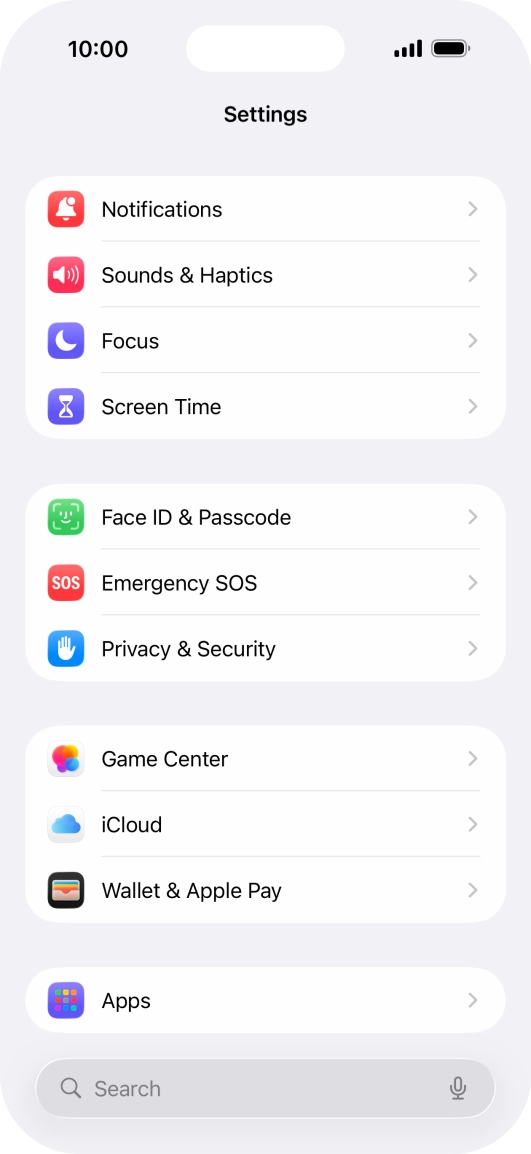
Press Settings.
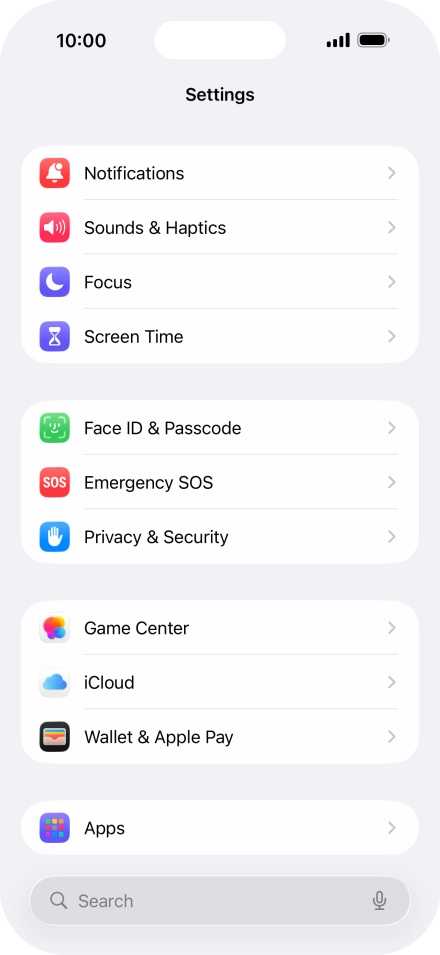
Press Settings.
Step 1 of 5

Press Settings.

Press Apps.
Press Apps.
Step 2 of 5

Press Apps.

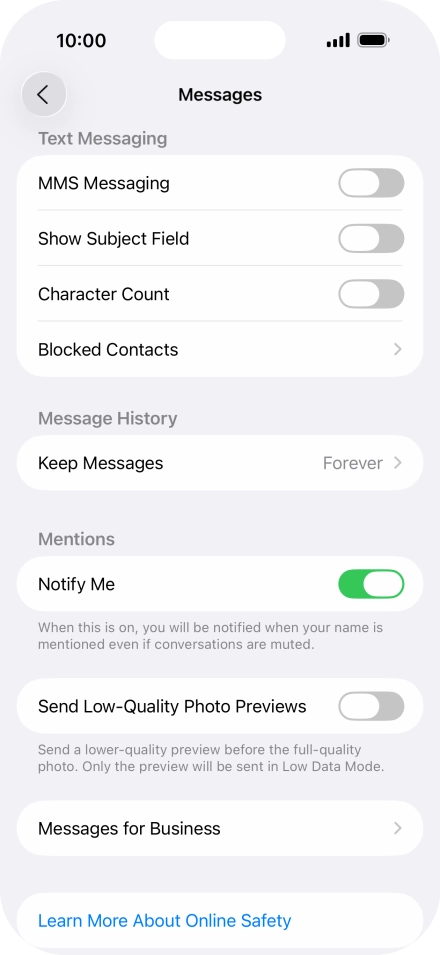
Press Messages.
Press Messages.
Step 3 of 5

Press Messages.

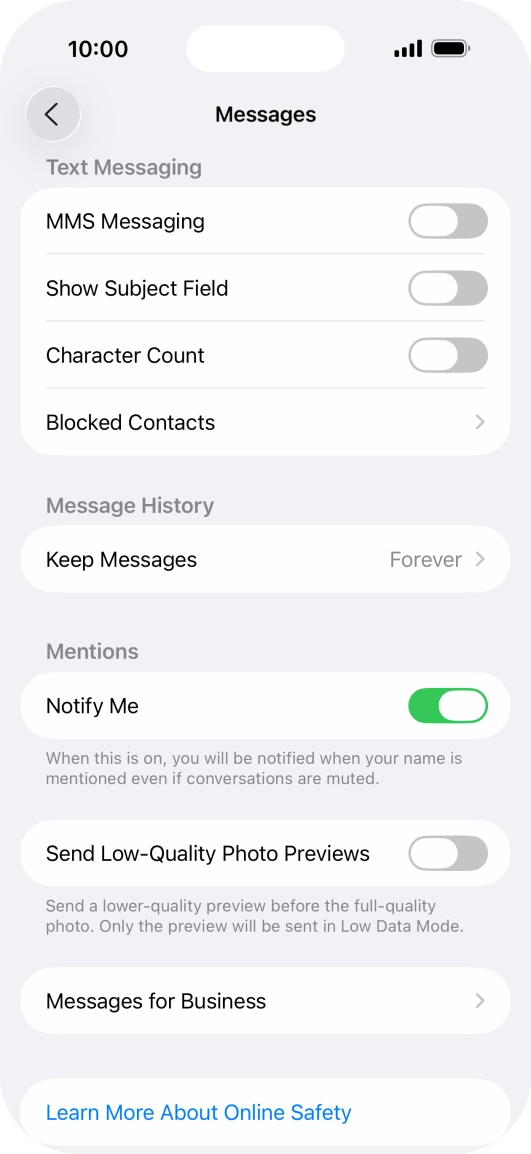
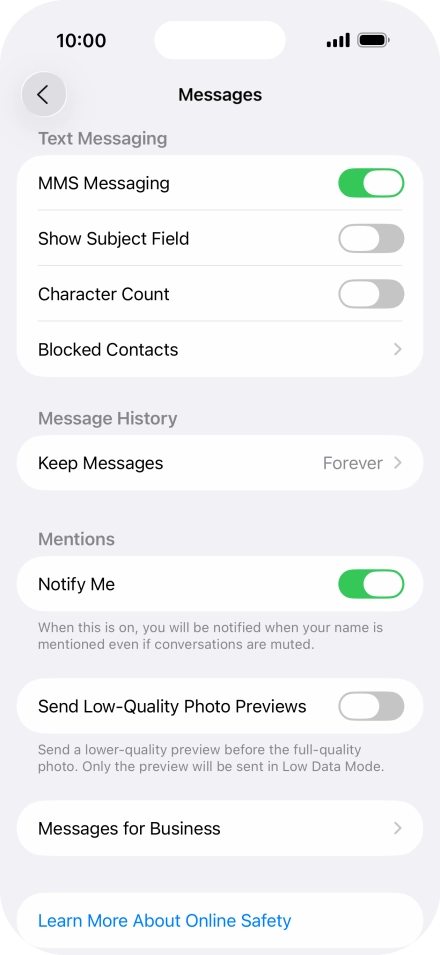
Press the indicator next to
Step 4 of 5

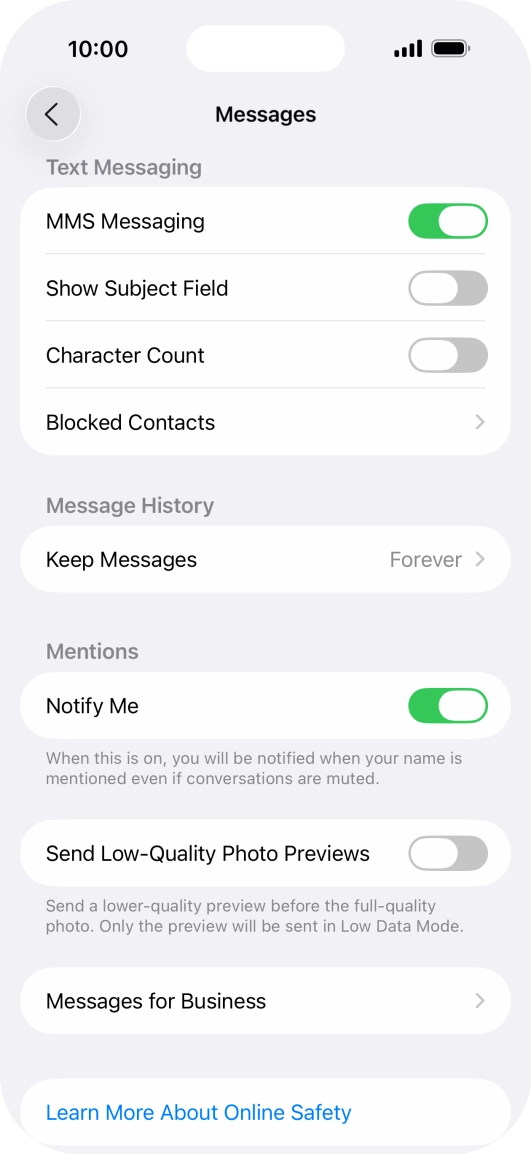
Press the indicator next to "MMS Messaging" to turn on the function.
Slide your finger upwards starting from the bottom of the screen to return to the home screen.
Step 5 of 5

Slide your finger upwards starting from the bottom of the screen to return to the home screen.

Get information on...

Or choose...

Show more