Help
Device guides
Apple
iPhone Air

iPhone Air

f-beec3b98-feb2-4c58-801a-e61edcde4893
f-145ede38-4807-4065-adf4-aab365a48c2b
f-c12eb90e-d1e5-4273-9184-5c6d94a6e969
f-746c395d-cb2e-4d6e-9cf4-d09285c4f856
f-d932d0d2-3ecd-4a2a-8fa0-7591000f1a31
f-6baeb869-b393-4a3c-90e7-e544b8478b38
f-47ab1666-d9f2-4b4d-8034-9e5445c14c6e
f-25c5e2cc-85f0-4e8e-9232-399887a07fdf
  • Device home
  • Getting started
  • Basic functions
  • Calls, contacts, messaging
  • Connectivity
  • Specifications
  • Device home
  • Getting started
  • Basic functions
  • Calls, contacts, messaging
  • Connectivity
  • Specifications

Activating eSIM

An eSIM is a digital SIM that enables you to activate a price plan without the use of a physical SIM. Before you can activate your eSIM you need to establish a connection to a Wi-Fi network.
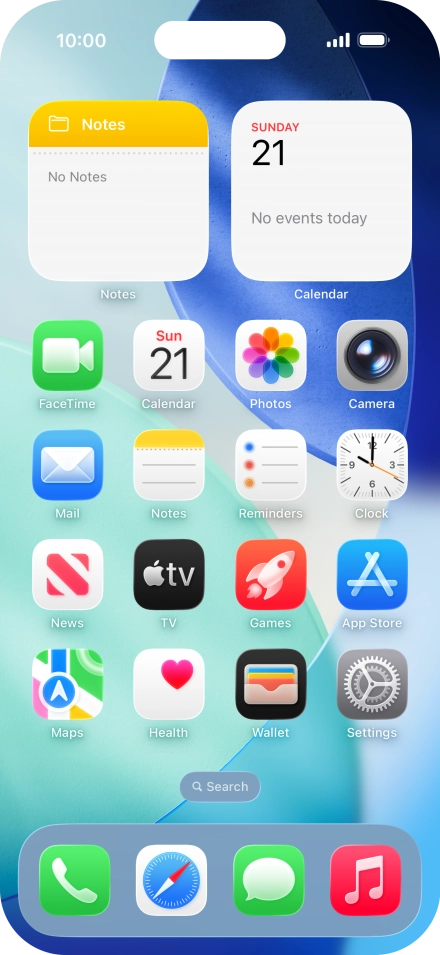
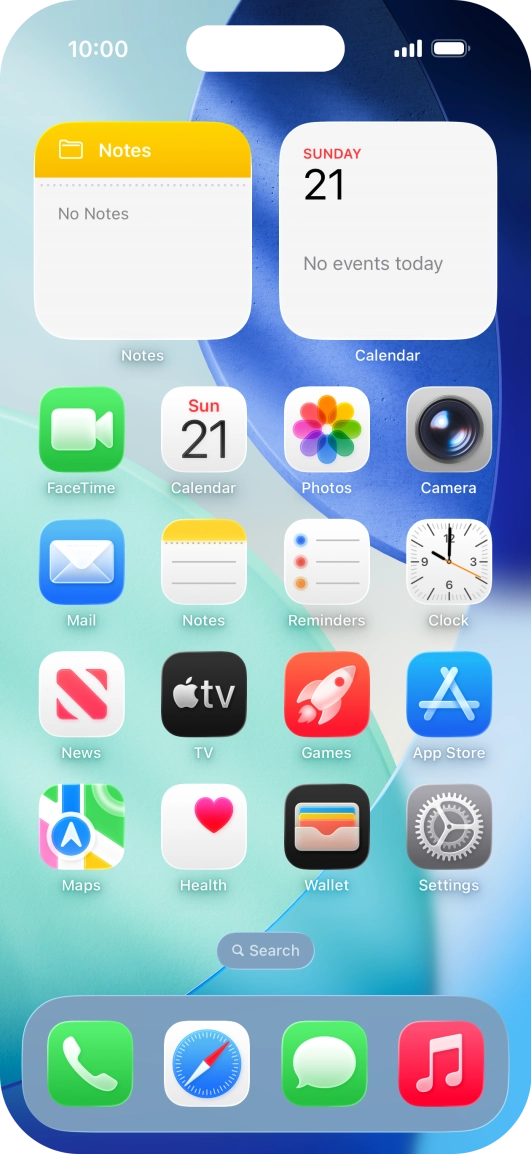
Press Settings.
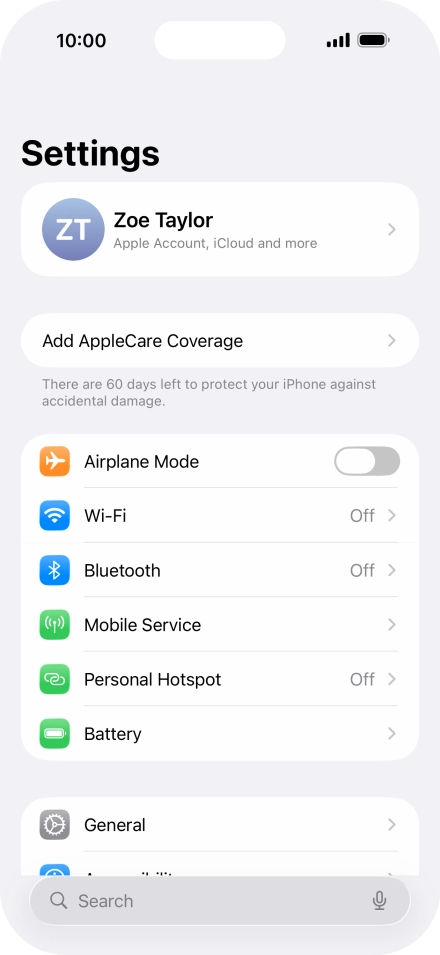
Press Settings.
Step 1 of 7

Press Settings.

Press Mobile Service.
Step 2 of 7

Press Mobile Service.

Press Set Up Mobile Service.
Step 3 of 7

Press Set Up Mobile Service.

Press Use QR Code.
Press Use QR Code.
Step 4 of 7

Press Use QR Code.

Press Scan QR Code.
Press Scan QR Code.
Step 5 of 7

Press Scan QR Code.

Place the QR code you've received inside the phone camera frame to scan the code.
Step 6 of 7

Place the QR code you've received inside the phone camera frame to scan the code.

Apple iPhone Air
Apple iPhone Air
Step 7 of 7

Follow the instructions on the screen to finish the activation of your eSIM including keying in the activation code and setting up your eSIM as primary or secondary price plan.

Get information on...

Or choose...

Show more