Help
Device guides
Apple
iPhone Air

iPhone Air

f-beec3b98-feb2-4c58-801a-e61edcde4893
f-145ede38-4807-4065-adf4-aab365a48c2b
f-c12eb90e-d1e5-4273-9184-5c6d94a6e969
f-746c395d-cb2e-4d6e-9cf4-d09285c4f856
f-d932d0d2-3ecd-4a2a-8fa0-7591000f1a31
f-6baeb869-b393-4a3c-90e7-e544b8478b38
f-47ab1666-d9f2-4b4d-8034-9e5445c14c6e
f-25c5e2cc-85f0-4e8e-9232-399887a07fdf
  • Device home
  • Getting started
  • Basic functions
  • Calls, contacts, messaging
  • Connectivity
  • Specifications
  • Device home
  • Getting started
  • Basic functions
  • Calls, contacts, messaging
  • Connectivity
  • Specifications

Activating your phone

You need to activate your phone before using it for the first time and after a factory reset.

Press the Side button.
Step 1 of 15

Press the Side button.

Slide your finger upwards starting from the bottom of the screen.
Step 2 of 15

Slide your finger upwards starting from the bottom of the screen.

Press the required language.
Step 3 of 15

Press the required language.

Press the required country or area.
Step 4 of 15

Press the required country or area.

Select the required text and icon size on your phone and press Continue.
Step 5 of 15

Select the required text and icon size on your phone and press Continue.

Follow the instructions on the screen to transfer content from another device running iOS 11 or later or press Set Up Without Another Device.
Step 6 of 15

Follow the instructions on the screen to transfer content from another device running iOS 11 or later or press Set Up Without Another Device.

Press the required Wi-Fi network.
Step 7 of 15

Press the required Wi-Fi network.

Key in the password for the Wi-Fi network and press the confirm icon.
Step 8 of 15

Key in the password for the Wi-Fi network and press the confirm icon.

If there are no available Wi-Fi networks, you can use the mobile network instead.
Press Continue.
Press Continue.
Step 9 of 15

Press Continue.

Press Adult.
Press Adult.
Step 10 of 15

Press Adult.

If the phone will be used by a child, follow the instructions on the screen to set up the phone for the child.
Follow the instructions on the screen to turn on use of Face ID or press Set Up Later.
Step 11 of 15

Follow the instructions on the screen to turn on use of Face ID or press Set Up Later.

Press Passcode Options.
Step 12 of 15

Press Passcode Options.

Follow the instructions on the screen to turn on use of phone lock code or press Don't Use Passcode.
Step 13 of 15

Follow the instructions on the screen to turn on use of phone lock code or press Don't Use Passcode.

If you turn off the function, press Don't Use Passcode.
Step 14 of 15

If you turn off the function, press Don't Use Passcode.

See how to turn use of phone lock code on or off later after activation.
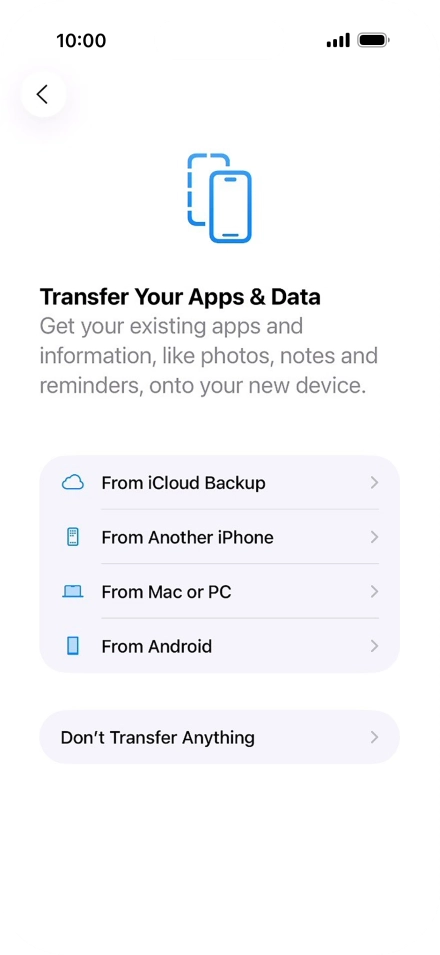
Press Don't Transfer Anything and follow the instructions on the screen to finish the activation.
Step 15 of 15

Press Don't Transfer Anything and follow the instructions on the screen to finish the activation.

If you've backed up content previously, you can restore the content from an iCloud backup or restore the content from an iTunes backup. You can also transfer content from an Android phone.

Get information on...

Or choose...

Show more