Help
Device guides
Apple
iPhone Air

iPhone Air

f-beec3b98-feb2-4c58-801a-e61edcde4893
f-145ede38-4807-4065-adf4-aab365a48c2b
f-c12eb90e-d1e5-4273-9184-5c6d94a6e969
f-746c395d-cb2e-4d6e-9cf4-d09285c4f856
f-d932d0d2-3ecd-4a2a-8fa0-7591000f1a31
f-6baeb869-b393-4a3c-90e7-e544b8478b38
f-47ab1666-d9f2-4b4d-8034-9e5445c14c6e
f-25c5e2cc-85f0-4e8e-9232-399887a07fdf
  • Device home
  • Getting started
  • Basic functions
  • Calls, contacts, messaging
  • Connectivity
  • Specifications
  • Device home
  • Getting started
  • Basic functions
  • Calls, contacts, messaging
  • Connectivity
  • Specifications

Taking screenshot

You can take a picture of your screen if you want to share something with your friends or save the picture for later use.
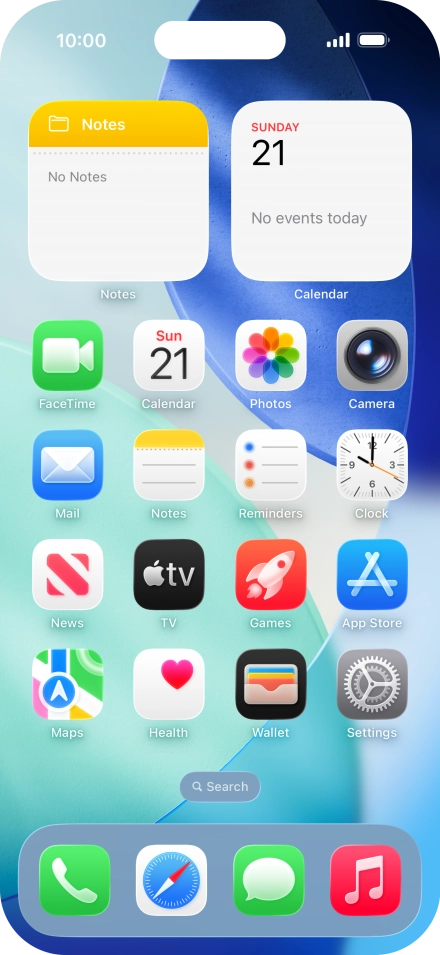
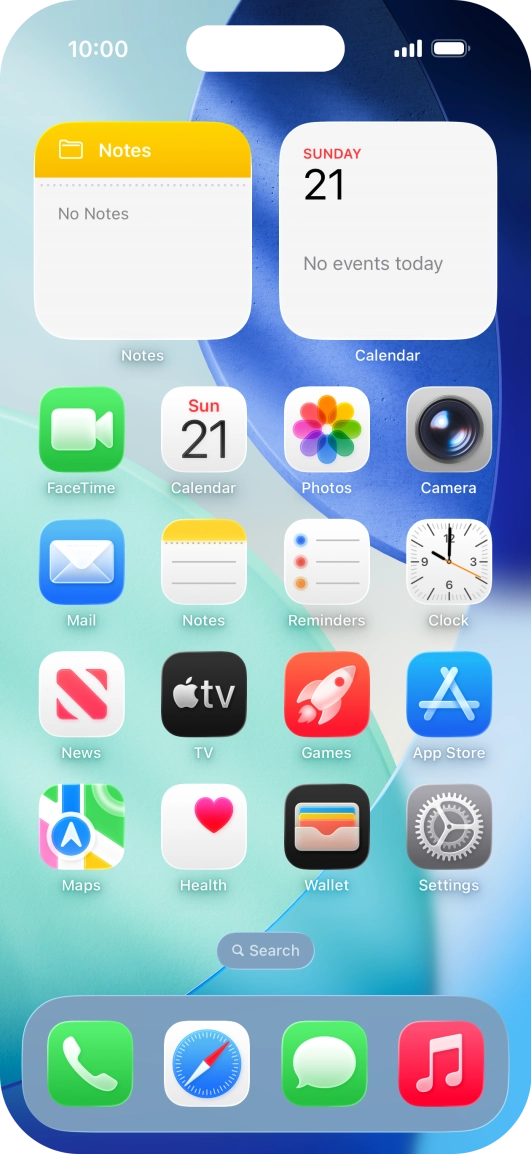
Simultaneously, press the Side button and the Top volume key to take a screenshot.
Step 1 of 2

Simultaneously, press the Side button and the Top volume key to take a screenshot.
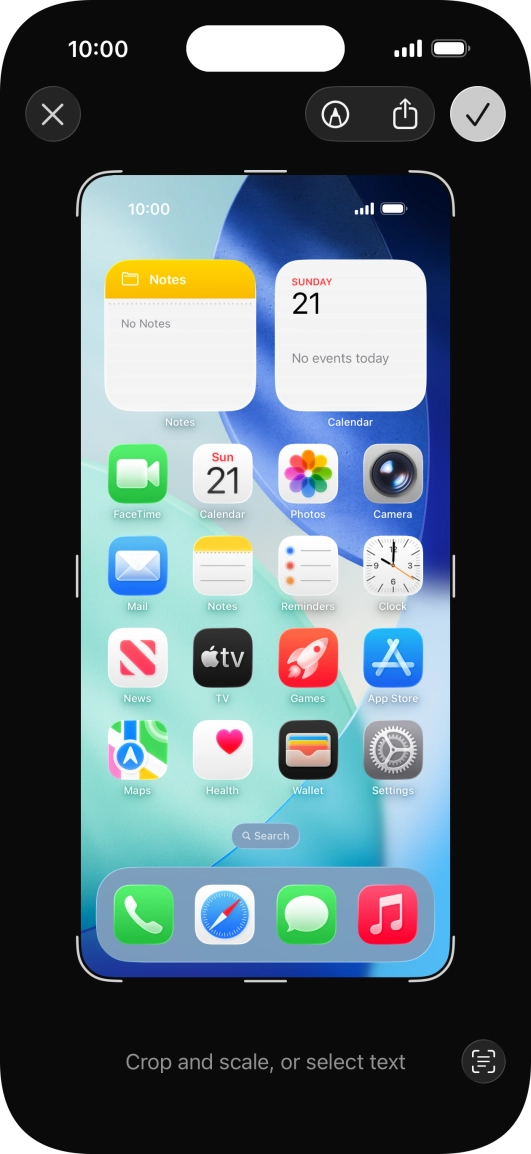
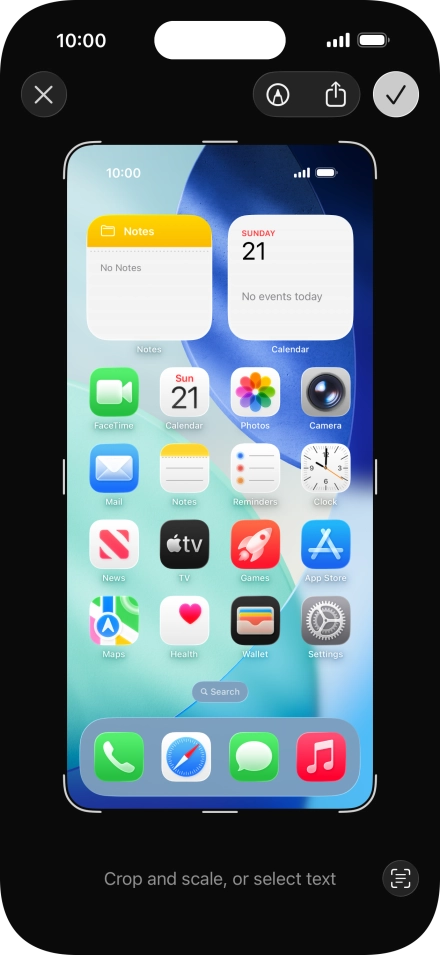
Follow the instructions on the screen to edit and save your screenshot.
Step 2 of 2

Follow the instructions on the screen to edit and save your screenshot.

Get information on...

Or choose...

Show more