Help
Device guides
Apple
iPhone SE 5G

iPhone SE 5G

f-8866f913-8b28-4b38-9e2c-3daa6f5a4c6e
f-e125f5d5-1fe7-4239-9d50-ad611ee25f00
f-3637621b-6536-4e87-b9aa-a9e455266dec
f-1d32fbc1-46ac-44f6-816b-837d2b5a2f49
f-837dc7ab-ff38-4f7f-a523-066157007cc8
f-1090b2fc-4aed-4e48-86a6-938d5e8b817f
  • Device home
  • Getting started
  • Basic functions
  • Calls, contacts, messaging
  • Connectivity
  • Specifications
  • Device home
  • Getting started
  • Basic functions
  • Calls, contacts, messaging
  • Connectivity
  • Specifications

Taking screenshot

You can take a picture of your screen if you want to share something with your friends or save the picture for later use.

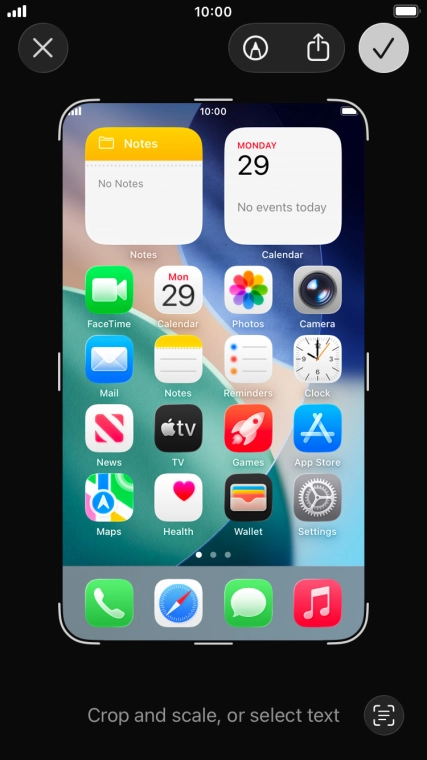
Simultaneously, press On/Off and the Top volume key to take a screenshot.
Step 1 of 2

Simultaneously, press On/Off and the Top volume key to take a screenshot.

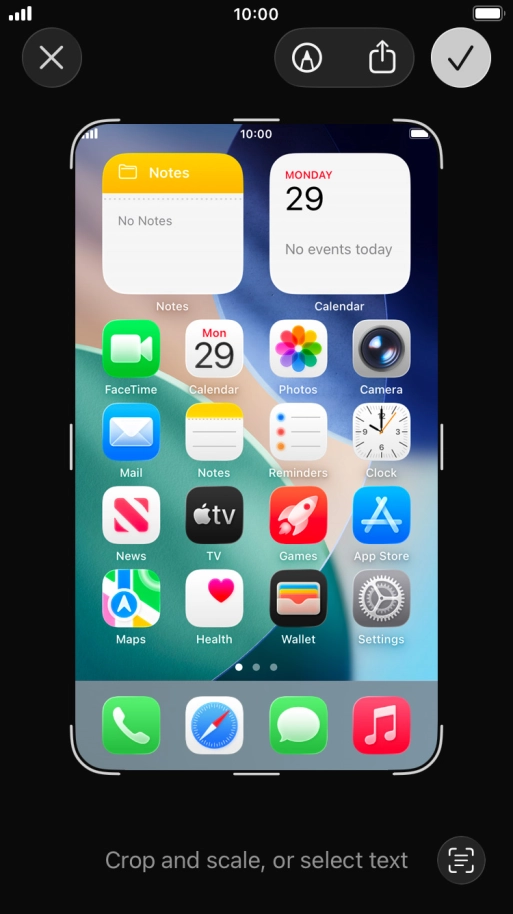
Follow the instructions on the screen to edit and save your screenshot.
Step 2 of 2

Follow the instructions on the screen to edit and save your screenshot.

Get information on...

Or choose...

Show more