Help
Device guides
Apple
TV 4K

Apple TV 4K

f-6013ccc6-c16c-4ba6-b55c-6b52fa509eac
f-417c8ed9-27e3-4875-aa7b-90456d774aaa
f-586b006f-500e-4260-964e-6f7f2df90cb0
f-acb7f6c4-23a9-438f-9559-863e6874d341
  • Device home
  • Getting started
  • Functions
  • Settings
  • Device home
  • Getting started
  • Functions
  • Settings

Changing PIN

You can change the set-top box's PIN, which need to be entered when selecting e.g. parental control and blocked channel settings.

Highlight EE TV.
Highlight EE TV.
Step 1 of 13

Highlight EE TV.

Press the Centre key.
Step 2 of 13

Press the Centre key.

Press the left side of the Navigation key.
Step 3 of 13

Press the left side of the Navigation key.

Highlight Settings.
Highlight Settings.
Step 4 of 13

Highlight Settings.

Press the Centre key.
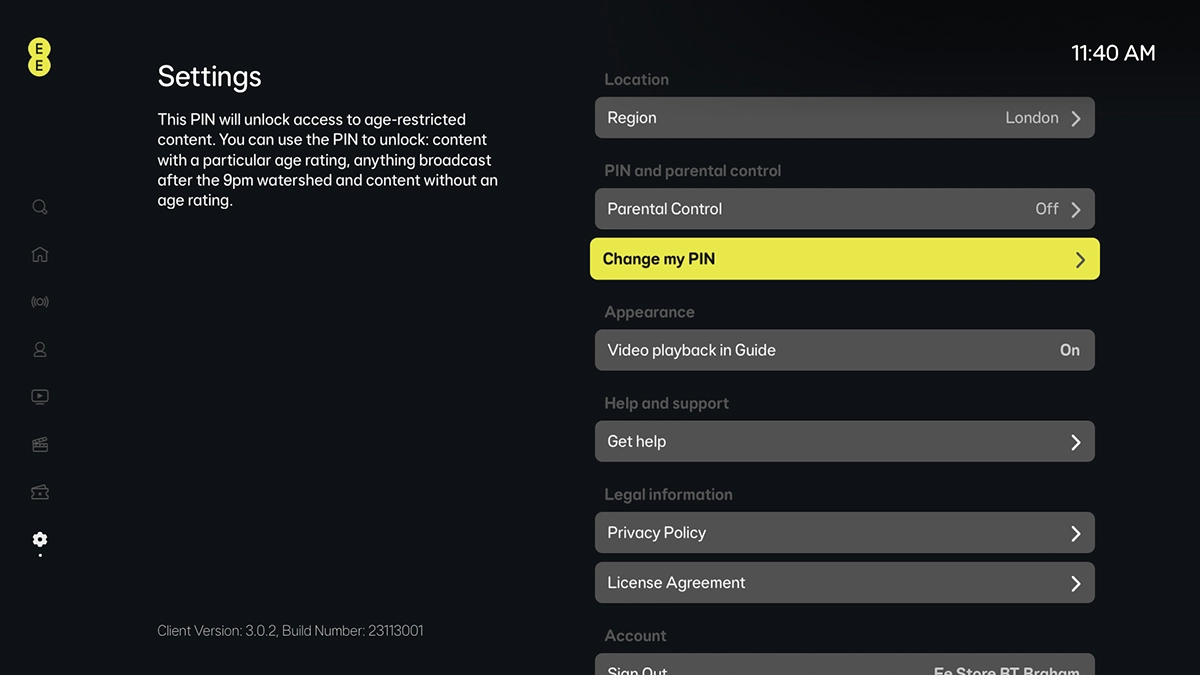
Step 5 of 13

Press the Centre key.

Highlight Change my PIN.
Step 6 of 13

Highlight Change my PIN.

Press the Centre key.
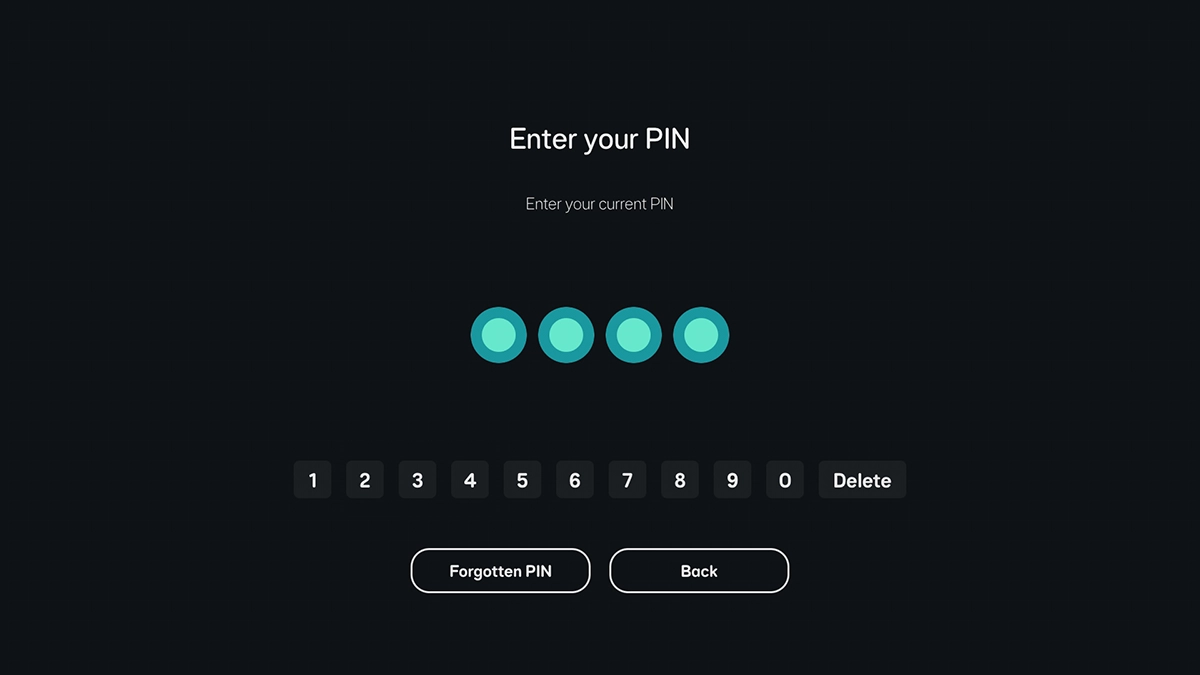
Step 7 of 13

Press the Centre key.

Key in your PIN.
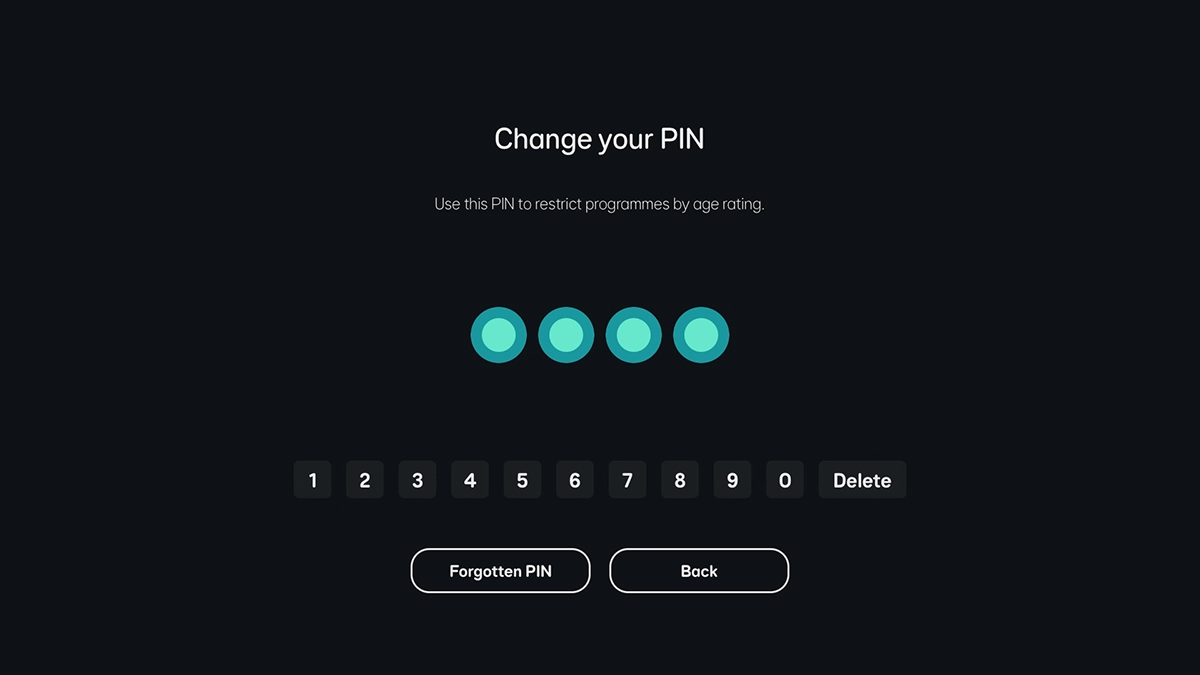
Key in your PIN.
Step 8 of 13

Key in your PIN.

Key in the required PIN.
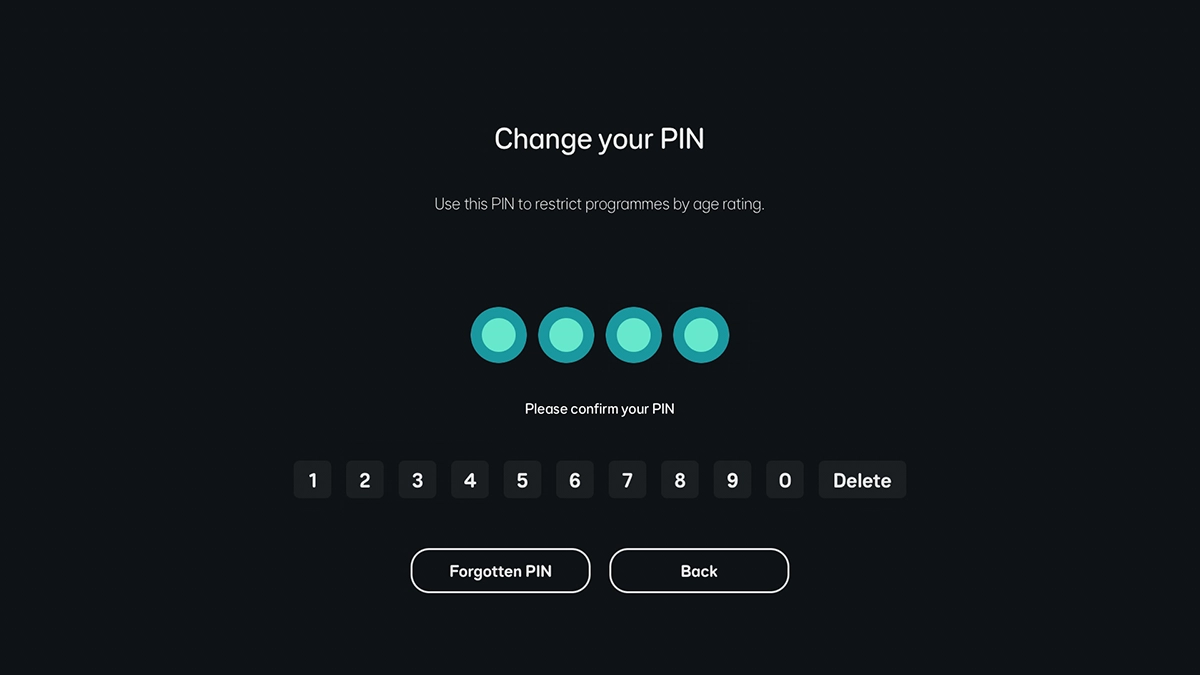
Step 9 of 13

Key in the required PIN.

Key in the required PIN again.
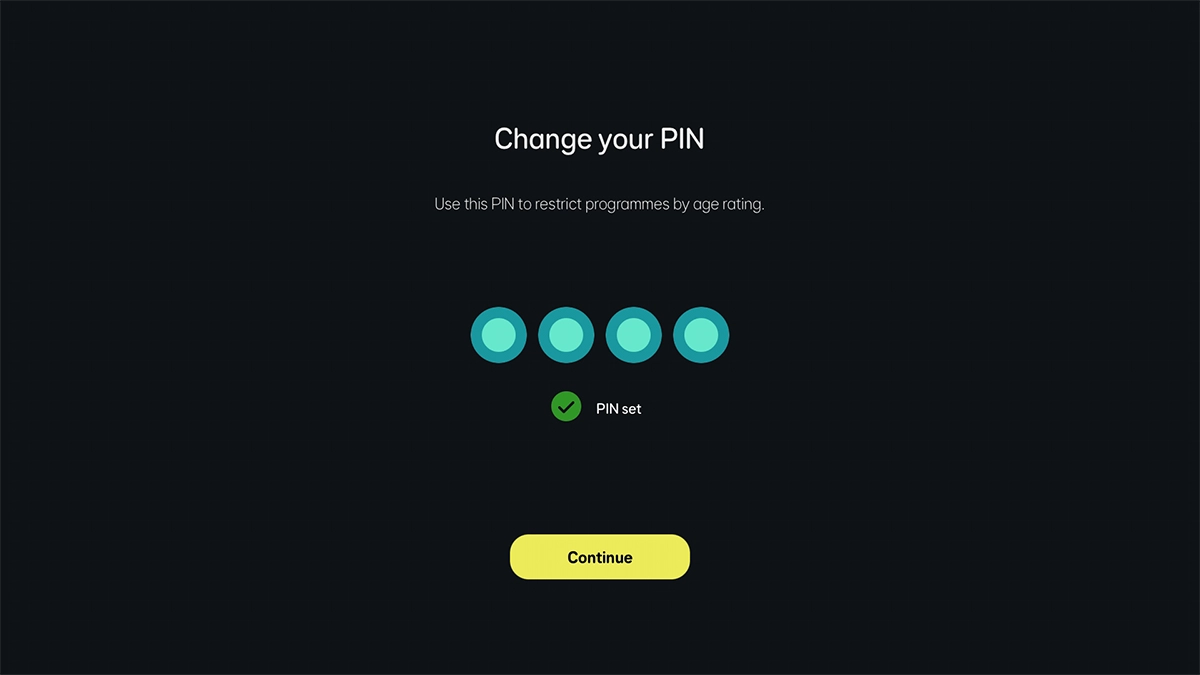
Step 10 of 13

Key in the required PIN again.

Highlight Continue.
Highlight Continue.
Step 11 of 13

Highlight Continue.

Press the Centre key.
Step 12 of 13

Press the Centre key.

Press and hold MENU to return to the main menu.
Step 13 of 13

Press and hold MENU to return to the main menu.

Get information on...

Or choose...

Show more