Help
Device guides
Apple
TV 4K

Apple TV 4K

f-6013ccc6-c16c-4ba6-b55c-6b52fa509eac
f-417c8ed9-27e3-4875-aa7b-90456d774aaa
f-586b006f-500e-4260-964e-6f7f2df90cb0
f-acb7f6c4-23a9-438f-9559-863e6874d341
  • Device home
  • Getting started
  • Functions
  • Settings
  • Device home
  • Getting started
  • Functions
  • Settings

Selecting language

You can select language for the set-top box menu.

Highlight Settings.
Highlight Settings.
Step 1 of 20

Highlight Settings.

Press the Centre key.
Step 2 of 20

Press the Centre key.

Highlight General.
Highlight General.
Step 3 of 20

Highlight General.

Press the Centre key.
Step 4 of 20

Press the Centre key.

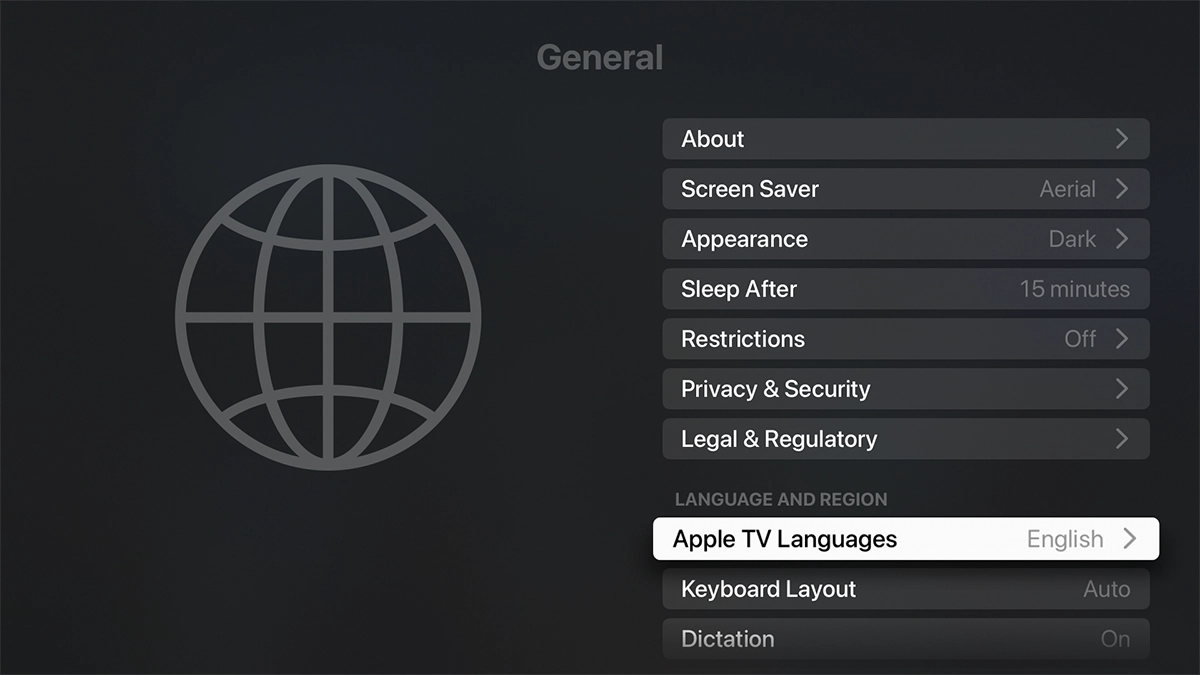
Highlight Apple TV Languages.
Step 5 of 20

Highlight Apple TV Languages.

Press the Centre key.
Step 6 of 20

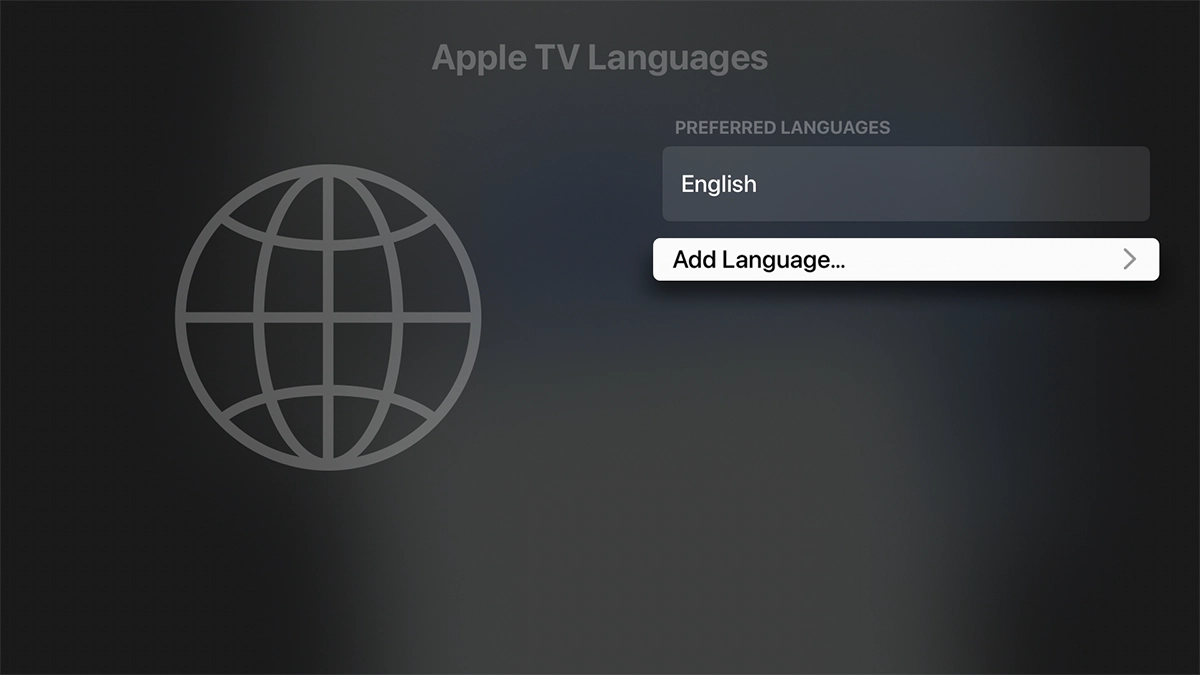
Press the Centre key.

Highlight Add Language....
Step 7 of 20

Highlight Add Language....

Press the Centre key.
Step 8 of 20

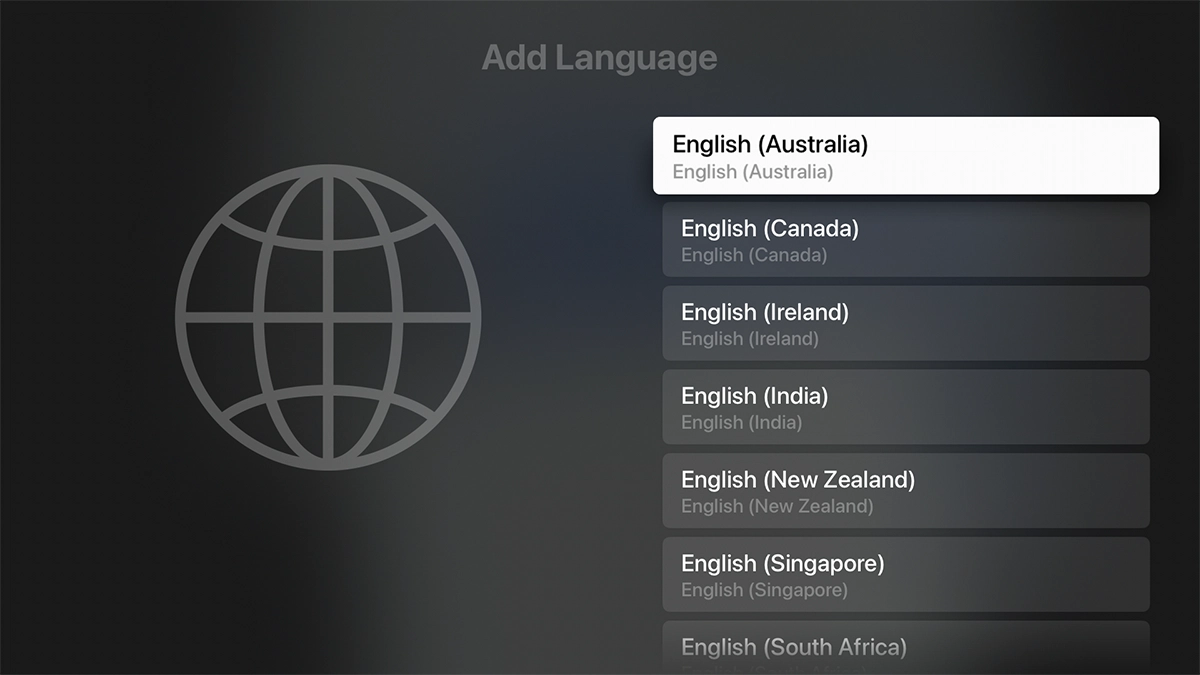
Press the Centre key.

Highlight the required language.
Step 9 of 20

Highlight the required language.

Press the Centre key.
Step 10 of 20

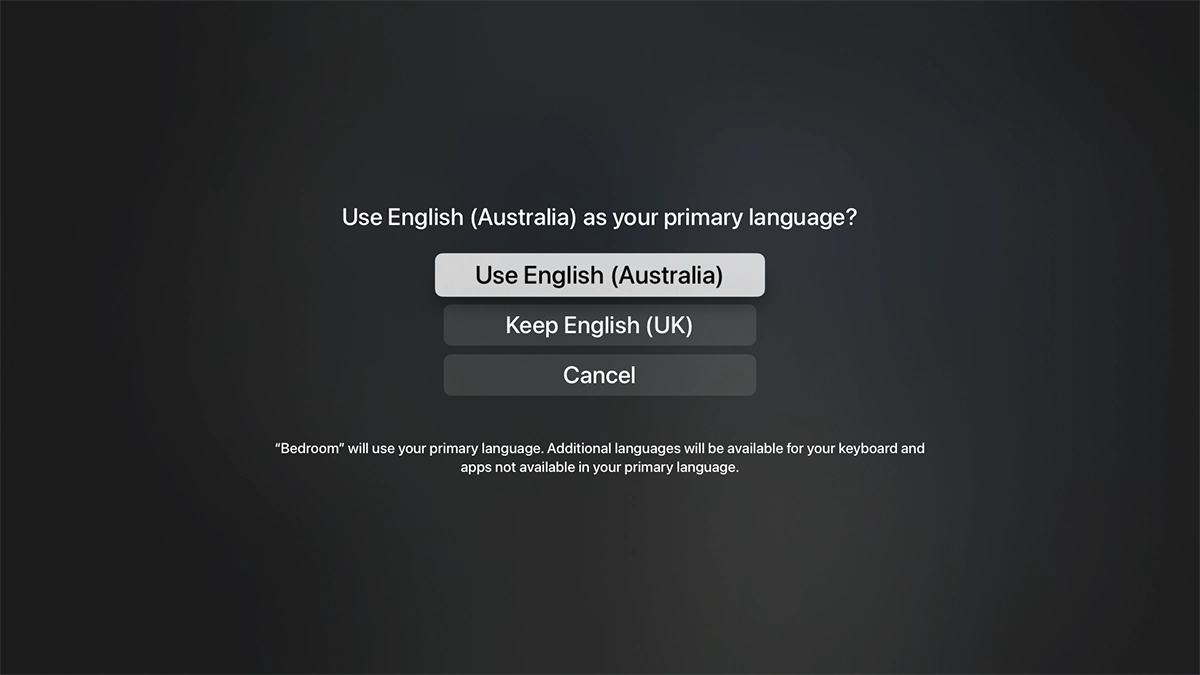
Press the Centre key.

To select the new language as the default set-top box language, highlight Use ‹language›.
Step 11 of 20

To select the new language as the default set-top box language, highlight Use ‹language›.

To keep the current language as the default set-top box language, highlight Keep ‹language›.
Step 12 of 20

To keep the current language as the default set-top box language, highlight Keep ‹language›.

Press the Centre key.
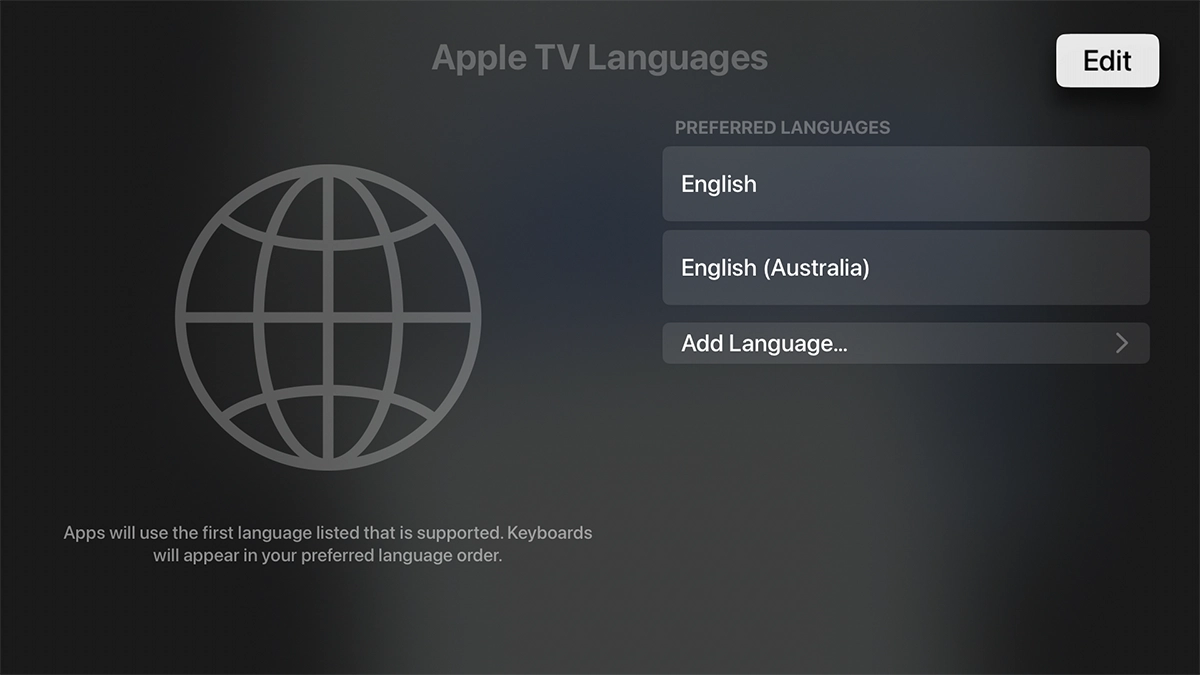
Step 13 of 20

Press the Centre key.

To subsequently select another language as the default language, highlight Edit.
Step 14 of 20

To subsequently select another language as the default language, highlight Edit.

Press the Centre key.
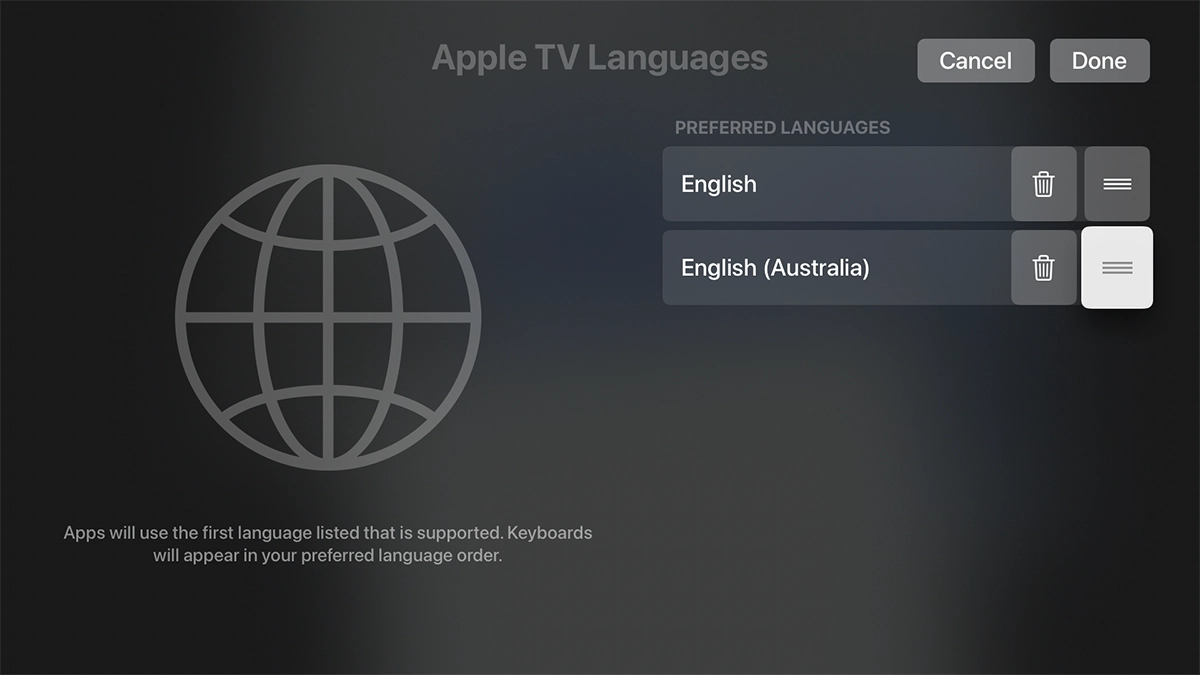
Step 15 of 20

Press the Centre key.

Highlight the move icon next to the required language.
Step 16 of 20

Highlight the move icon next to the required language.

Press the Centre key followed by the Top navigation key to move the language to the top of the list.
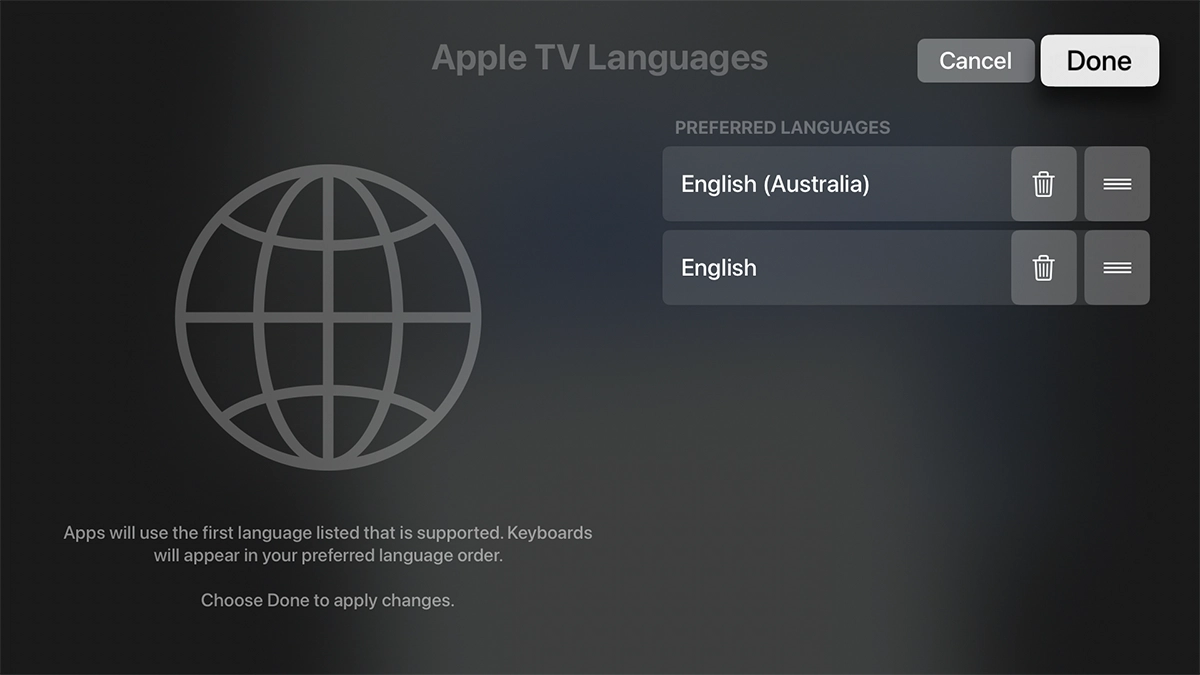
Step 17 of 20

Press the Centre key followed by the Top navigation key to move the language to the top of the list.

Highlight Done.
Highlight Done.
Step 18 of 20

Highlight Done.

Press the Centre key.
Step 19 of 20

Press the Centre key.

Press and hold MENU to return to the main menu.
Step 20 of 20

Press and hold MENU to return to the main menu.

Get information on...

Or choose...

Show more