Help
Device guides
Apple
TV 4K

Apple TV 4K

f-6013ccc6-c16c-4ba6-b55c-6b52fa509eac
f-417c8ed9-27e3-4875-aa7b-90456d774aaa
f-586b006f-500e-4260-964e-6f7f2df90cb0
f-acb7f6c4-23a9-438f-9559-863e6874d341
  • Device home
  • Getting started
  • Functions
  • Settings
  • Device home
  • Getting started
  • Functions
  • Settings

Selecting voice control settings

You can control many of the set-top box functions with your voice. You can search movies and TV programmes by genre, actor, etc., operate functions and navigate the set-top box menus, among other things.

Highlight Settings.
Highlight Settings.
Step 1 of 13

Highlight Settings.

Press the Centre key.
Step 2 of 13

Press the Centre key.

Highlight General.
Highlight General.
Step 3 of 13

Highlight General.

Press the Centre key.
Step 4 of 13

Press the Centre key.

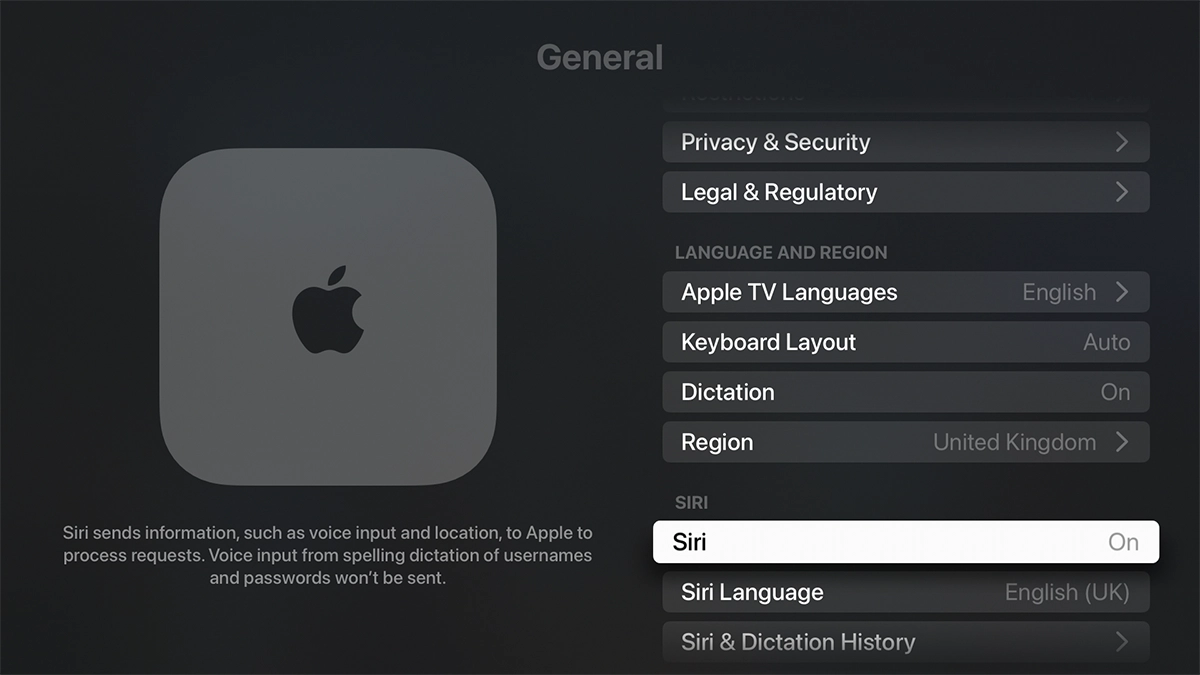
Highlight Siri.
Highlight Siri.
Step 5 of 13

Highlight Siri.

Press the Centre key to turn the function on or off.
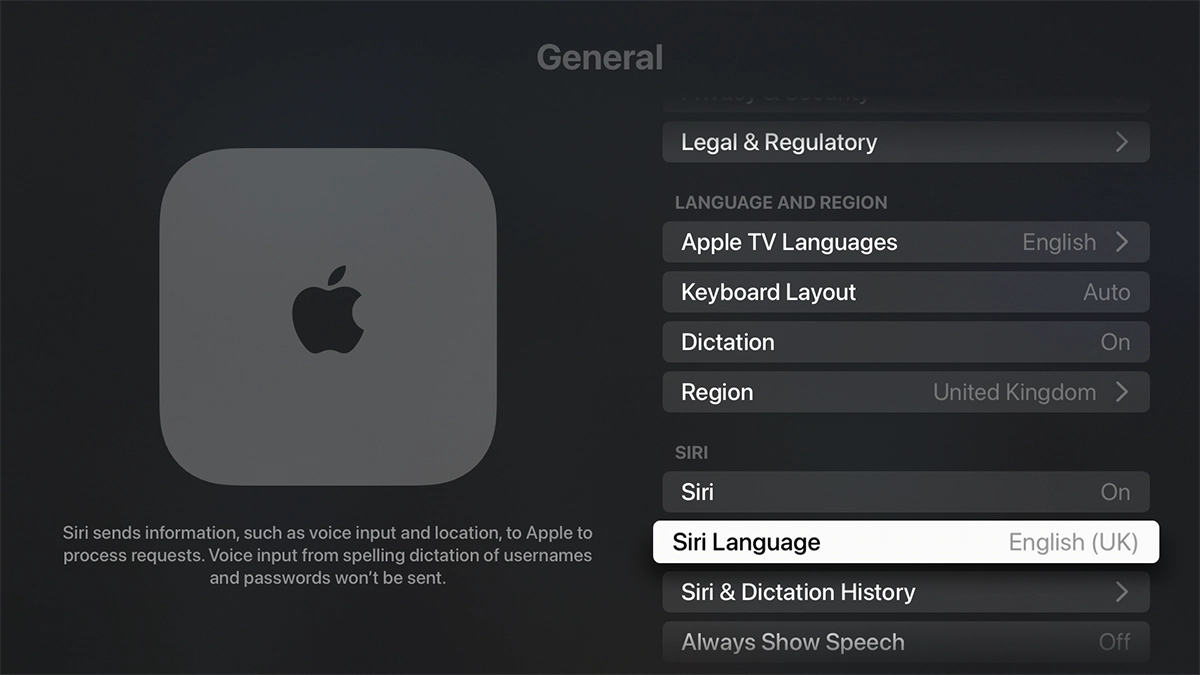
Step 6 of 13

Press the Centre key to turn the function on or off.

Highlight Siri Language.
Step 7 of 13

Highlight Siri Language.

Press the Centre key.
Step 8 of 13

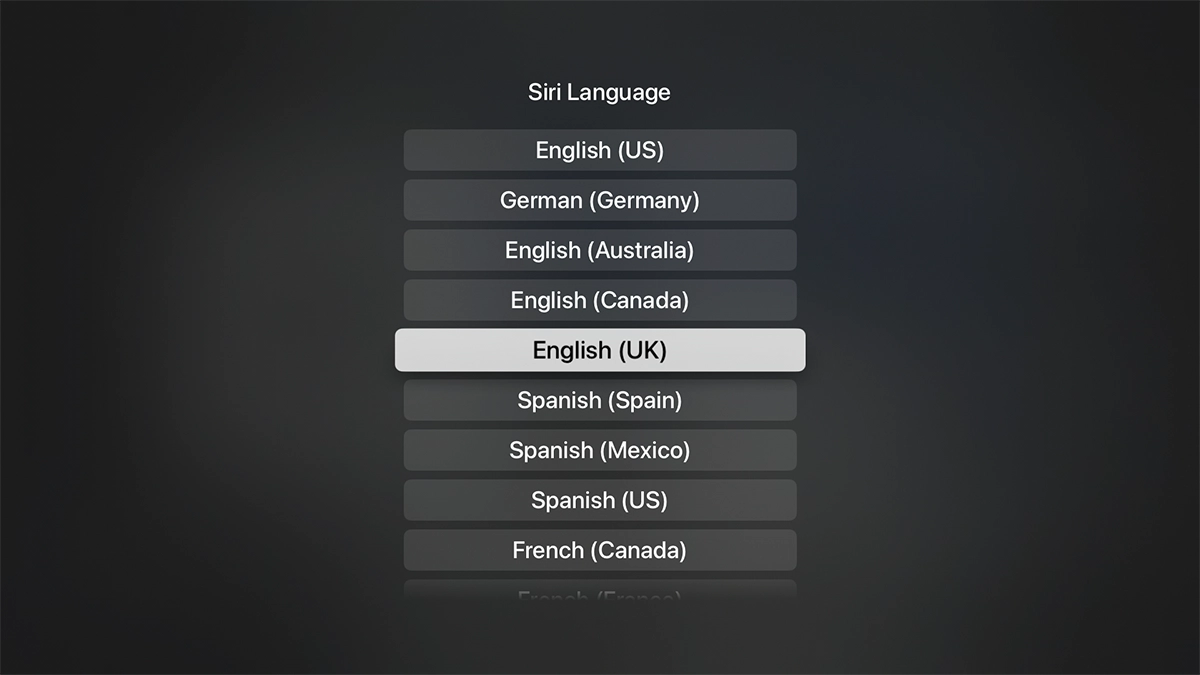
Press the Centre key.

Highlight the required language.
Step 9 of 13

Highlight the required language.

Press the Centre key.
Step 10 of 13

Press the Centre key.

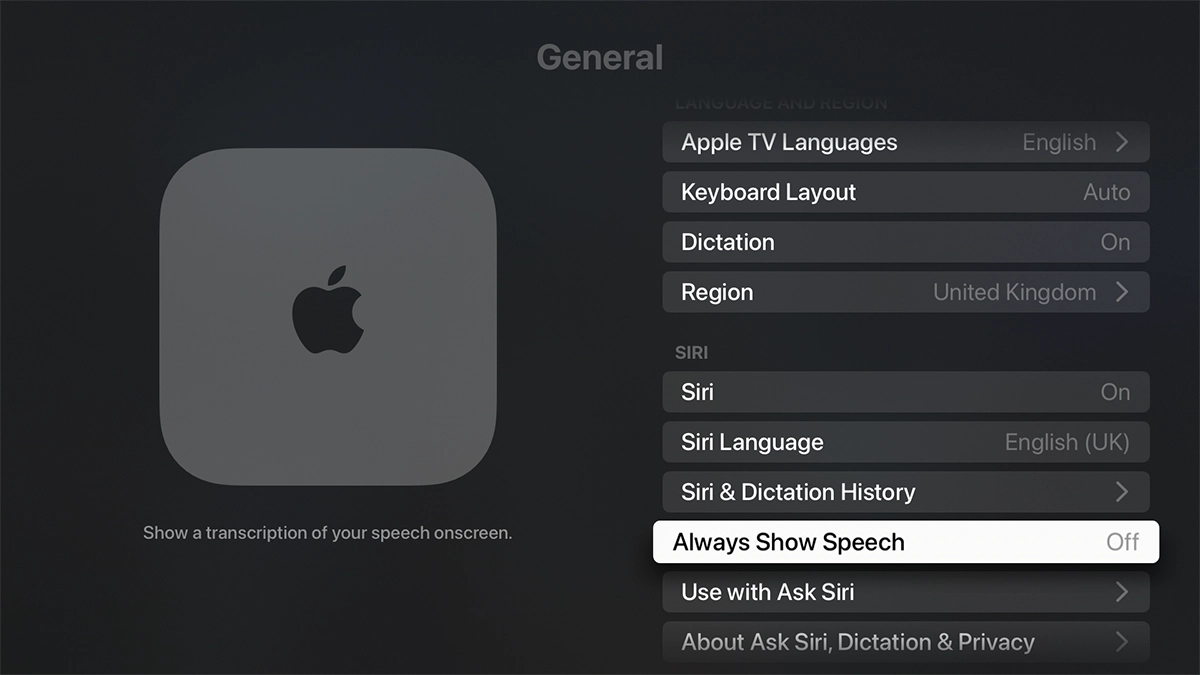
Highlight Always Show Speech.
Step 11 of 13

Highlight Always Show Speech.

Press the Centre key to turn the function on or off.
Step 12 of 13

Press the Centre key to turn the function on or off.

Press and hold MENU to return to the main menu.
Step 13 of 13

Press and hold MENU to return to the main menu.

Get information on...

Or choose...

Show more